Narrow down your search by using filters to discover the most suited course for your student.
Filter Overview
The course search results can be filtered based on various factors. Using the filters will help you find out the course that fits your situation on circumstances. Whether you want a course in a particular city, or accepting a particular English Proficiency score, you have the flexibility to adjust them. Filters can pin down the search results on the basis of:
Student Location
Campus Location
Course Type
English Proficiency
Intake Availability
Course Duration
Course Fees
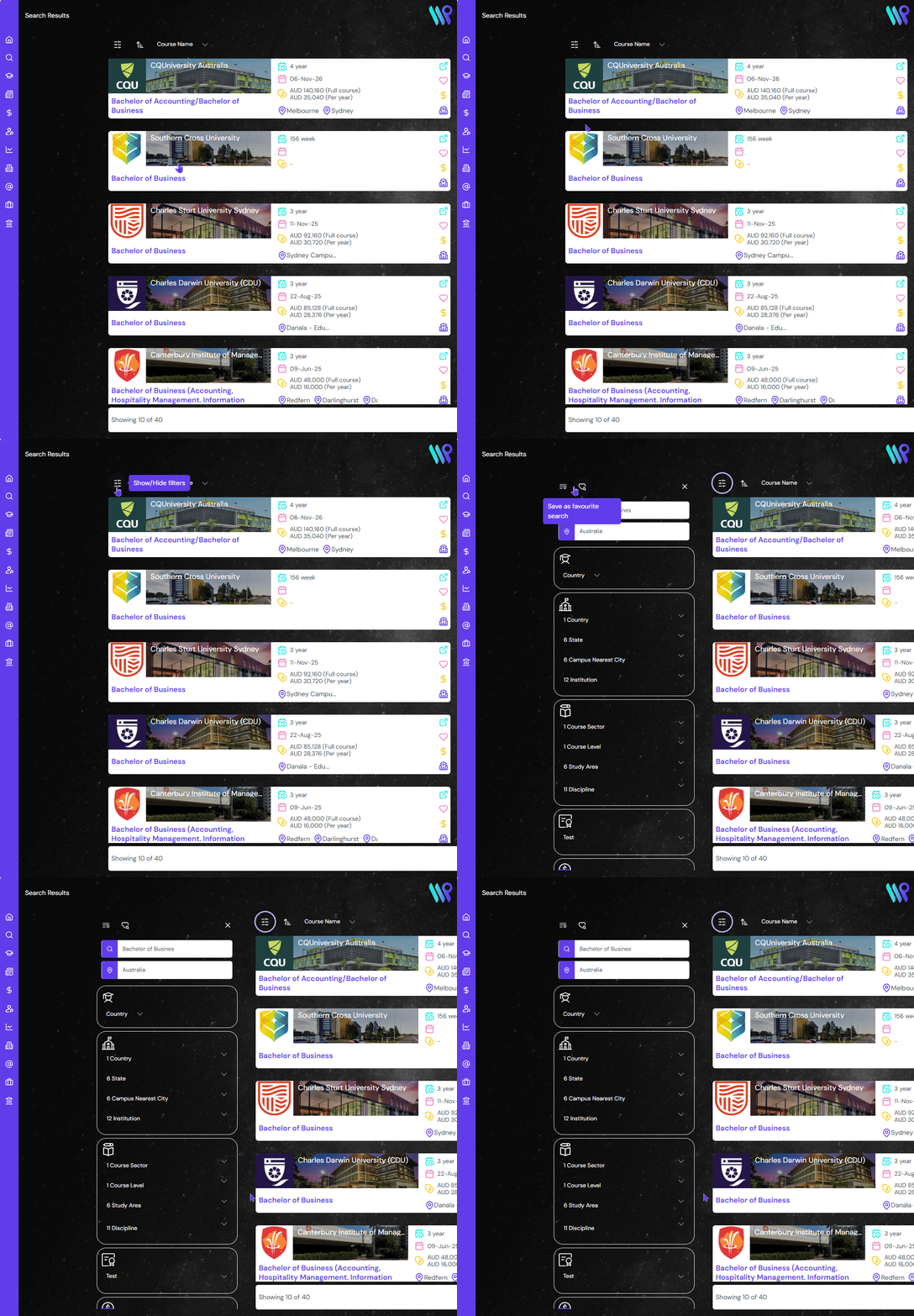
Click on the Filter Icon at the top left corner to make the filter pane appear on the left.
At the top you will be able to see the values you used in Quick Search to get this Search Results. If you want you can change those value there as well.
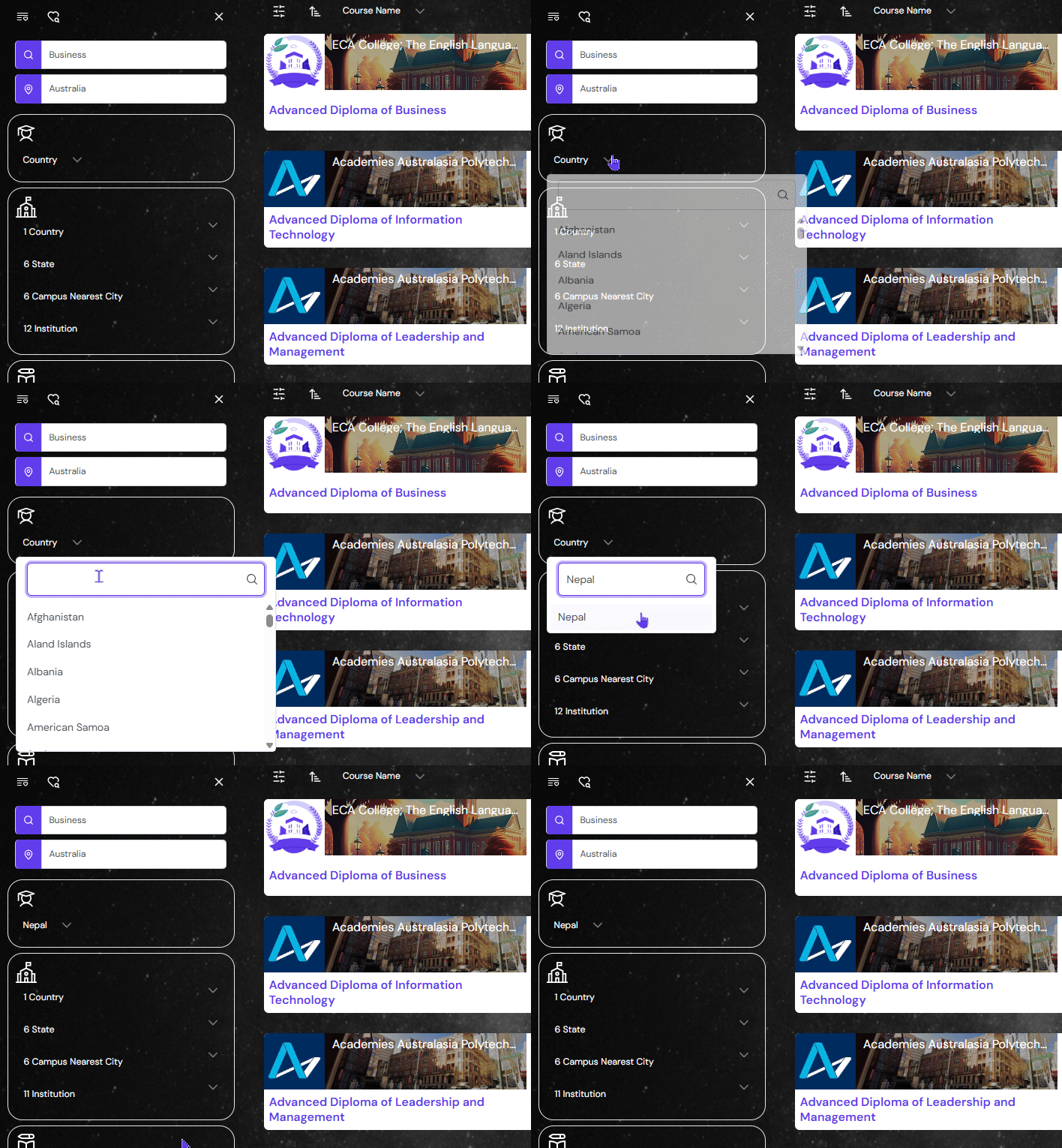
Student Location
The first filter is the student location. This is the current location of the student and not the nationality of the student. Select where the student is at the time of application processing.
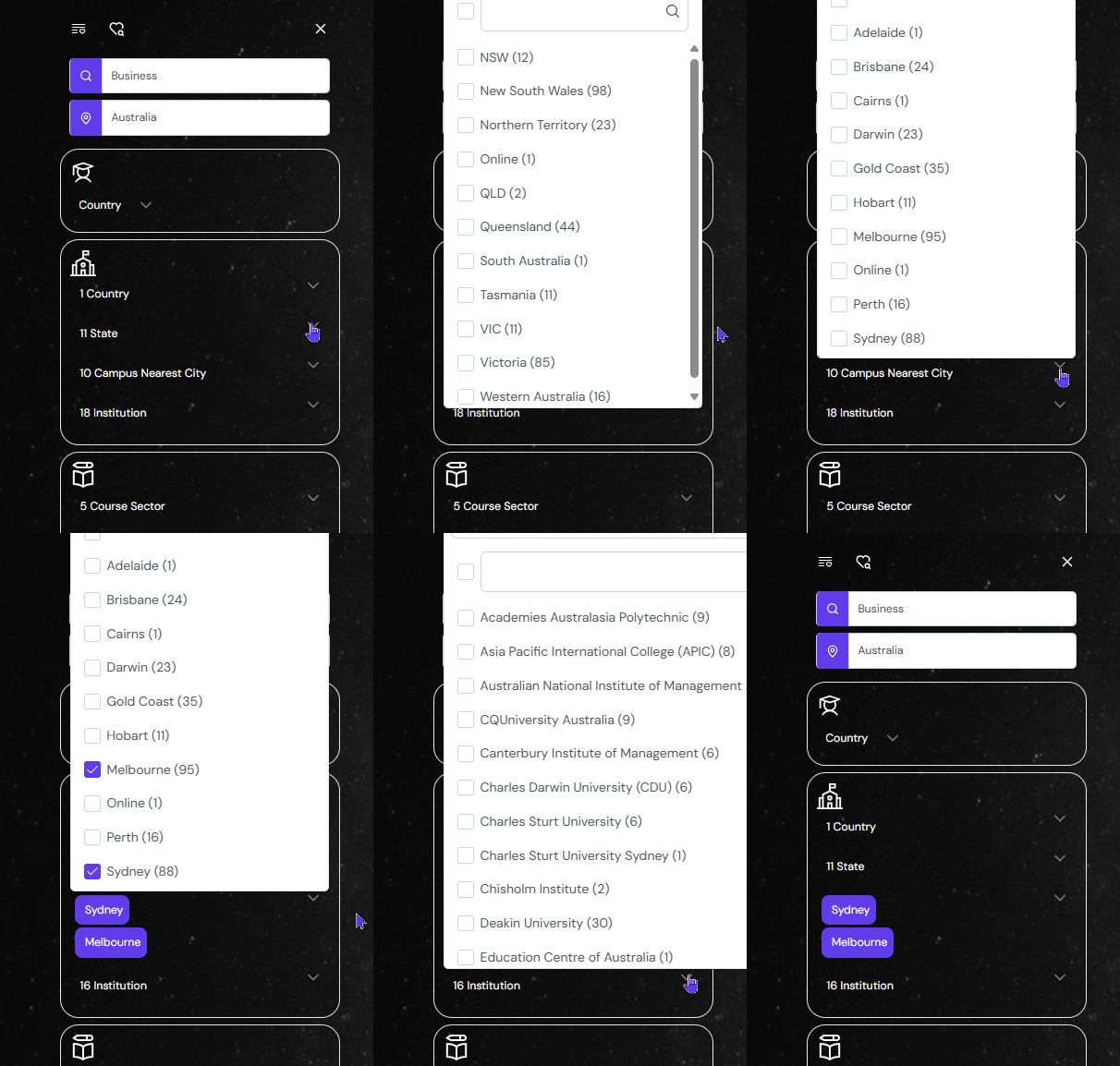
Campus Location
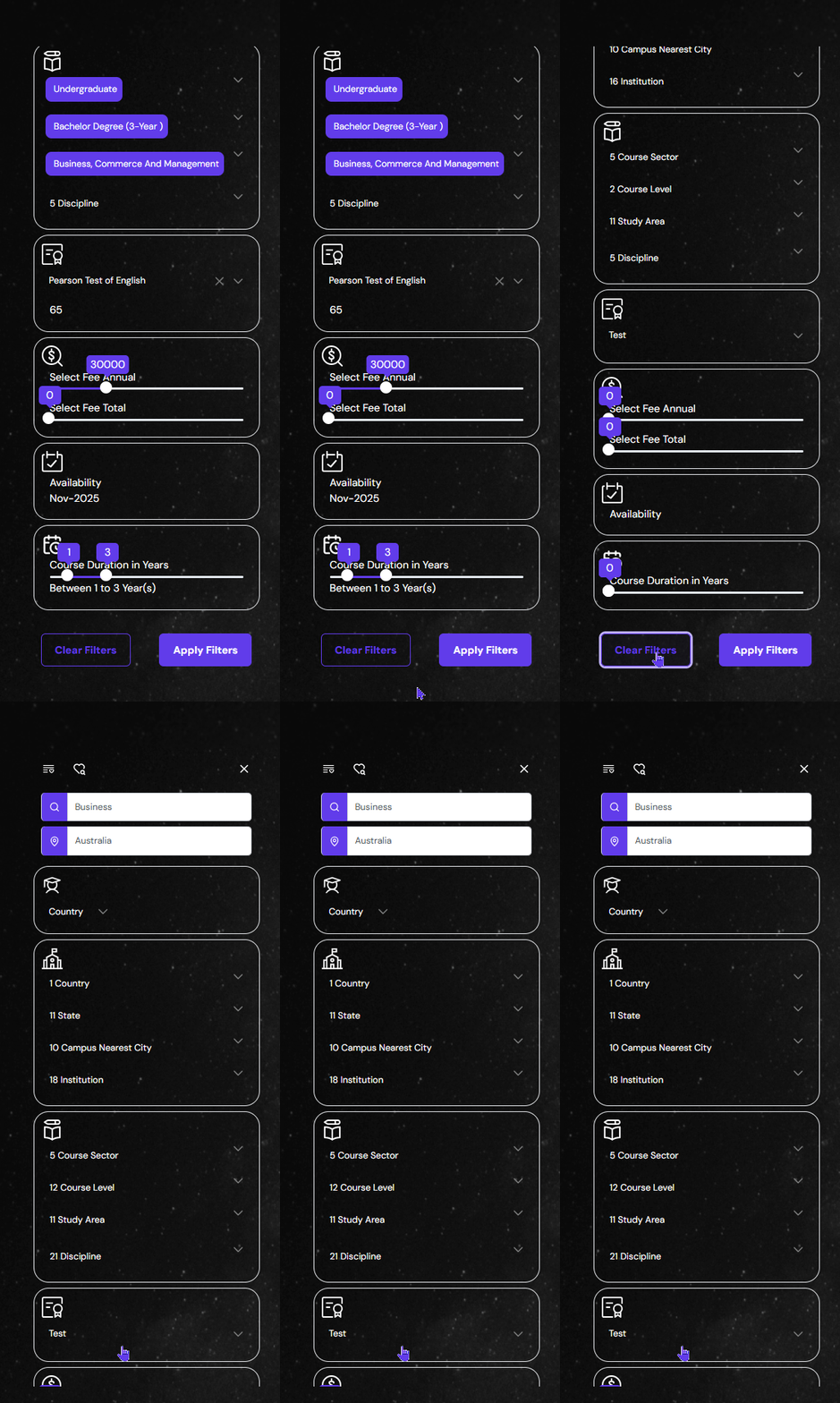
Here you can select the institution’s location using the filter. It can be narrowed down from a country to the institution. As the filters are nested, the following filter will only show options based on the previous filter.
Course Type
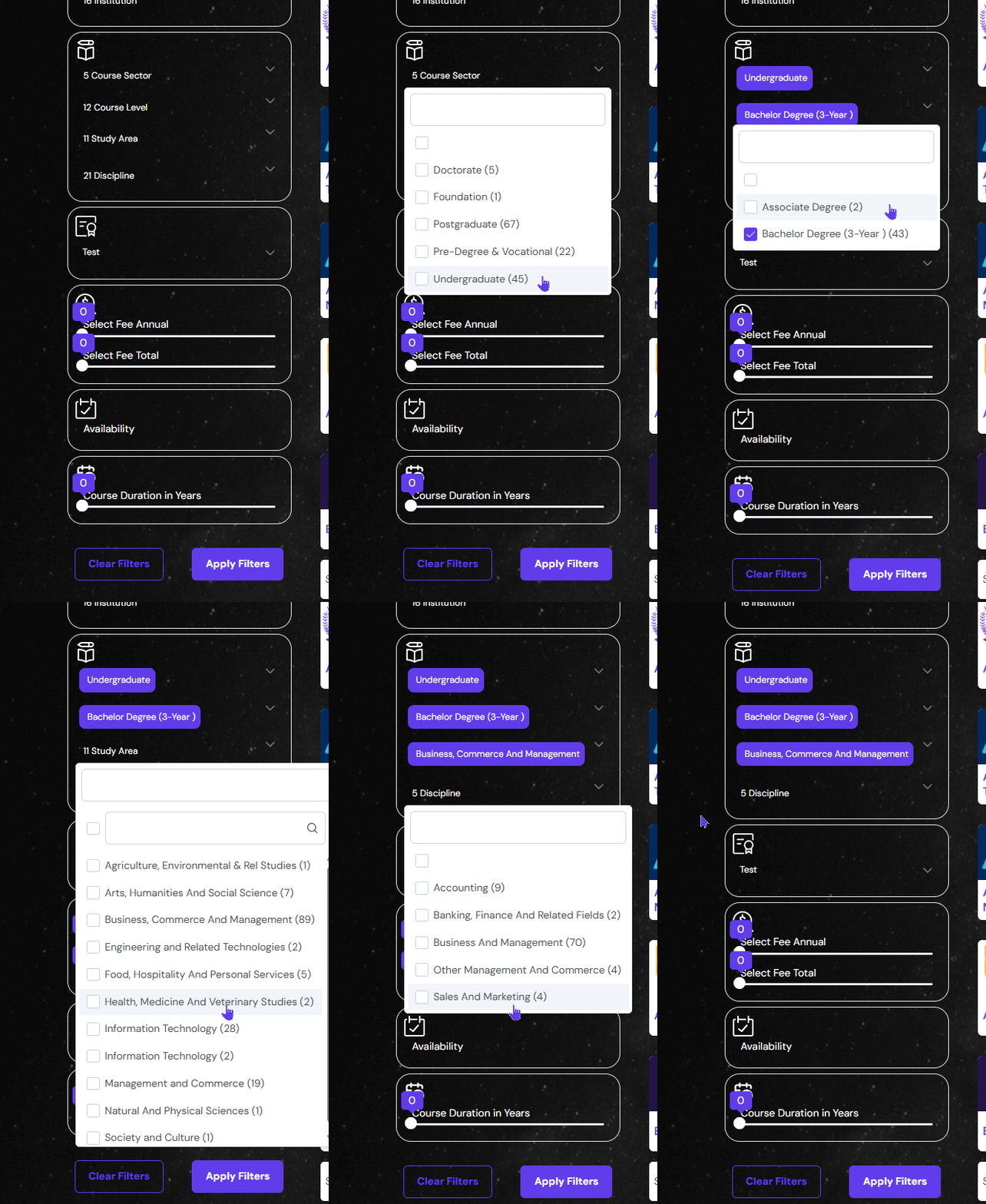
Here you can filter for Course Sector, Course Level, Study Area or Study Discipline.
Couse Sector are broader group of levels like Pre Degree and Vocational, Undergraduate, Postgraduate
Course levels are different type of levels like Diploma, Foundation, Associate Degree, Bachelors, Masters
Study Area are field of education like Hospitality, Business and Management, Engineering, IT etc.
Disciplines are the branches of study area. For instance, Marketing is a Discipline under Business and Management Study Area
English Proficiency
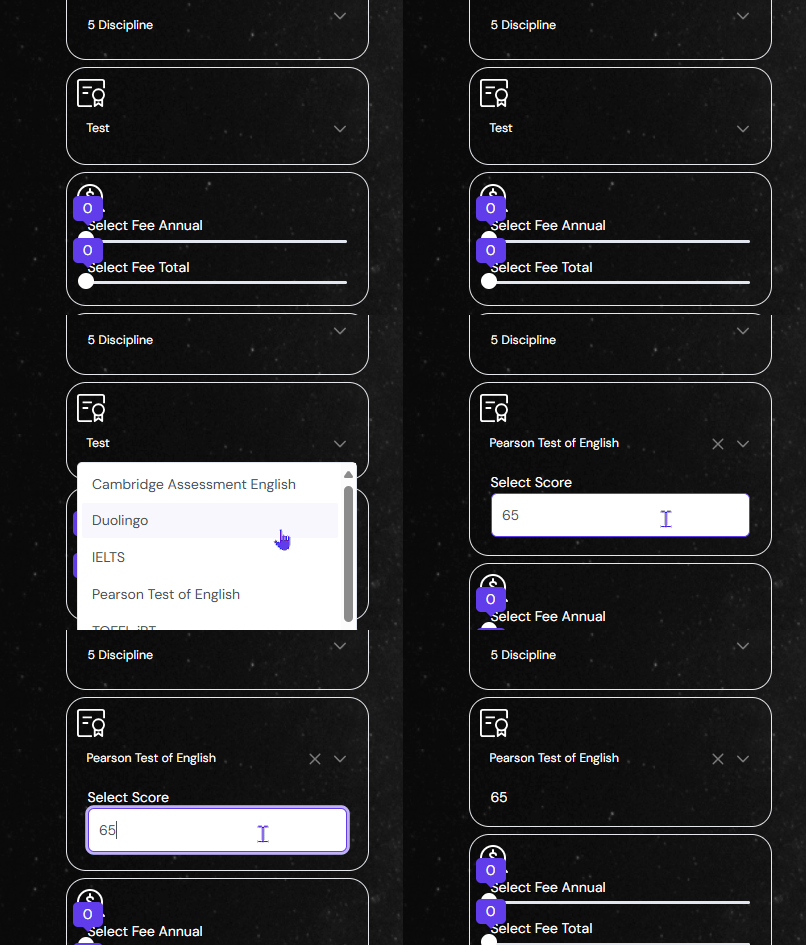
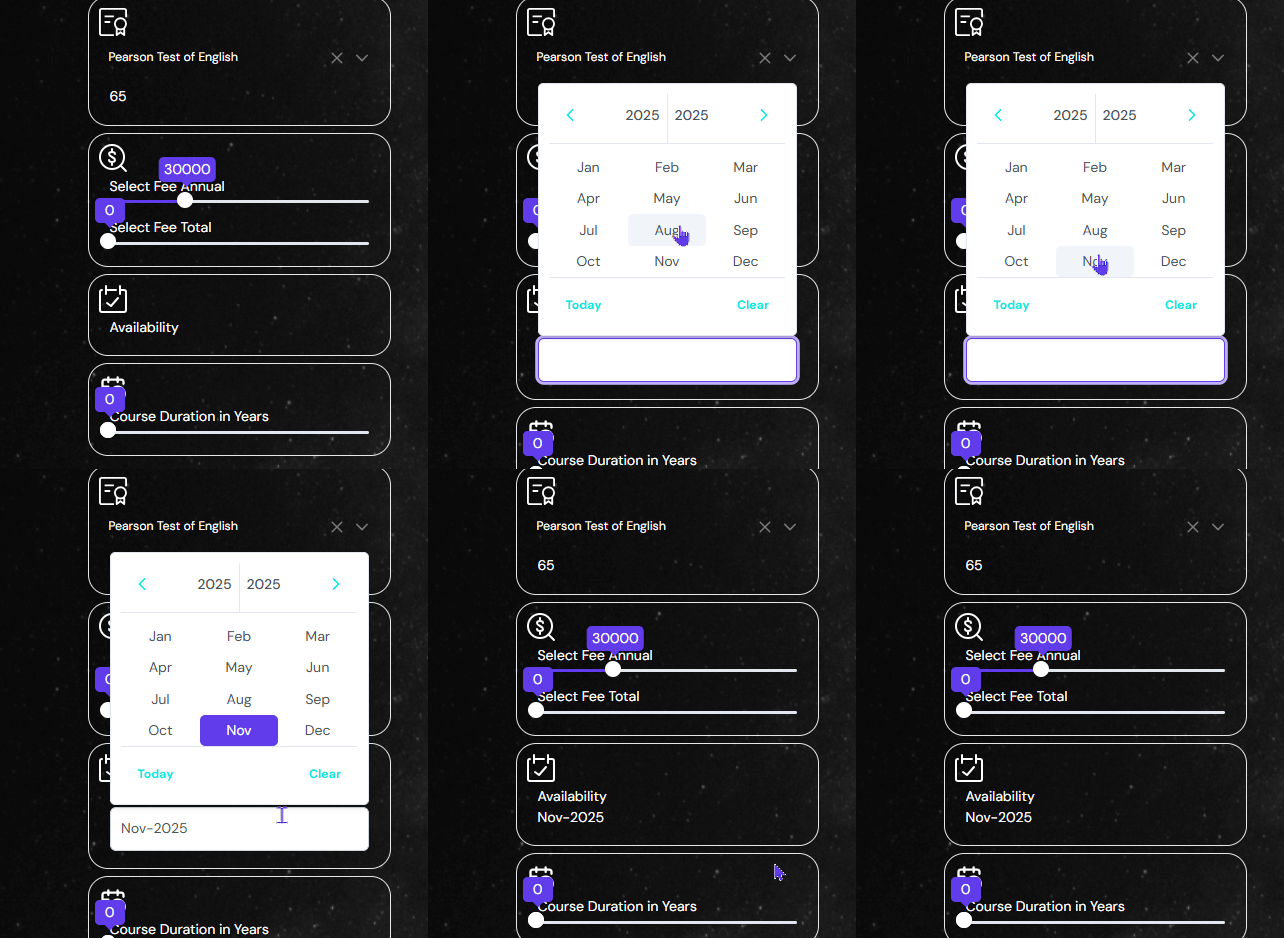
Select the type of English Proficiency Test the student has given and type the overall score. Searching with this filter will only display course that will accept this score.
Course Fees
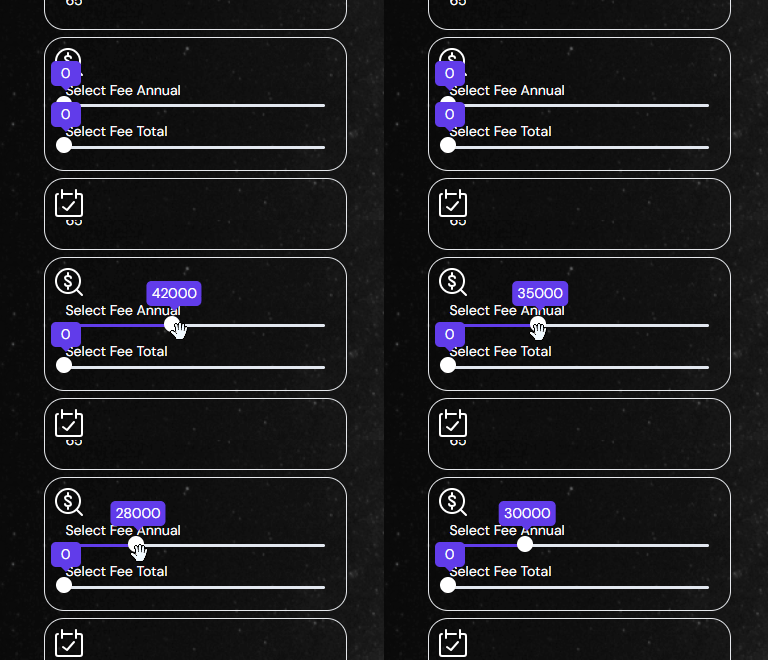
The course fee filter is of two types – Annual Fees and Total Fees. Drag the dot to define the maximum fees. You will be able to see the results up to that fee only. Anything beyond the defined point will not be displayed. You can do the same for total fees.
Intake Availability
This filter will help sort out the course as per the course start date. Select the month and year to see courses starting around that time frame.
Course Duration
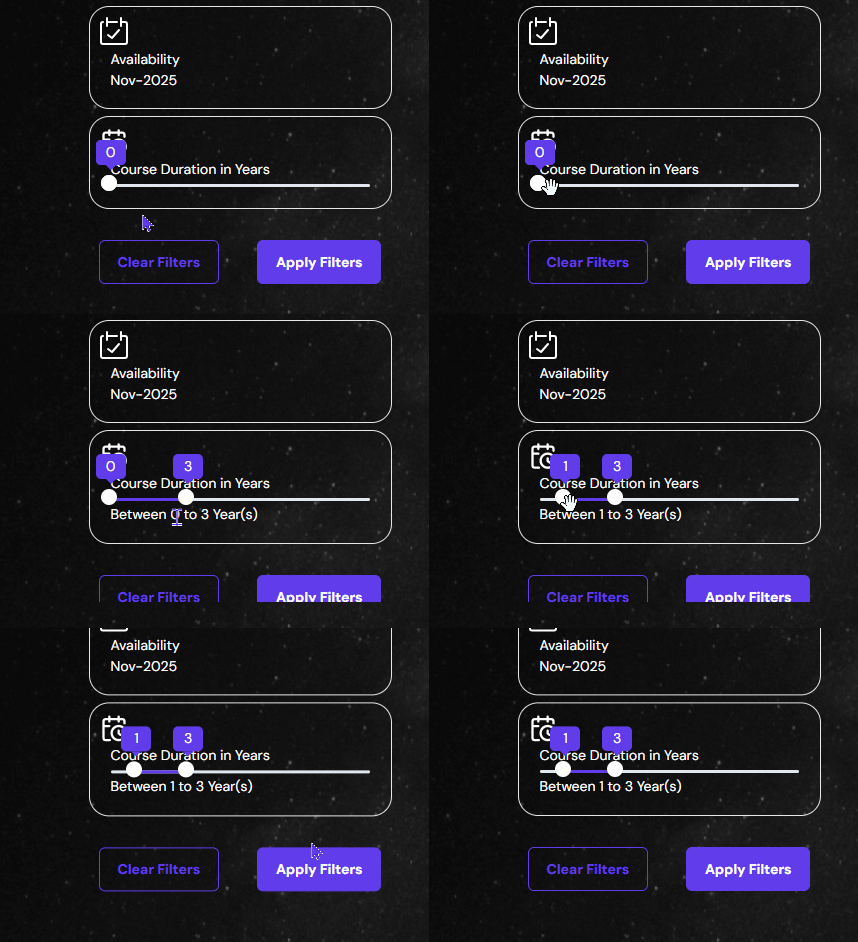
The course duration can be defined by scrolling the two dots on a Bar. The first dot determines where to start from and the last dot determines when to end. In the given example the system will search for courses whose difference are from 1 year to 3 years.
Apply or Clear Filter
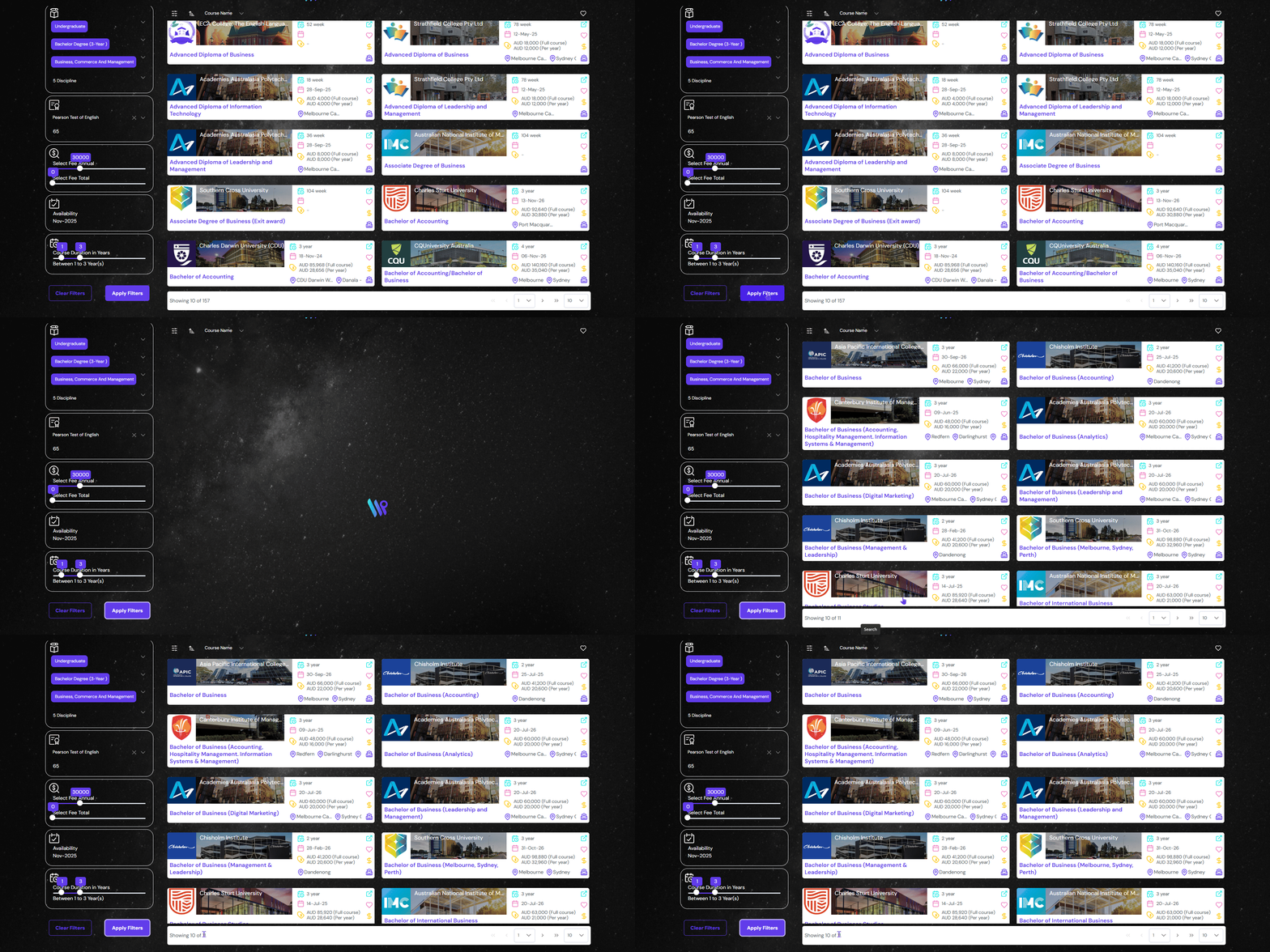
Click on Apply Filters to set the filter. The search results will change with the filters applied.
In case you want to reset or undo the filters, click on Clear filters. This will also reset the search results.