Manage the student process, change stage and status to stay updated with the most recent action on your student record
The Progress Bar
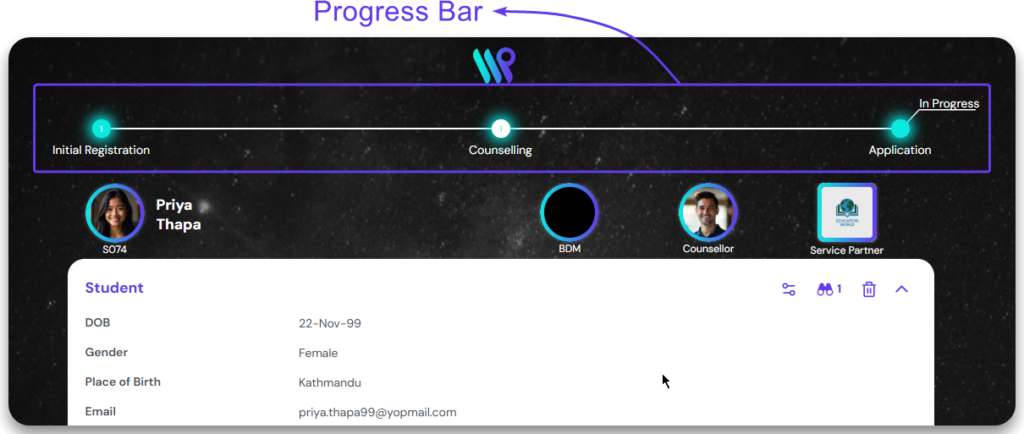
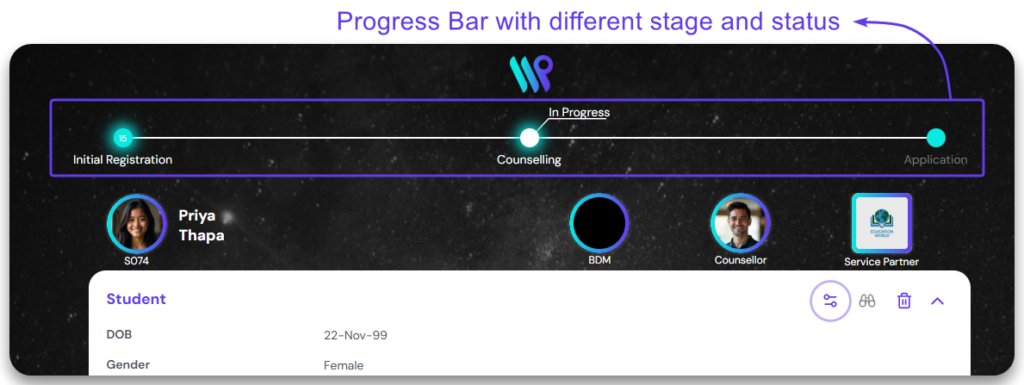
The progress bar denotes the Stage and Status of the any record that has a process. This has to be enabled and set from the admin console. However, this totally depends on how your company has setup this system. The progress bar is not a mandatory component you have to use. If you company has set up a system for the student record, it will give you a detailed information of the where the student is in the process.
The below illustration is considering that your organization has set up the process for student record. Also, the process is the default process setup on the system and might defer to one your company has set up. There could be multiple processes set up considering different situations. An assignment rule is set based on the condition so that when the student is created, right process is automatically selected.
The progress bar can be seen at the top of the student record. Depending on the assignment rule you have set up, the progress bar should be automatically set.
Change the Student Process
Change the process of your record
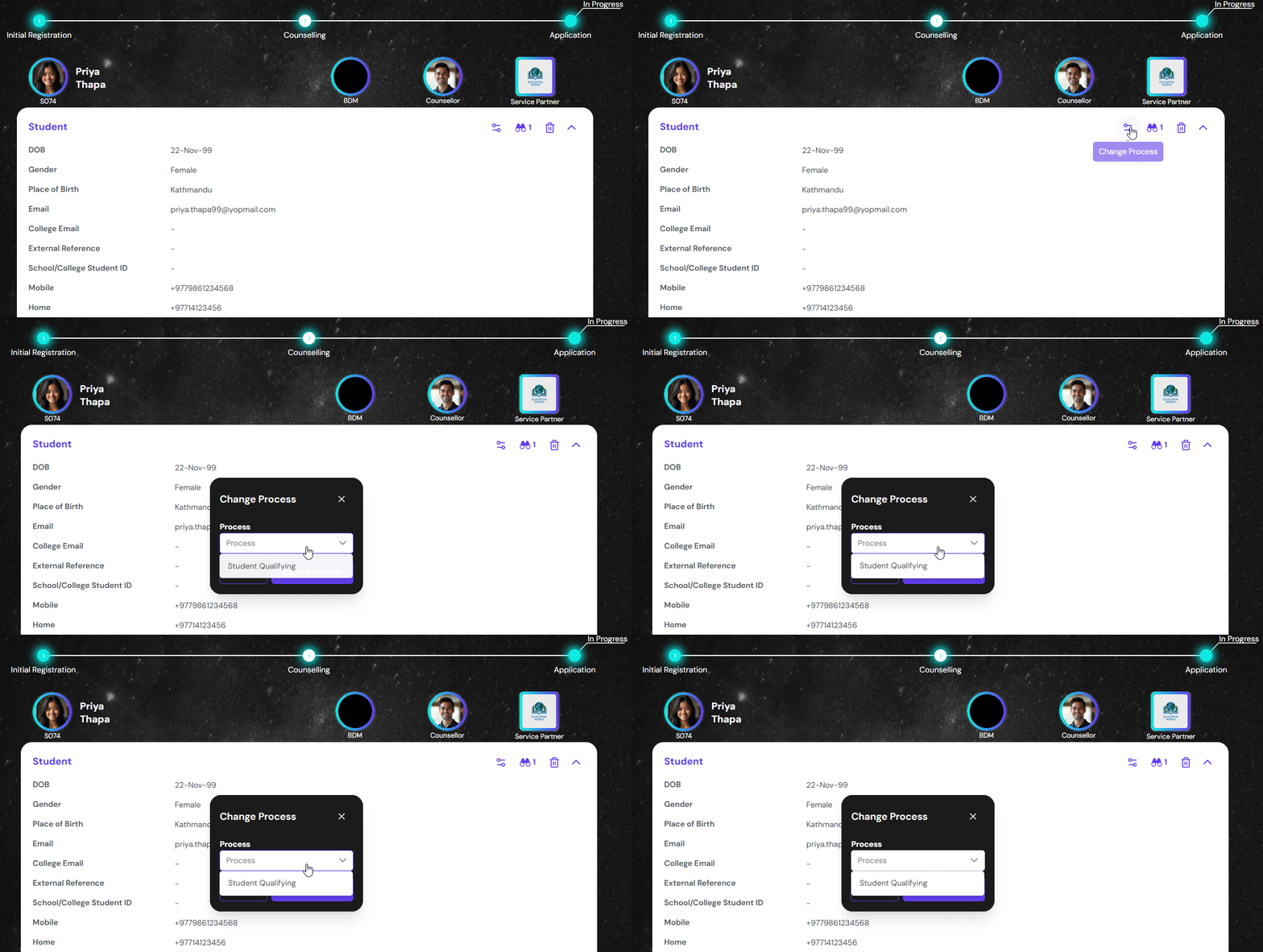
Click on the ‘Change Process’ button on the controls. This icon will be active if you have selected a process for the student record. Else, it will be inactive.
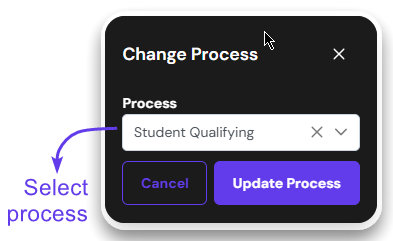
Select the process from the dropdown. The selected one will appear on the field like show on the image.
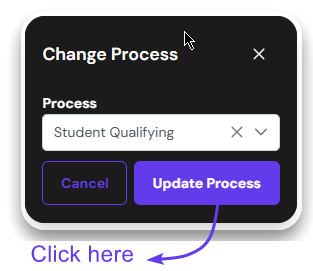
Click on ‘Update Process’ button. This will change the process, and it will be reflected on the progress bar. If you want to exit, click ‘Cancel’.
The Progress Bar will reflect the stage and the status of the process you have chosen. If there was no progress bar initially, it will appear now.
Changing Stage and Status
The progress bar has multiple stages and statuses. Learn how to change it so that you are aware of where you student exactly is in the process.
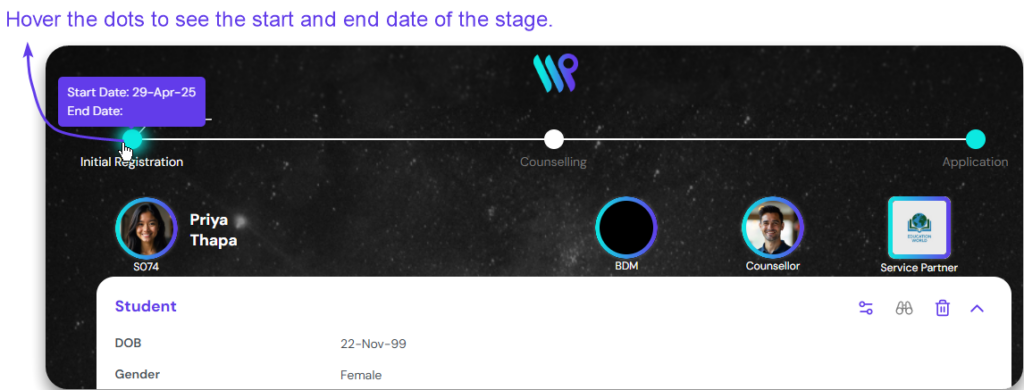
The Progress bar generally starts with the default status like New or Not Started. Each stage will have a start and end date. Once the stage changes, those dates are automatically tracked by the system. The end of the previous stage is the start date of the following stage.
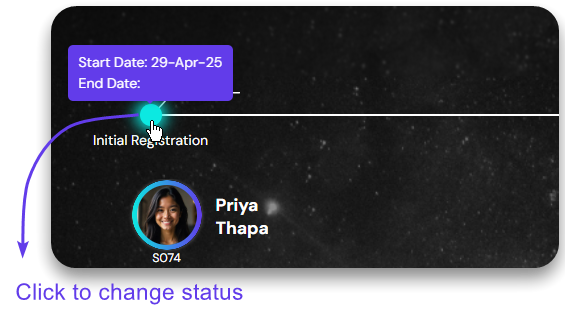
The stage you are on or completed will be shown will the Teel filled color. The future stages will be appearing in White. To change the status, click on the last teel circle.
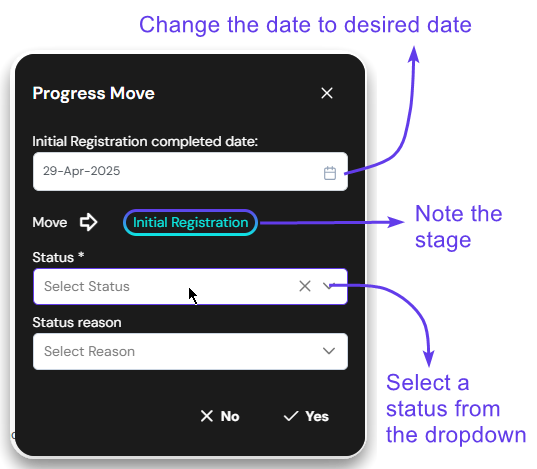
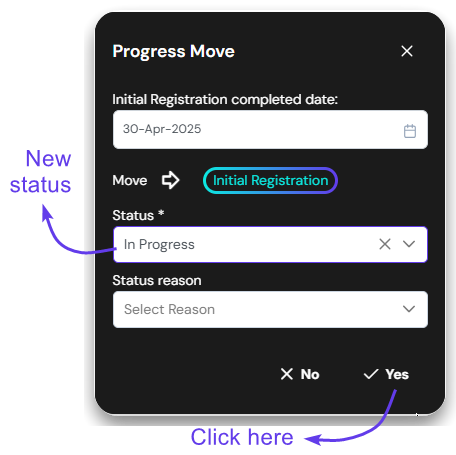
On the pop-up window that appeared, see the date. Change to the date when the status changed. Also note if the stage is correct and select the status from the dropdown.
Click on yes, to save the change. Click no to discard
Two pop-ups appear to confirm that the status change has been successful, and the student record has been updated.
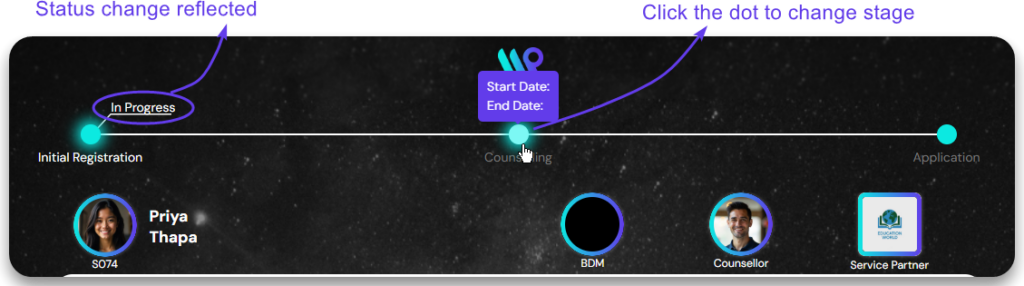
After changing the status, note that it is appearing above the leader line.
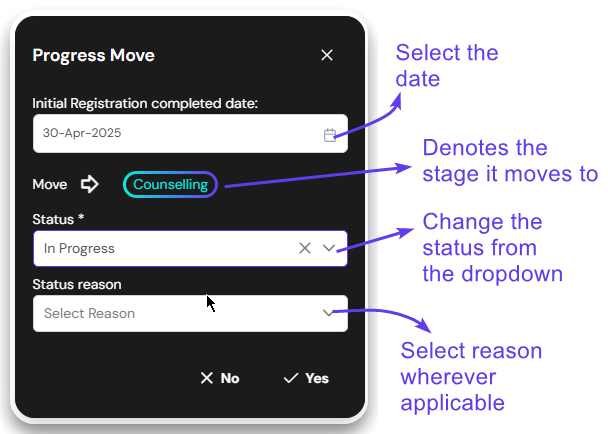
Now, check the stage mentioned under the white dot. Click on it to change the stage of the student record to that stage. Not that this is not the stage change of the application process, but of the student only. In the example below, we are changing the stage from Initial Registration to Counselling.
On the pop-up window that appears, change to the date when the previous stage completed. The movement of the stage is showcased next. Now change the status to appropriate one. If the reason is required, change it accordingly. Reasons are generally applicable in status with negative connotations, like declined and withdrawn.
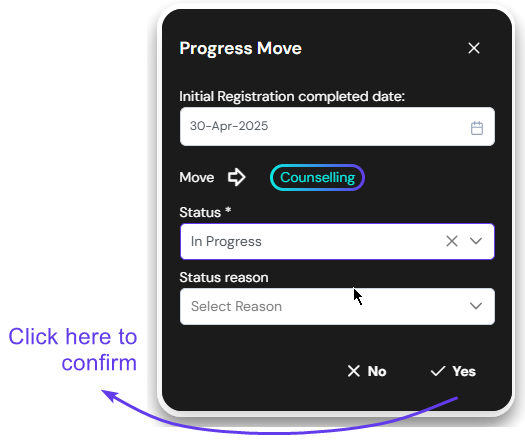
Click on yes, to save the change. Click no to discard
Two pop-ups appear to confirm that the stage change has been successful, and the student record has been updated.