Learn how to read, manage and take action on the lead records.
Lead Record Overview
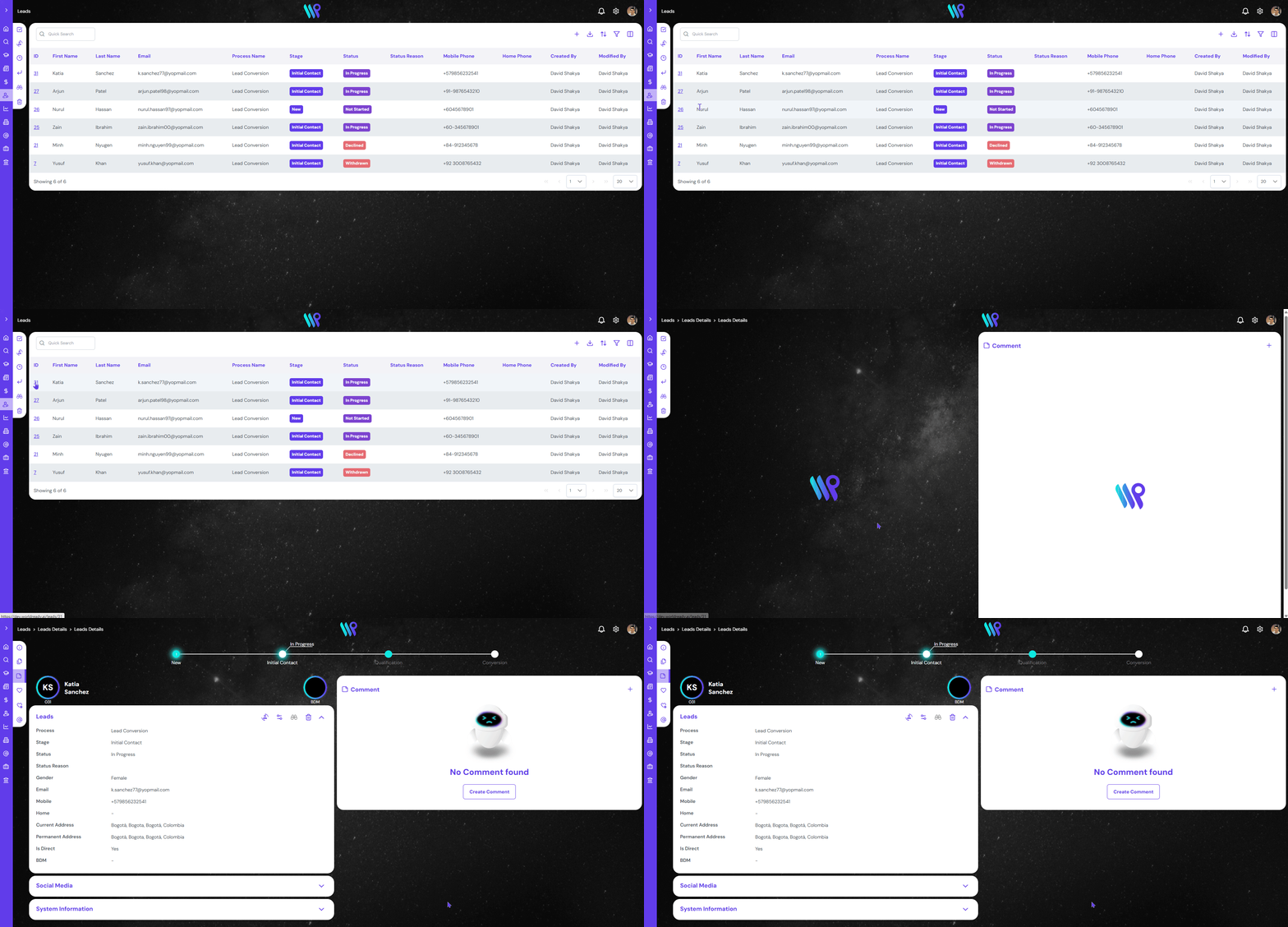
Open to lead record to take action on the lead records, view its components and make the record up to date.
Click Lead ID on the list view to open up the lead record.
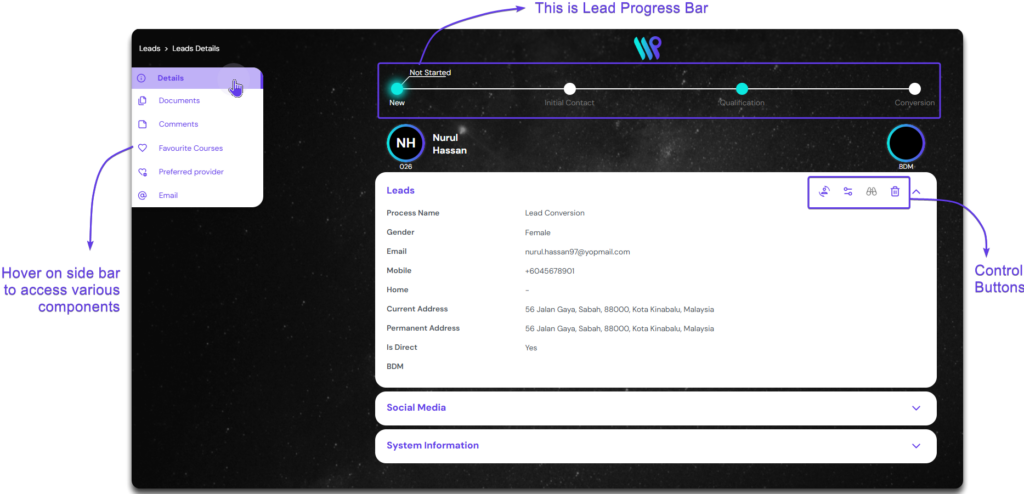
This will open the lead record. Hover on the side bar to expand and access the components. The default landing view is on the comments. Click on ‘Detail’ to get to the view as below.
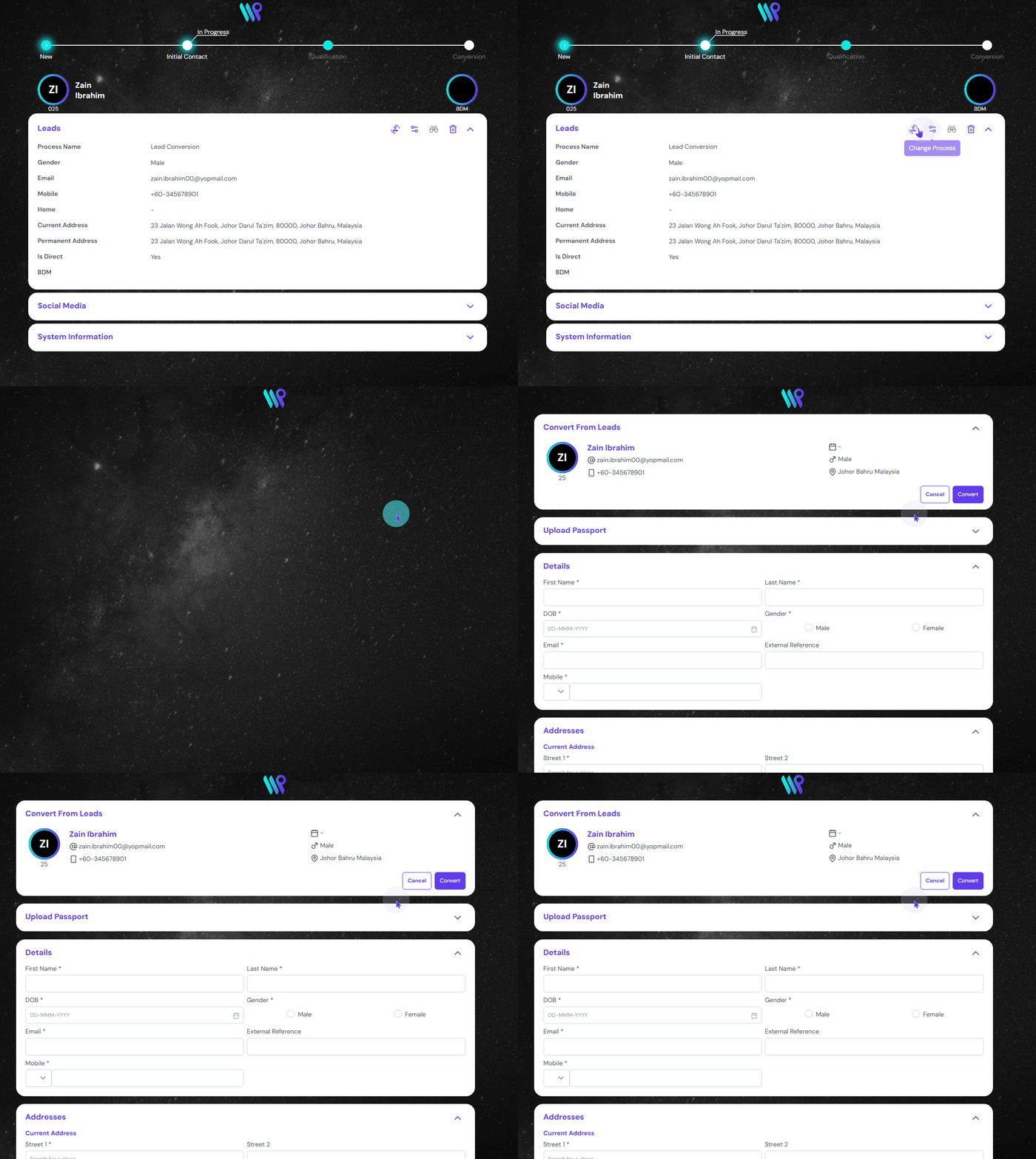
Notice the progress bar at the top, that is the process for handling this Lead. You can change the stage and status of the process from this progress bar which is discussed on Lead Process Management page. We will use the control buttons on this page to manage this lead.
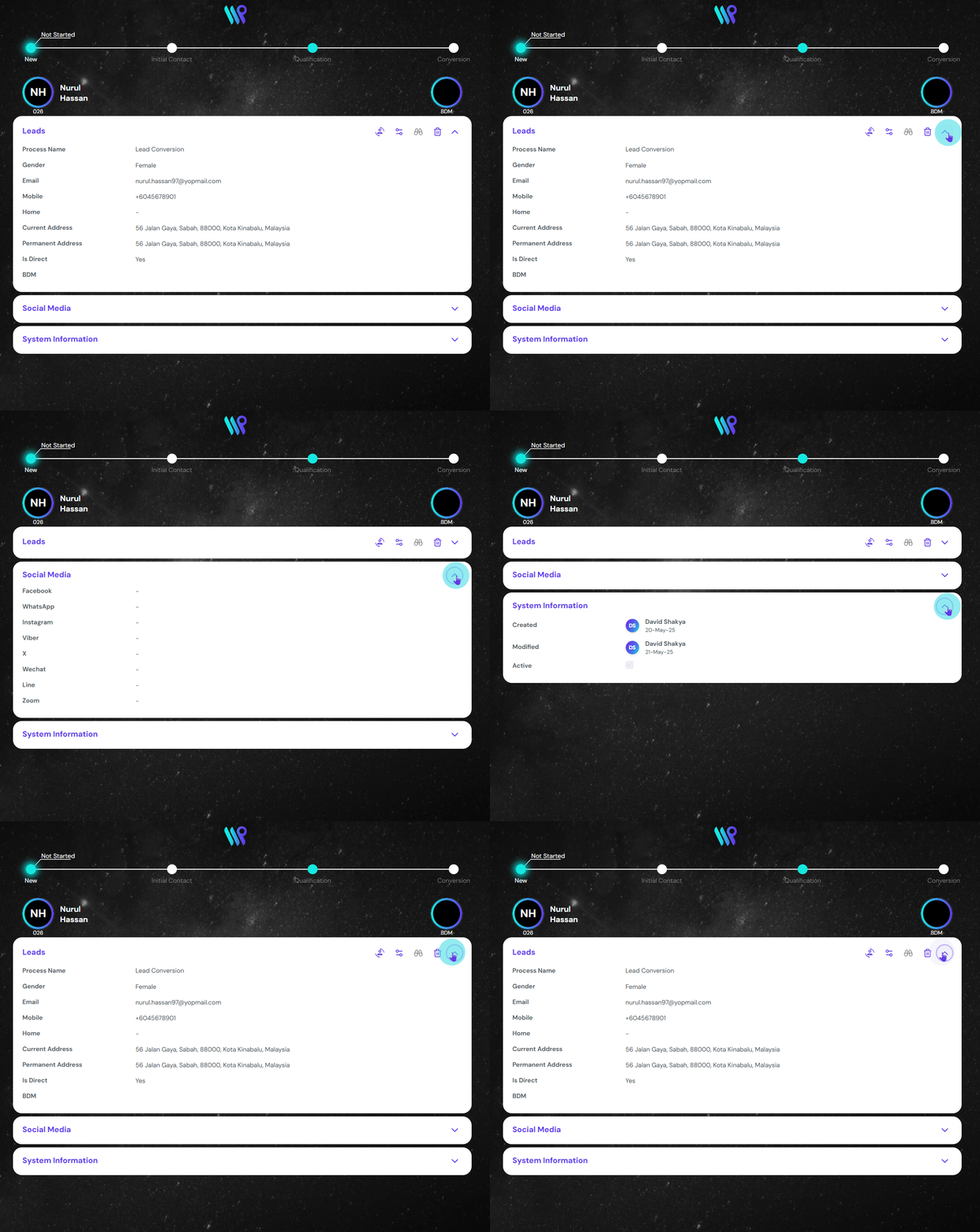
Below the progress bar and the photo bar, you will be able to see the lead records details. There are other two sections – Social Media and System Information. They are collapsed by default. You can click on the expand icon to open them up.
Watch a Lead Record
Watch a lead record to subscribe to notification of changes and updates to the record.
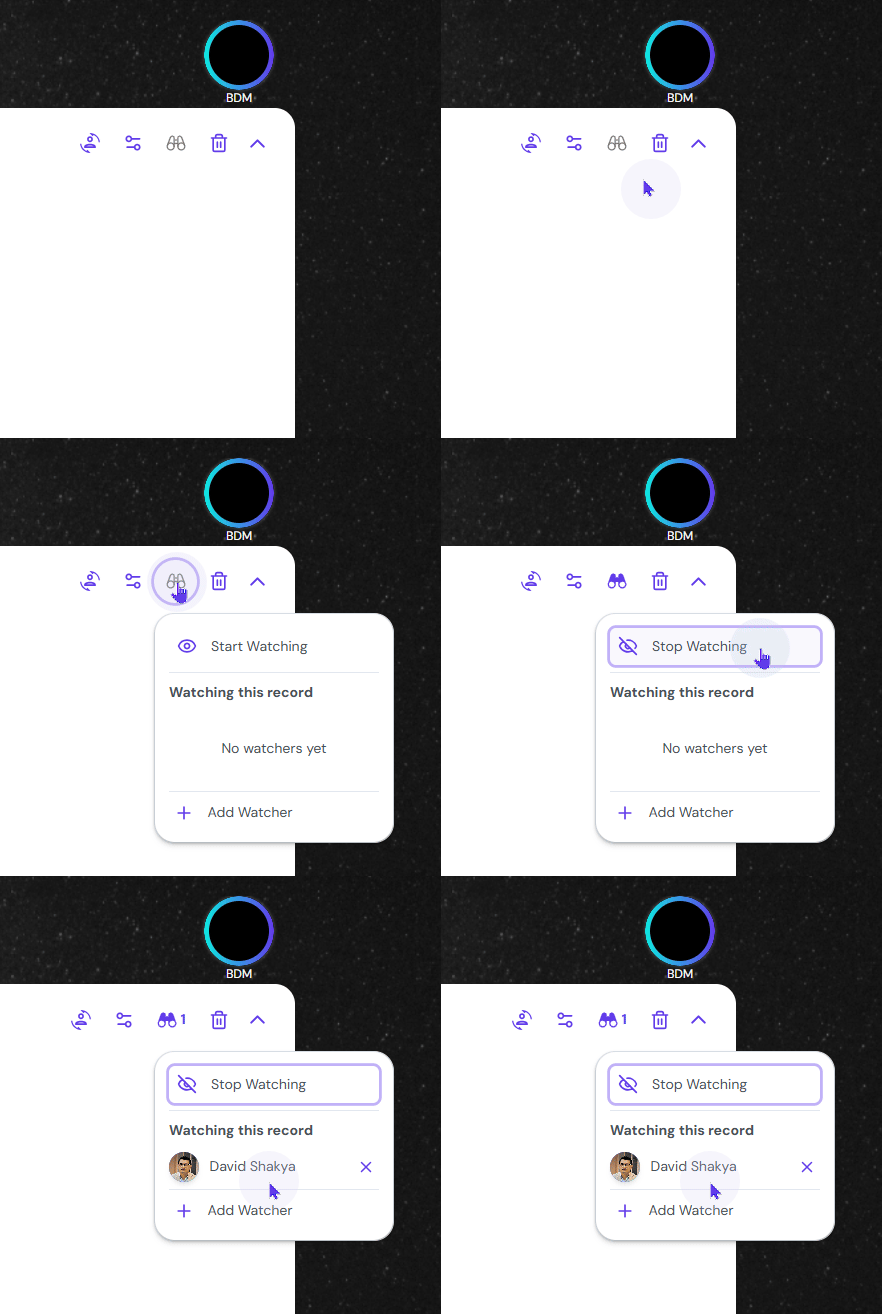
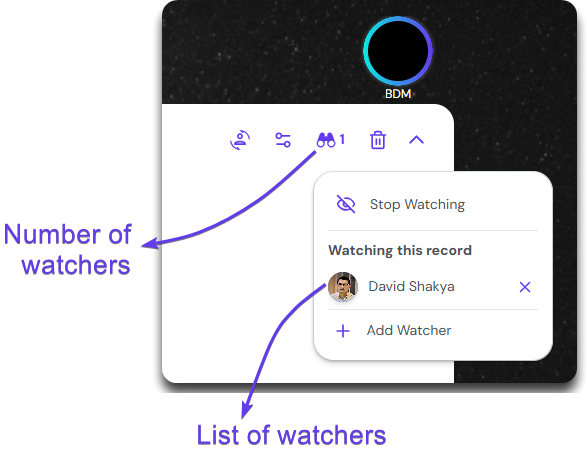
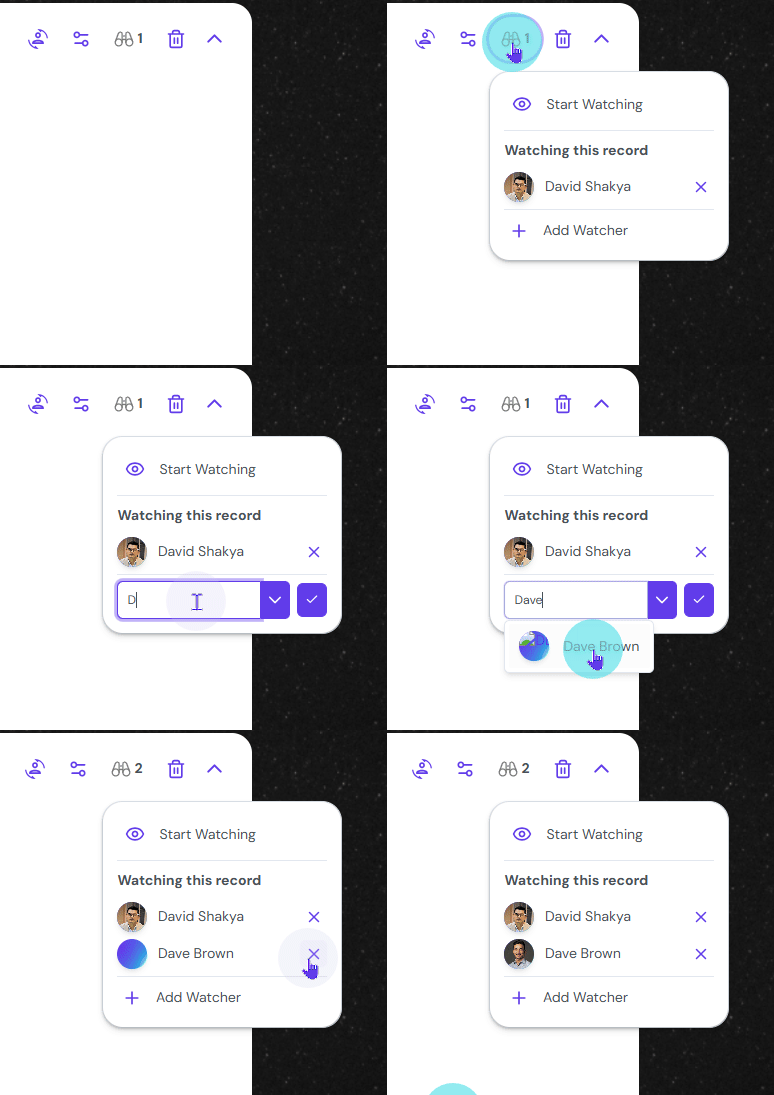
Click on the binocular icon from the Control buttons. Click on ‘Start Watching’, to add yourself as the Watcher of this record.
All the watchers will be listed under “Watching this record”. The number of users watching the record is also displayed next to the binocular icon.
You can add additional watchers to this record by clicking on the ‘Add Watcher’. Type the username in the search bar or use the drop down to select the user you want to add.
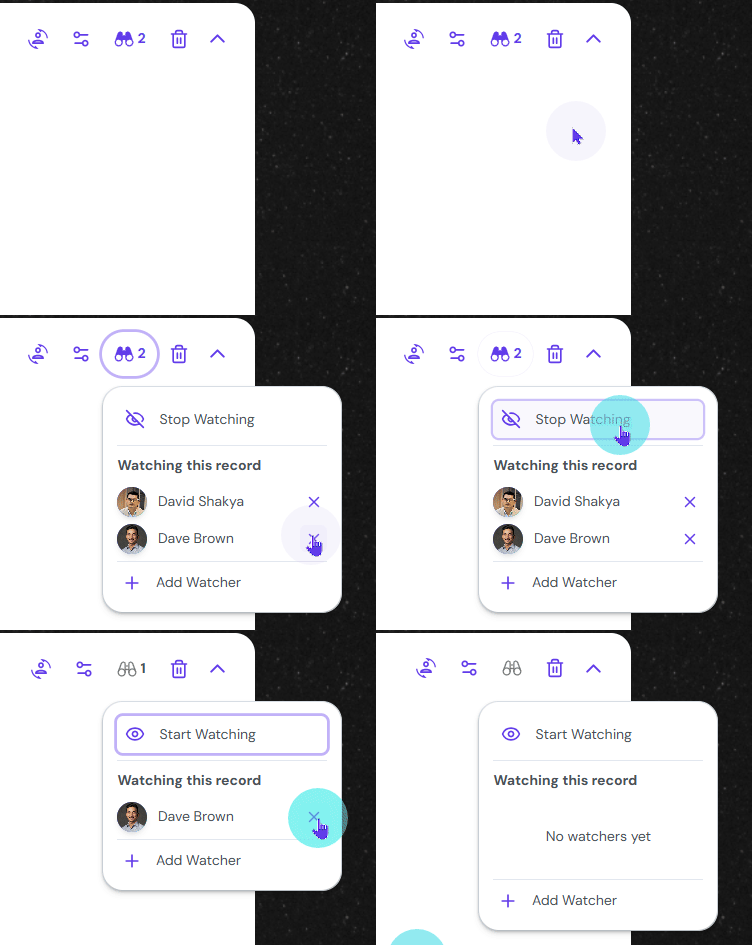
Click on the Stop Watching at the top to stop yourself from watching this record. Performing this action will opt you out from any notification being triggered if the record changes.
To remove others, click on the cross icon. They will not be receiving notification for the record any longer.
Deleting a Lead Record
Learn how to delete and retrieve a lead record.
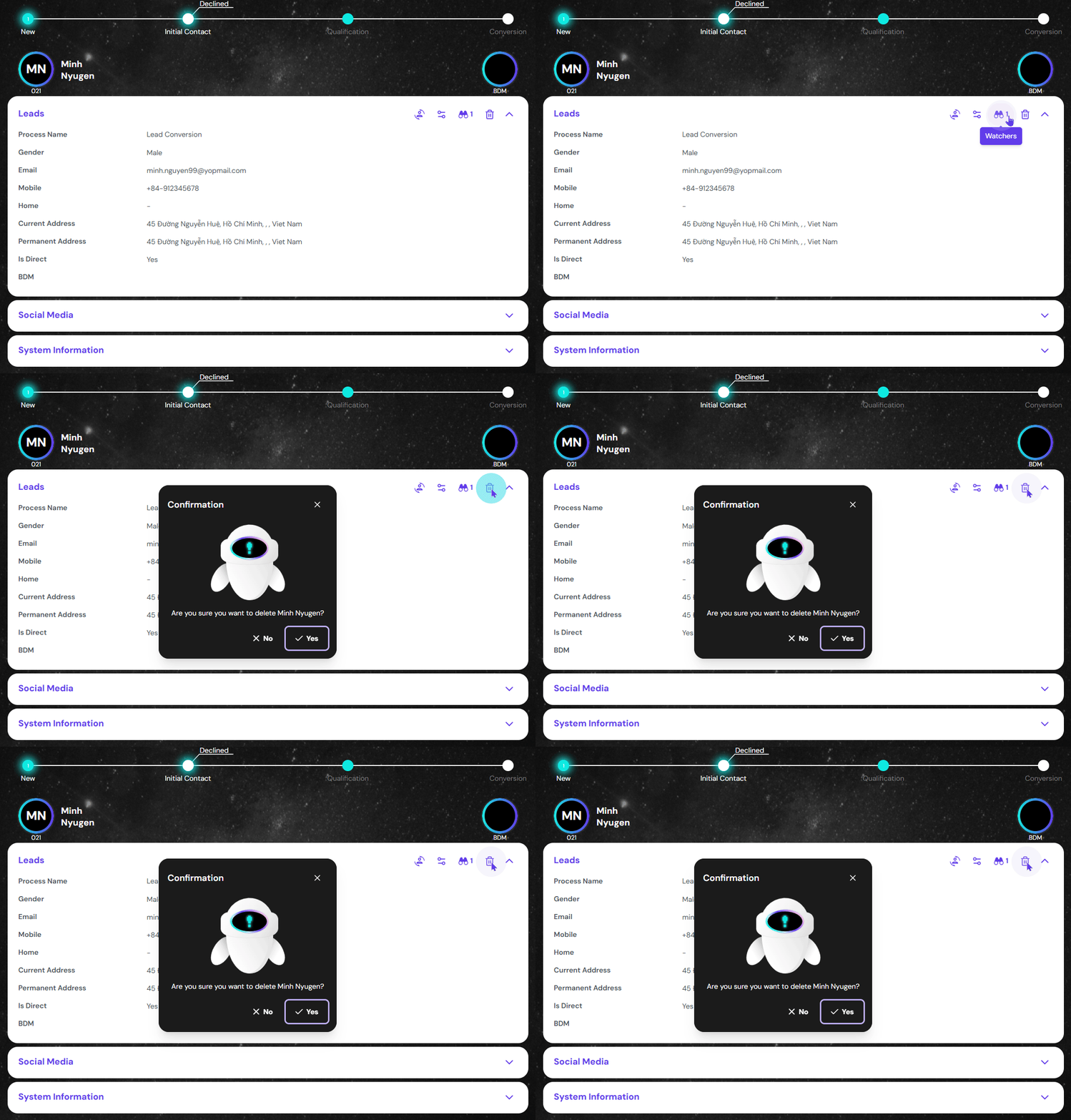
Click on delete icon on the Control Buttons to delete the record.
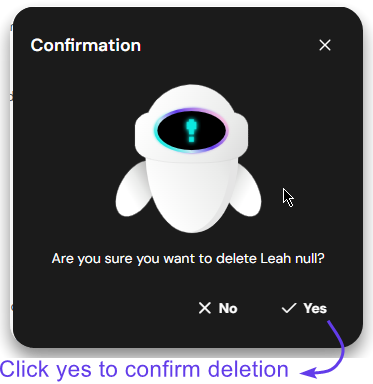
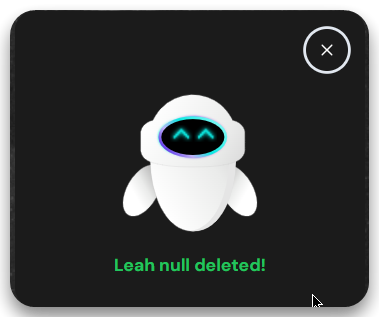
Another pop-up appears to confirm the deletion. Once deleted, you can see the control buttons will be removed and you will one be able to see restore button.
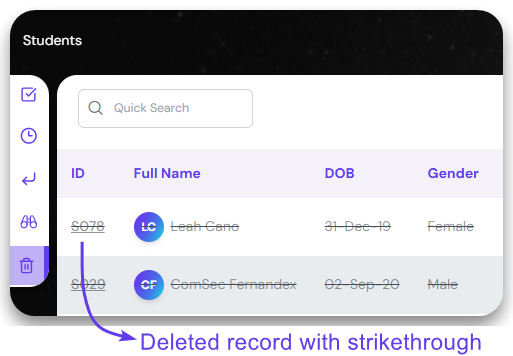
The deleted records can be access from the ‘Deleted’ section of the sider bar. The record will appear with strikethrough denoted it was deleted.
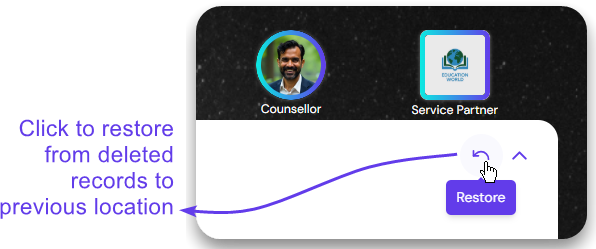
Open the deleted record by clicking on the ID. Click on the Restore button to undo deletion. The record will be moved to previous respective location.
Convert a Lead Record
Convert the lead into student and start the application process.
Click on ‘Convert to Student’ button on the Control Buttons. It will direct you to ‘Create a Student’ form. See the steps after this in ‘Convert from Leads‘ section on Create a Student page.
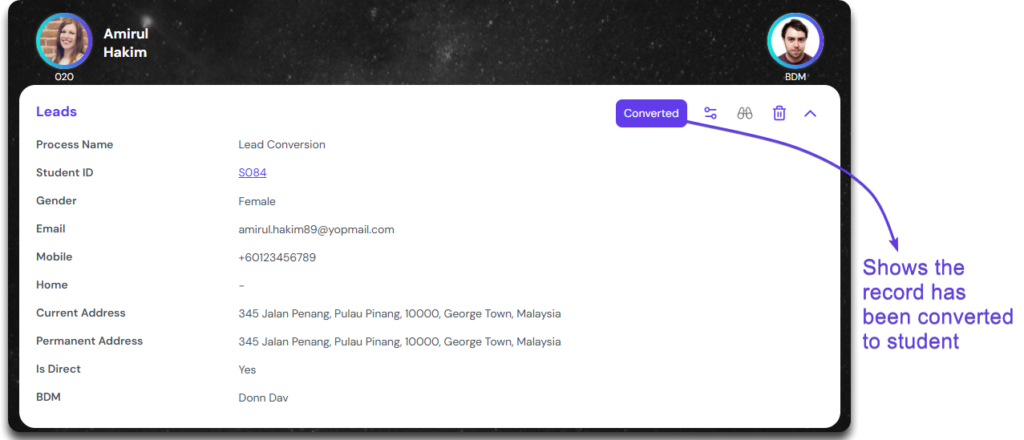
Once this process is done, the record can be found in ‘Converted’ section and the record will be labelled ‘Converted”.
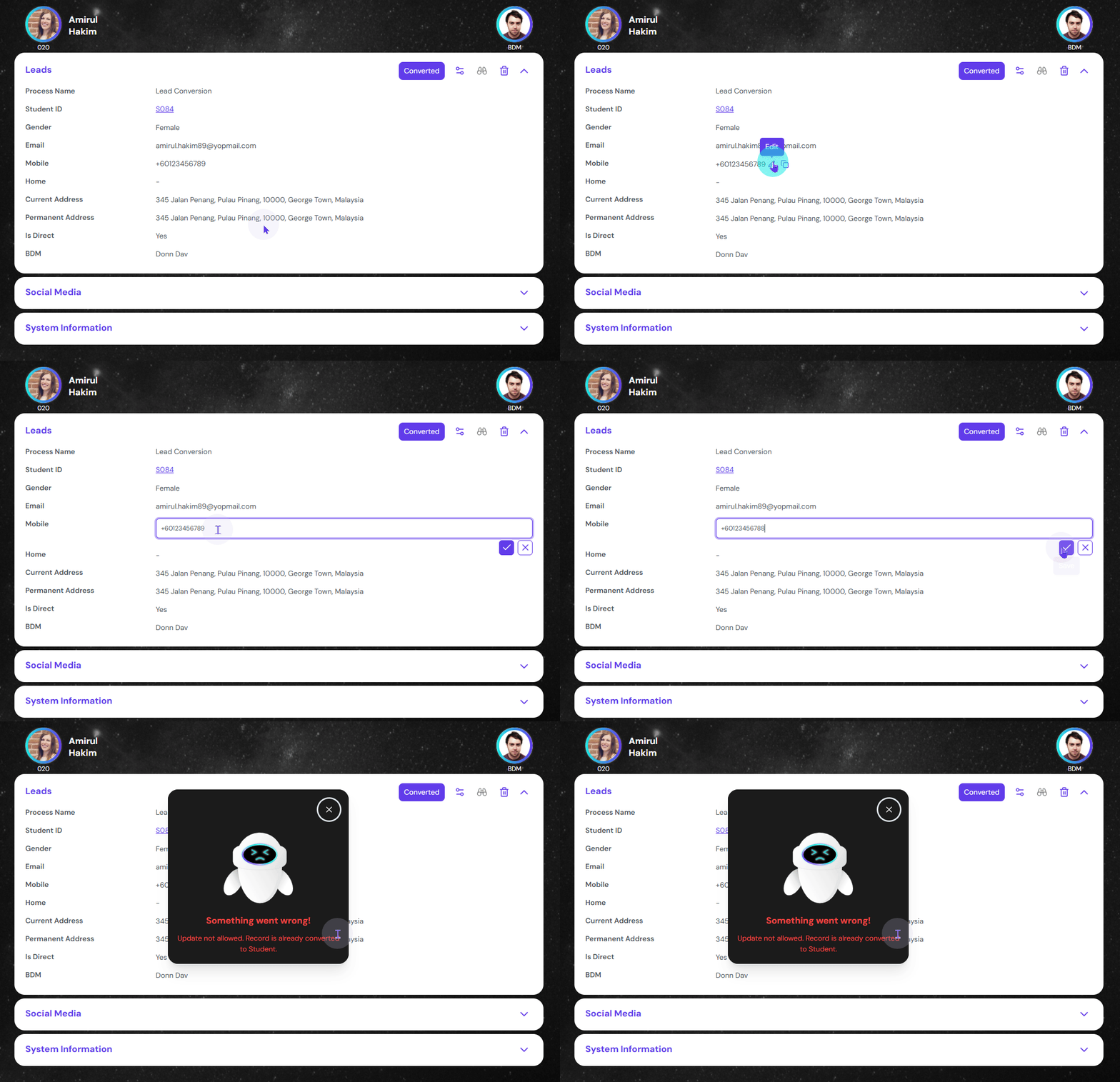
Once the record has been updated, you will not be able to make any changes to the record. If tried, following error message will appear.