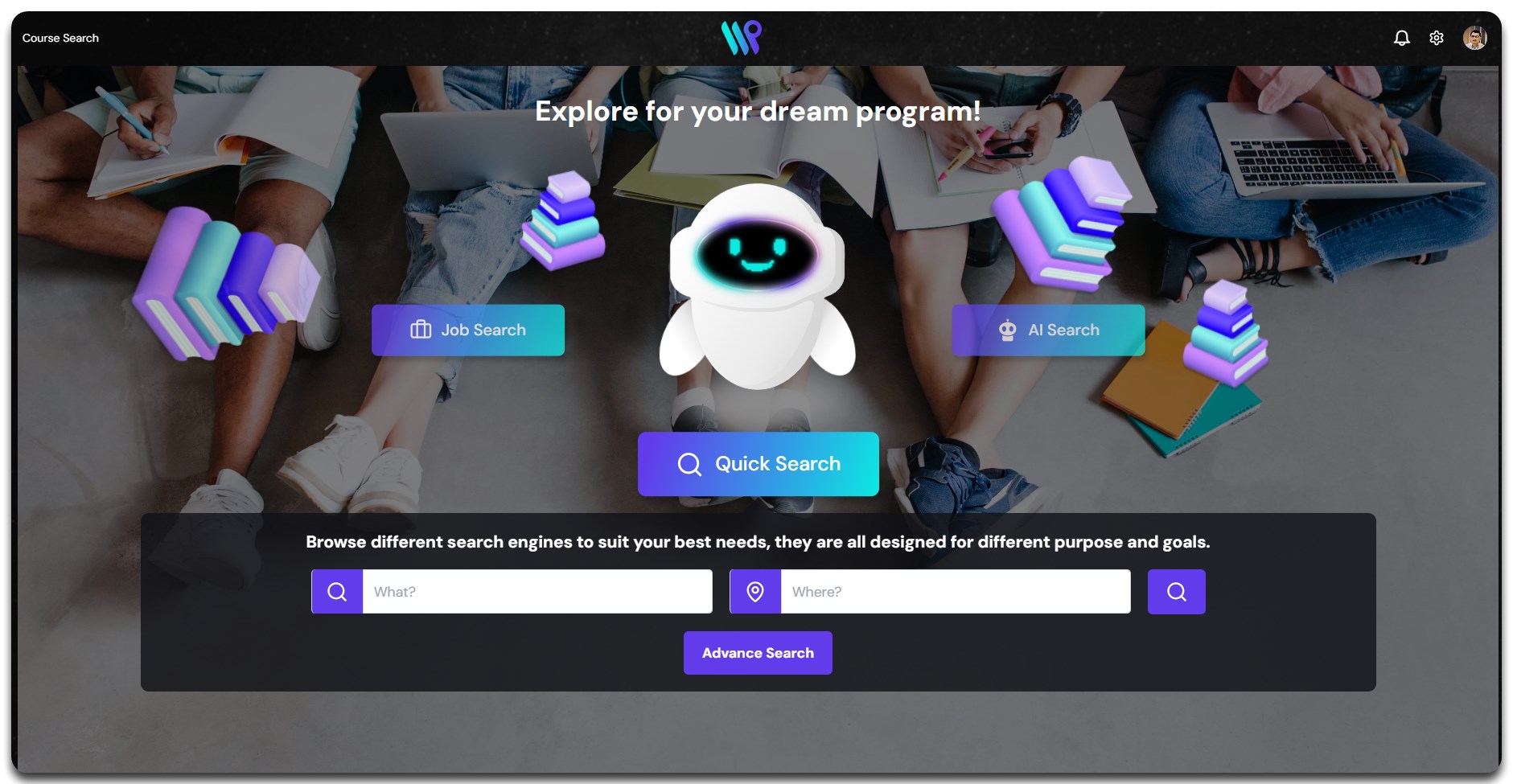
Search your desired course to start the application.
Overview
The ability to search for a course at one or many institutions will be a game changer for many. The way you search – whether quick search or advanced search, can narrow down results from thousands of course to get the best fit course for your student. You can narrow down the search results with the help of various filters or compare between two or more courses. The system also has a feature to save the courses as favourite to a lead or a student.
Moreover, our search is not only limited to a manual search but has an inbuilt AI search where an AI can do the search for you.
Quick Search
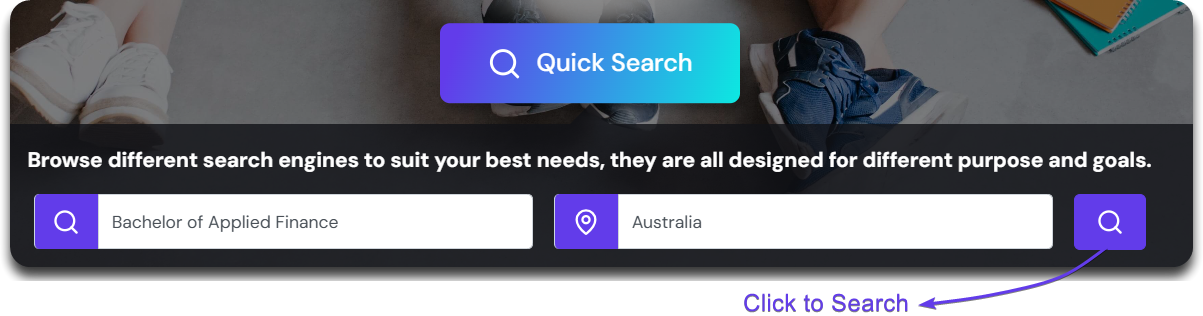
Quick search is the simplest way to search for courses. All you need to do is type ‘What’ you are looking for and ‘Where’ you plan to study. Here is how you can do it.
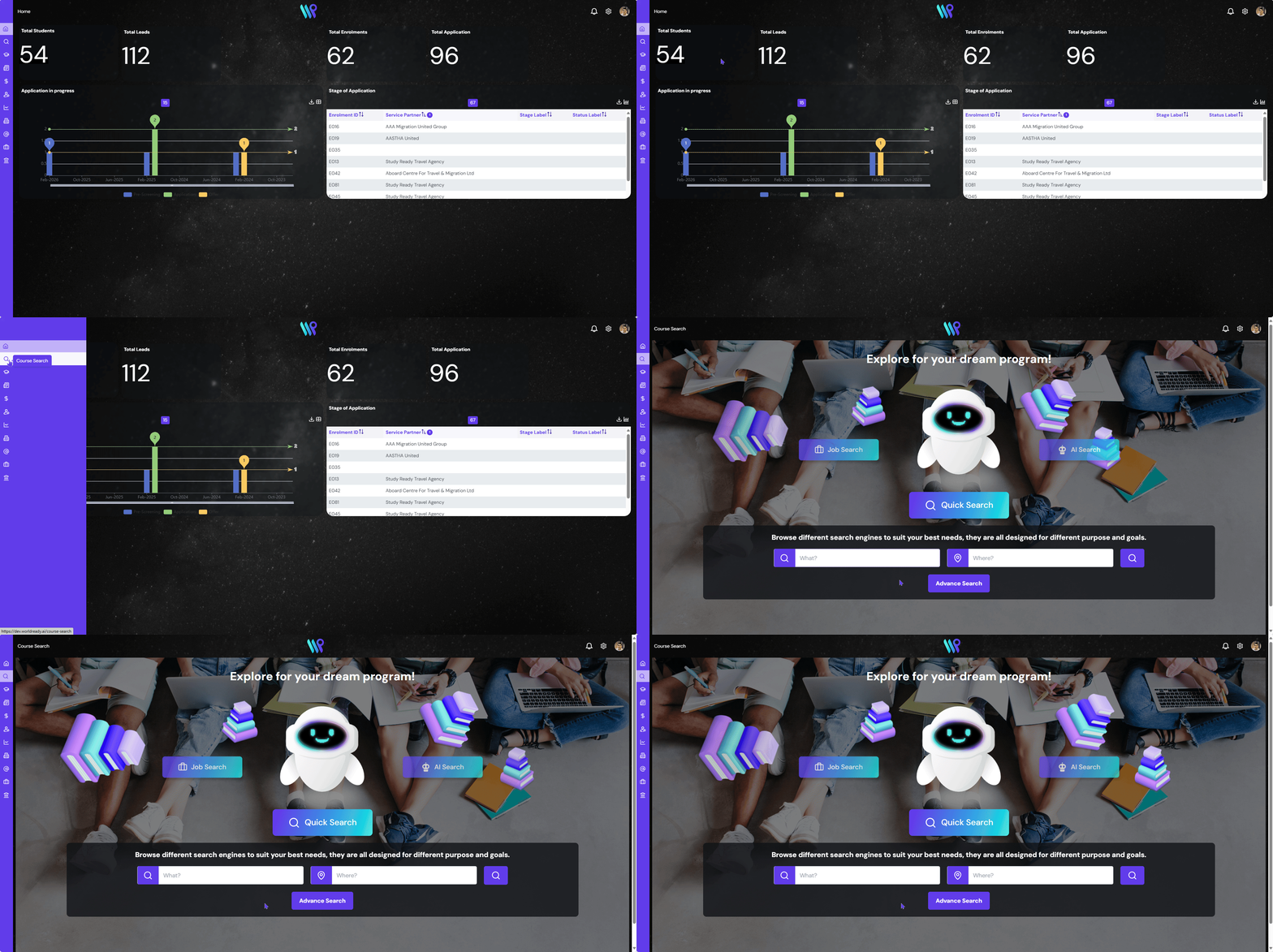
From the home page or any other page, click on the ‘Course Search’ page on the menu bar on the left. You will reach the ‘Course Search’ page. The default is the Quick Search.
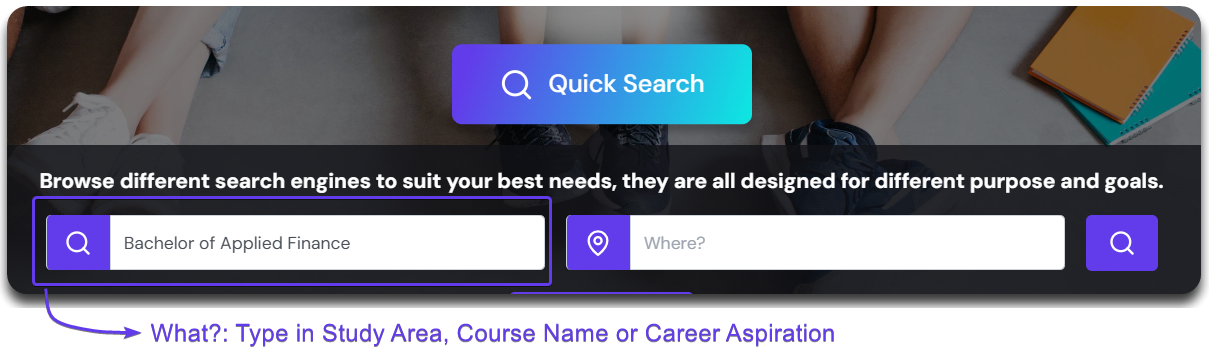
Here you will see two fields to fill. ‘What’ and ‘Where’.
What? This is where you can input ‘What the student wants to study?’ This could be a study area or name of the degree or career aspiration. E.g.: Accounting or Bachelor of Accounting or Data Analyst.
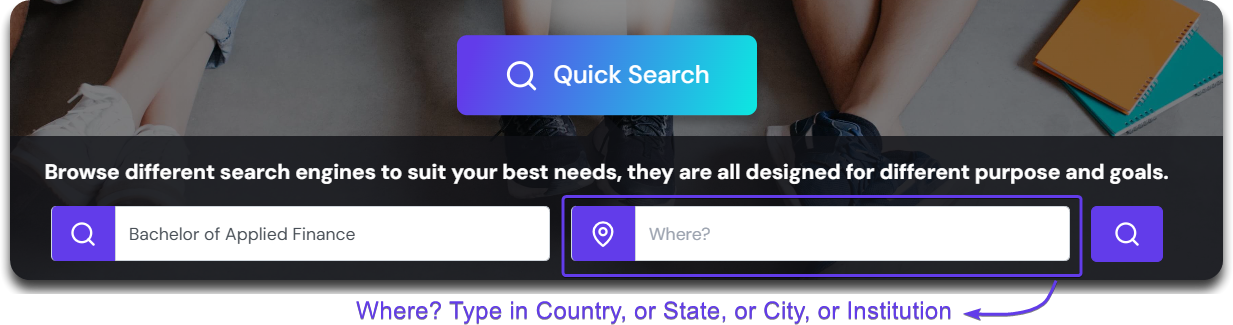
There second part is the ‘Where?’
Where? This is where the student wants to study. This is the study destination. It could be a:
Country, like Australia, The UK, Canada
State like Victoria, Texas
City like Sydney, London etc
Institution where the courses are offered like Charles Darwin University, Strathfield College.
You can then click on the Search button on the right to start the search.
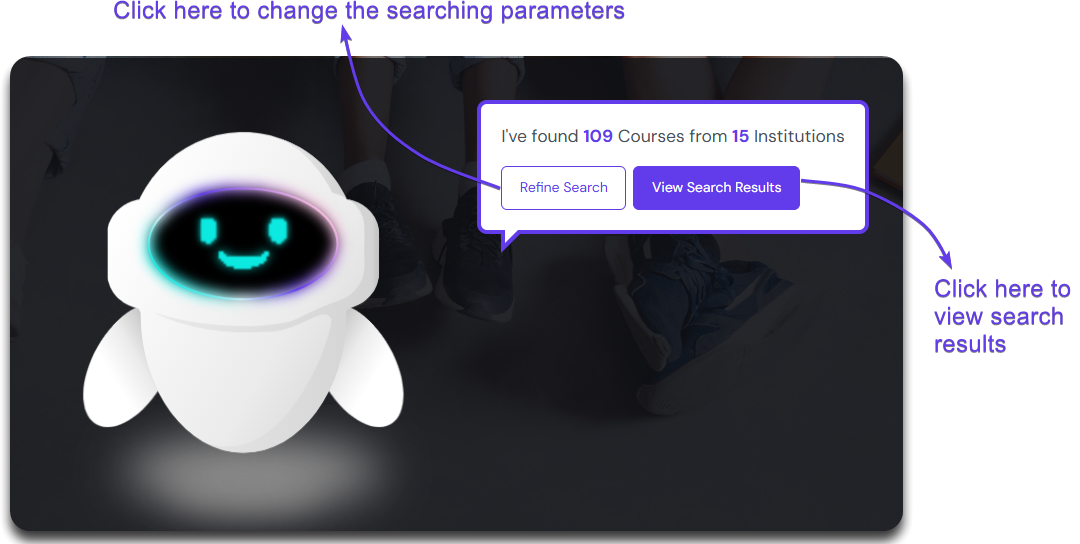
Once clicked, it will show you the number of courses that matched the search criteria and the number of institutions that offered those courses. It could be something like “58 courses found from 14 institutions”.
Click ‘Cancel’, to cancel the search or click ‘View Results’ to see the search results.
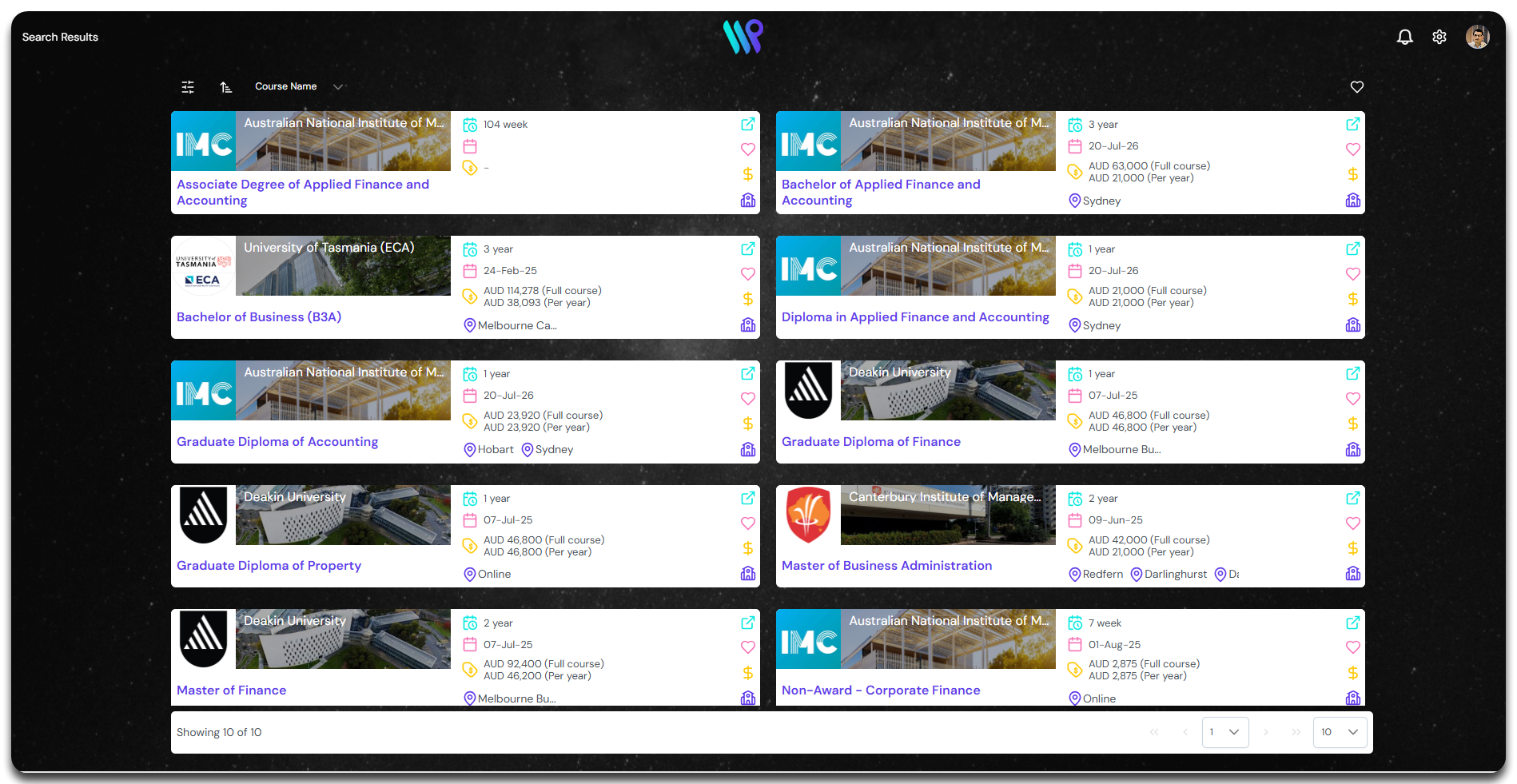
You will be able to see the search results in 2 columns. Each card is a course with all the details you will need. Check our ‘Course Search Results’ page to manage the search results.