Learn about how to read, manage and take action of the application record.
Application Record Overview
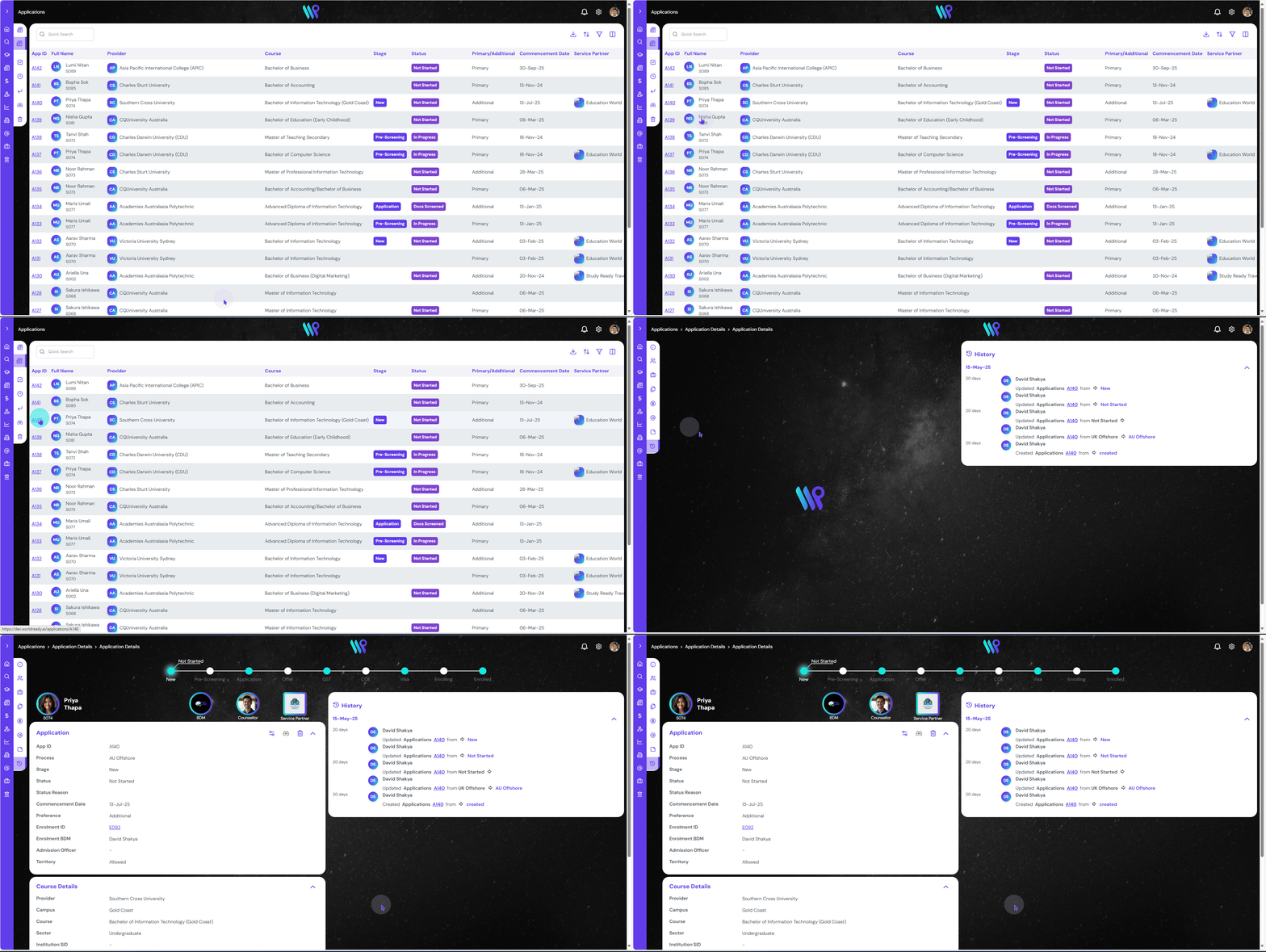
Open an application from the application list view page to take action on the records, view its components and make the record up to date.
Click on the Application ID on the list view to open up the application record. This will open on the default view with history pane on the right side.
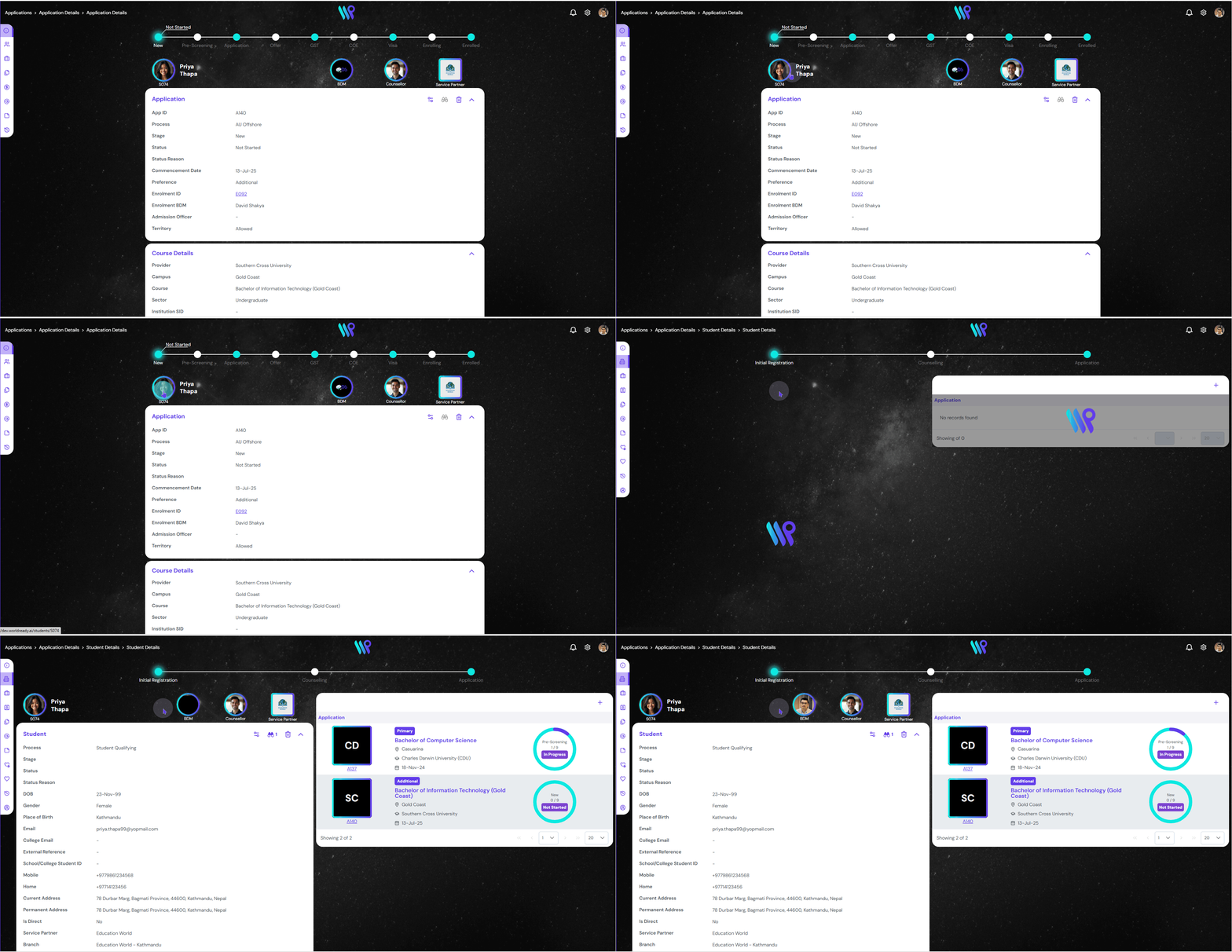
After opening the application record, hover on the side bar to expand and access the components. Click on ‘Application Details’ to get to the view as below.
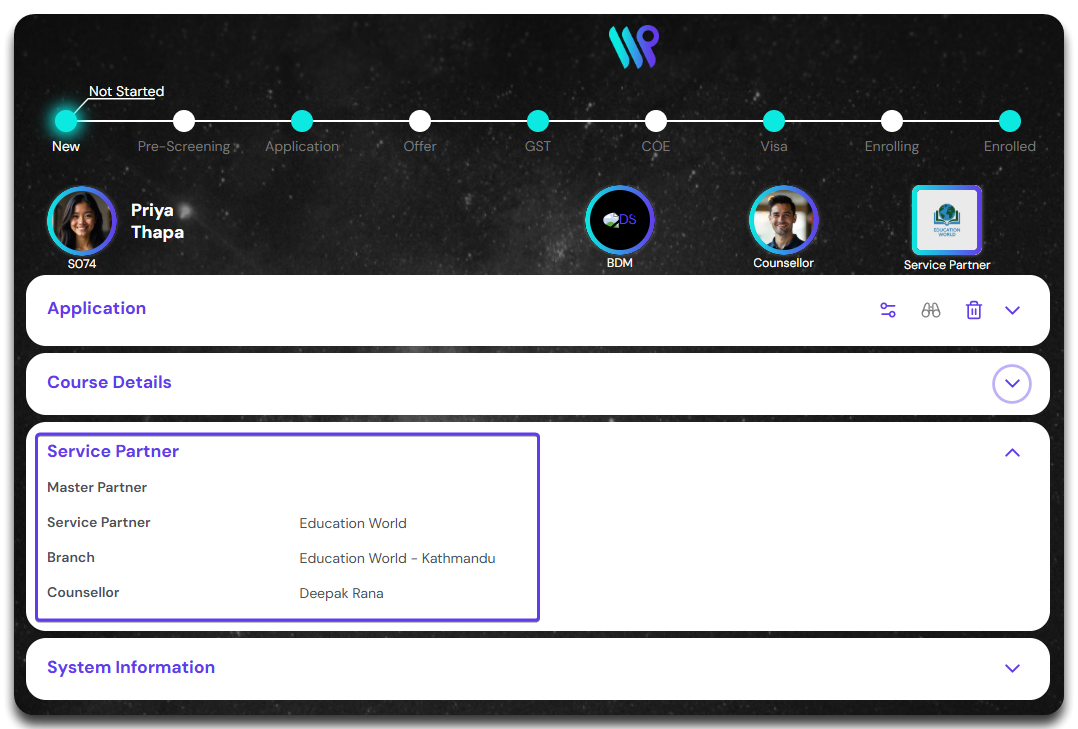
The progress bar at the top show the application process with various stages and statuses. We will learn how to change the stages and status later. We will also use the control buttons to manage some part of application record.
Below the progress bar, photo bar is visible. You can click on the photo of the student to go to student profile. Similarly click on Counsellor’s photo to open the counsellor’s profile and Service Partner logo to open the Service Partner’s company details page.
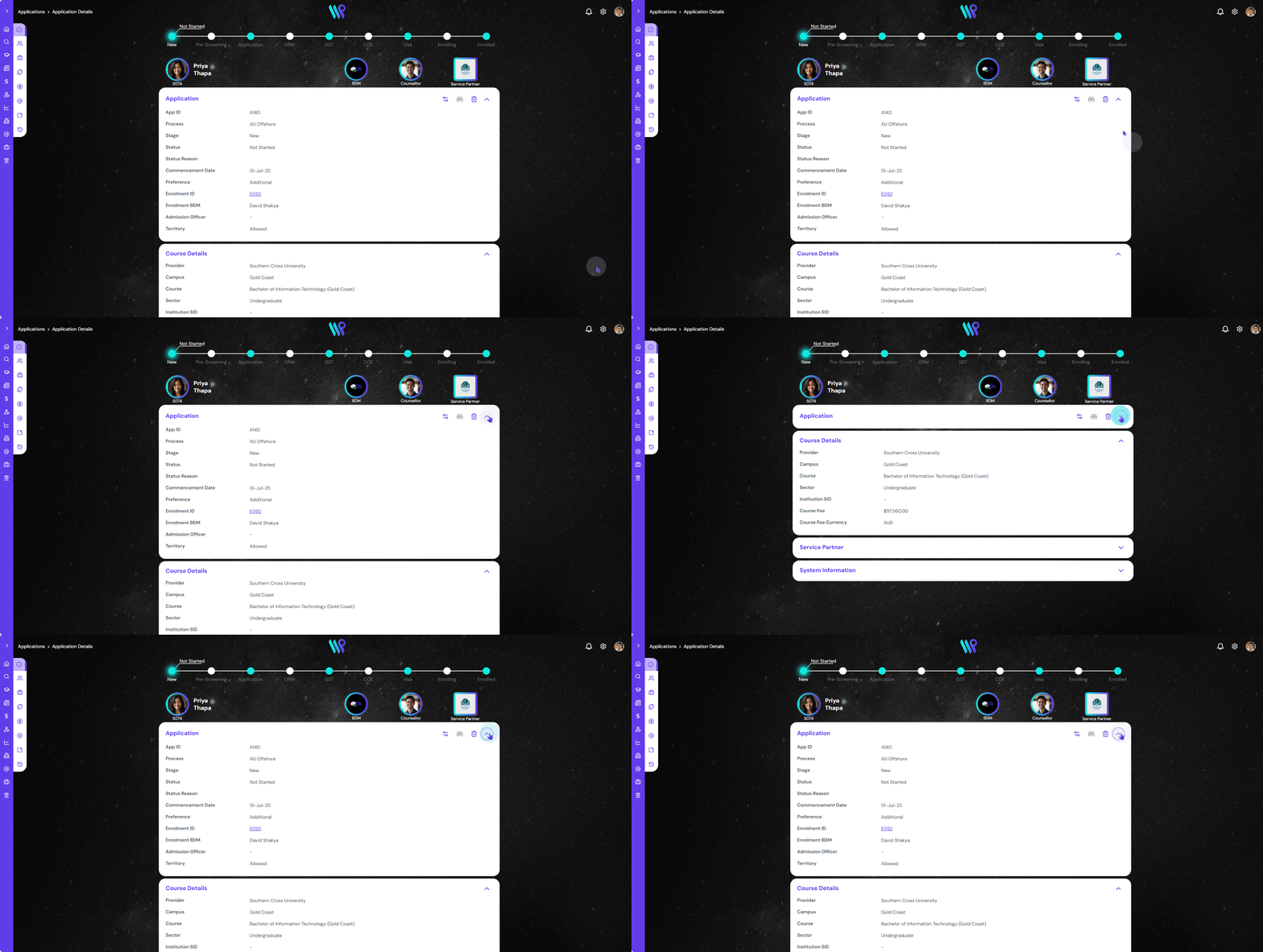
A different section of the application record can be seen in a separate card view. The first part is the application details. You can also go to the Enrolment Record clicking on the Enrolment ID. Click on the Expand / Collapse button as needed.
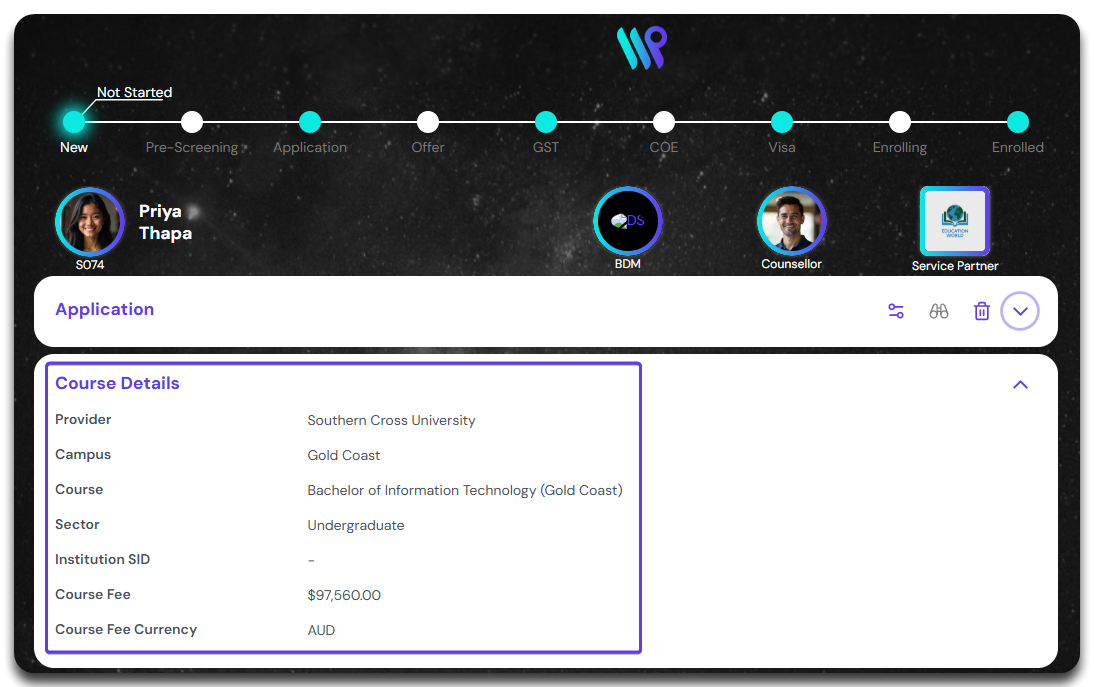
This section covers the Course Details this application is related to.
The next part is the Service Partner details this application has been sent from. If the student is a direct student and does not involve a service partner, you will see this section blank.
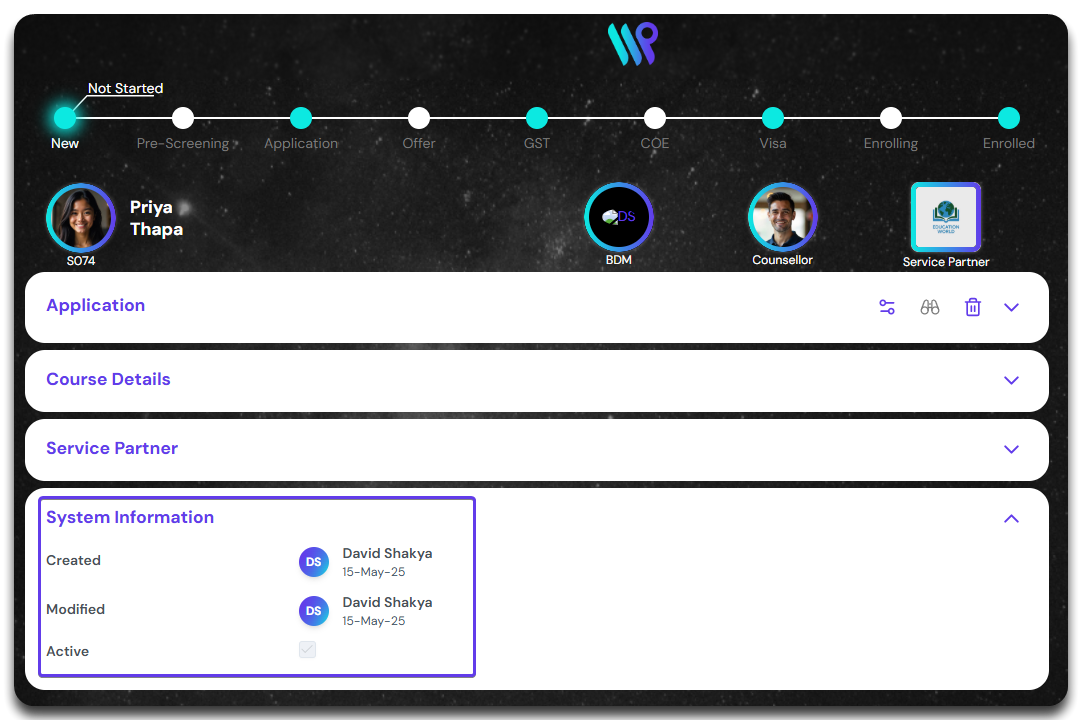
The last part is the system information. This is generated by the system and is not fed by any user. This show information like who created and modified and when was it done. It also show the active or inactive state of the record.
Watch an Application
Watch this application to subscribe notification of changes and updates to the record.
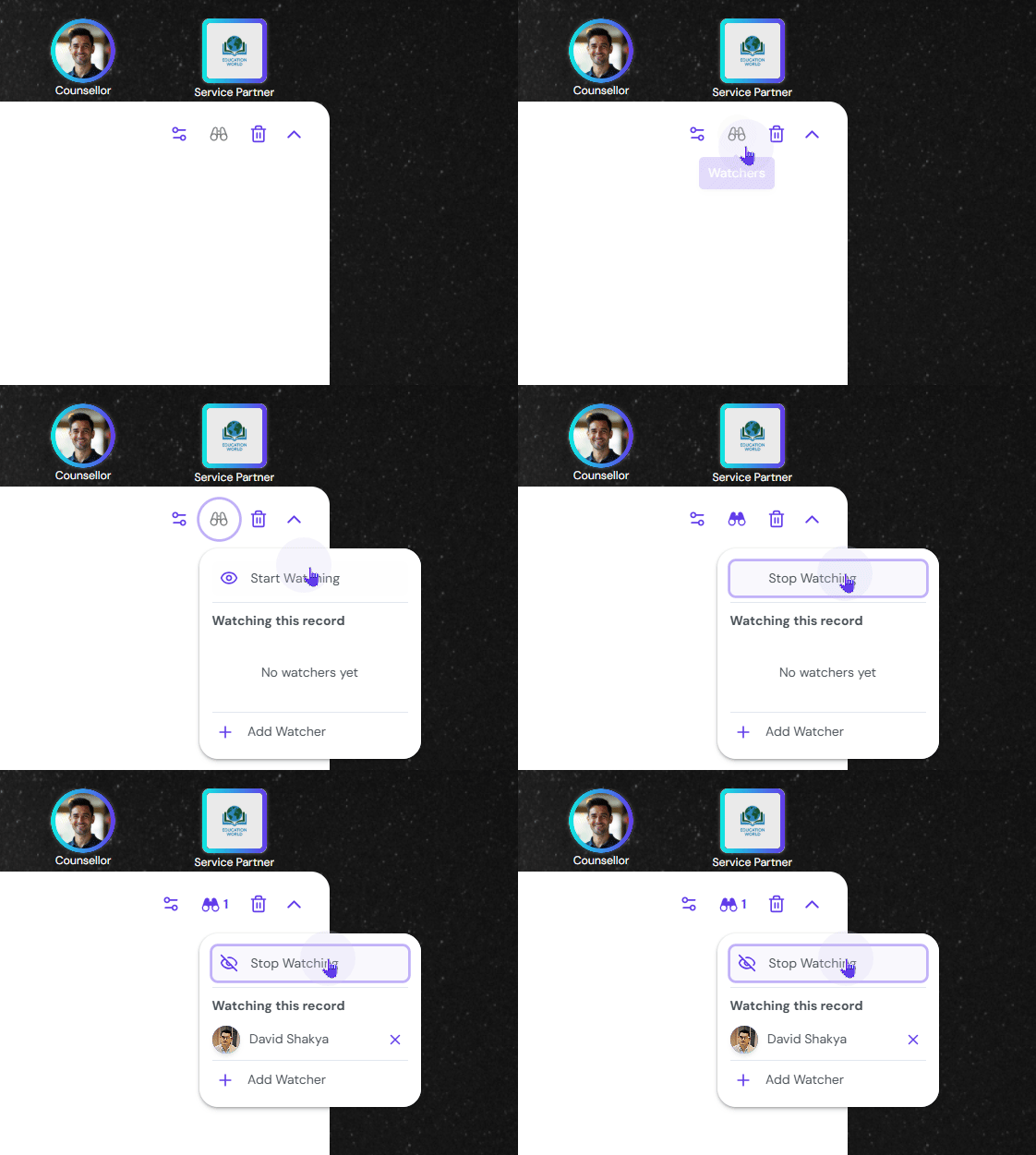
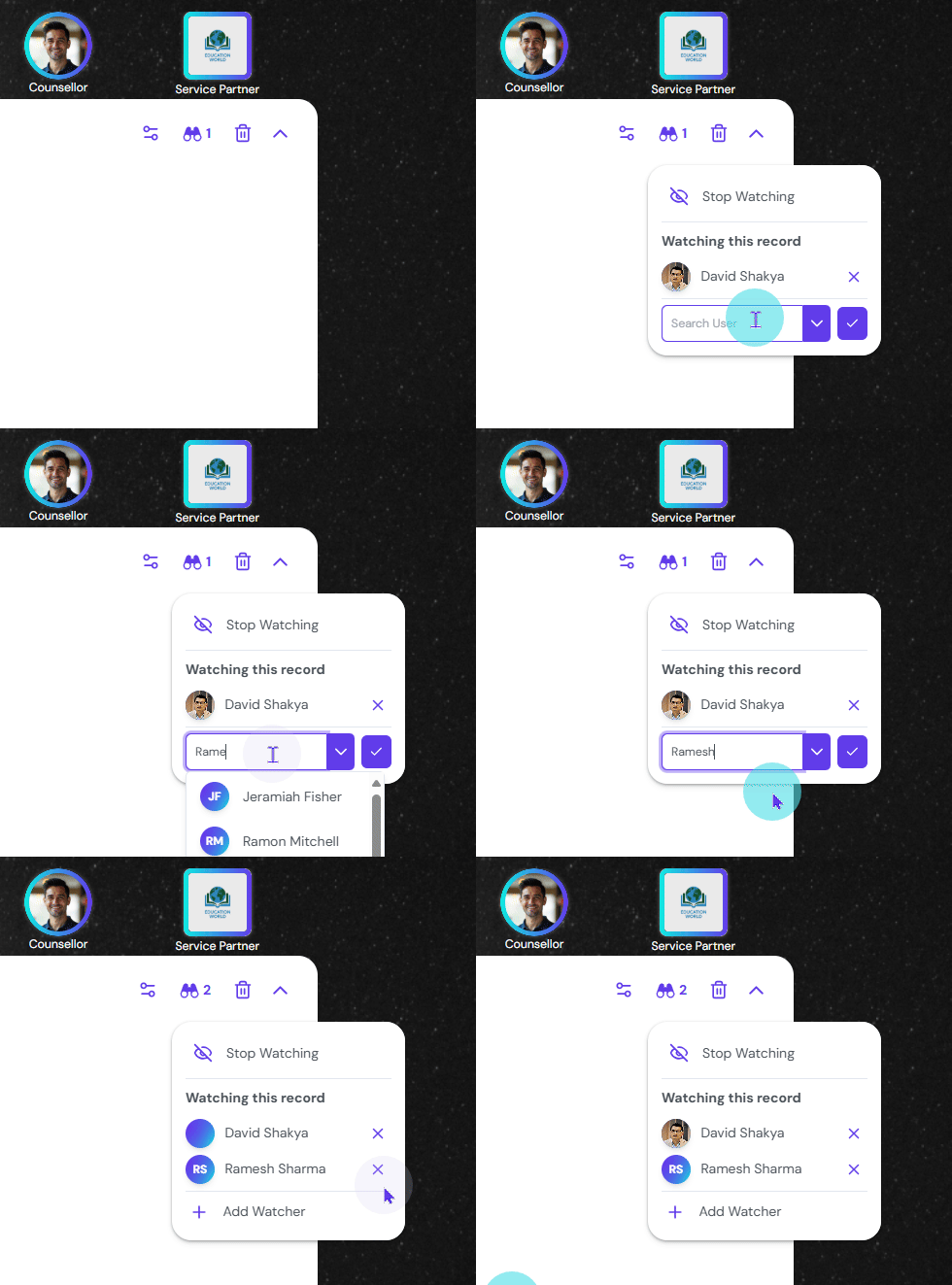
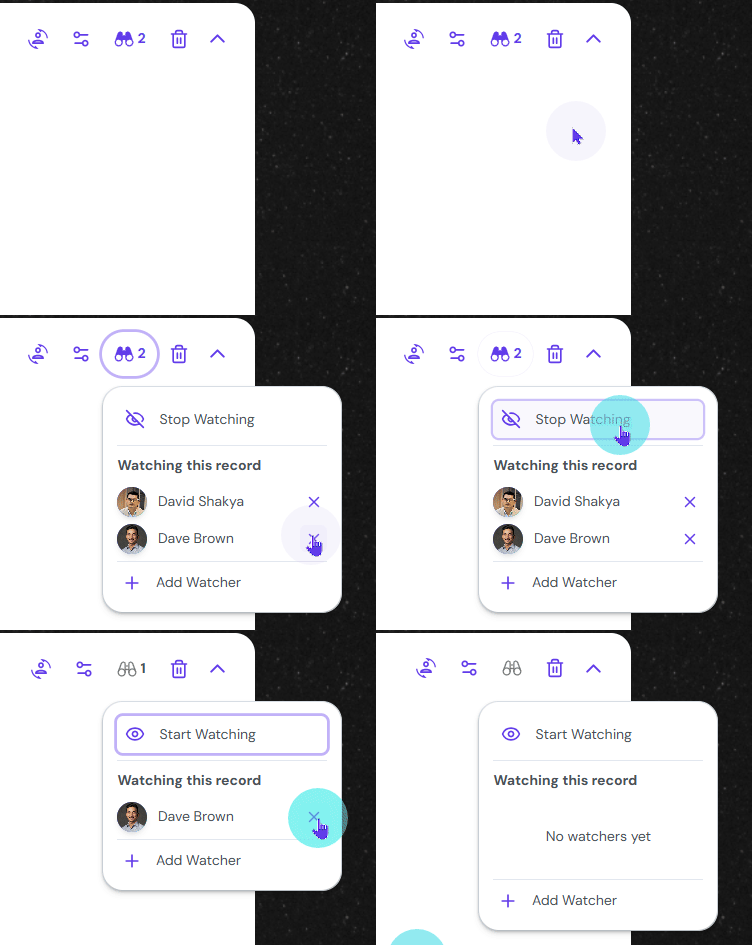
Click on the binocular icon from the Control buttons. Click on ‘Start Watching’, to add yourself as the Watcher of this record.
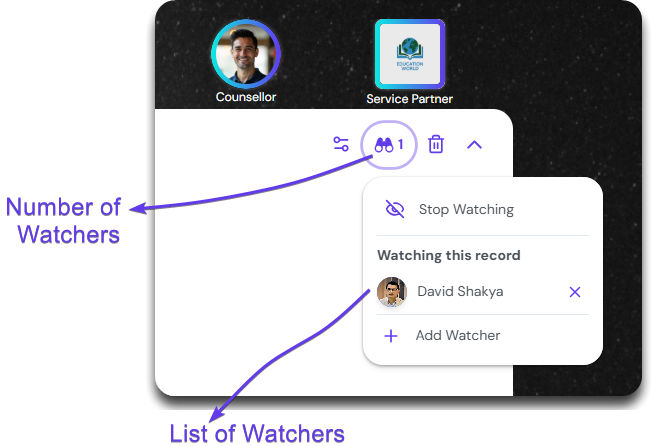
All the watchers will be listed under “Watching this record”. The number of users watching the record is also displayed next to the binocular icon.
You can add additional watchers to this record by clicking on the ‘Add Watcher’. Type the username in the search bar or use the drop down to select the user you want to add.
Click on the Stop Watching at the top to stop yourself from watching this record. Performing this action will opt you out from any notification being triggered if the record changes.
To remove others, click on the cross icon. They will not be receiving notification for the record any longer.
Deleting an Application
Learn how to delete and retrieve a record.
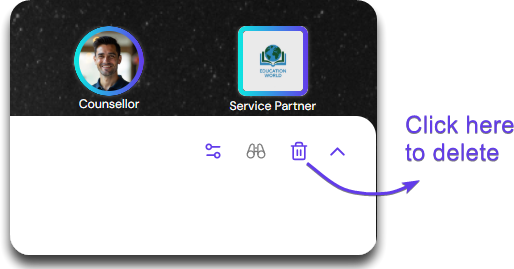
Click on delete icon on the Control Buttons to delete the record
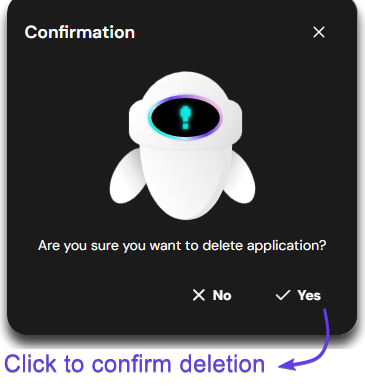
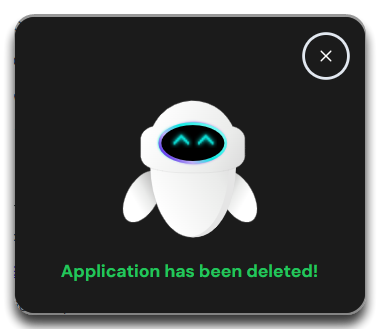
A confirmation pop-up comes appears where you can click ‘Yes’ to confirm. Another pop-up appears to confirm the deletion.
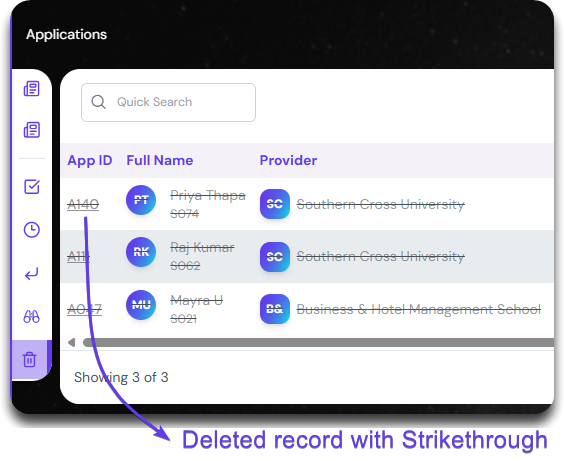
Once deleted it will appear on the Deleted list with a strikethrough.
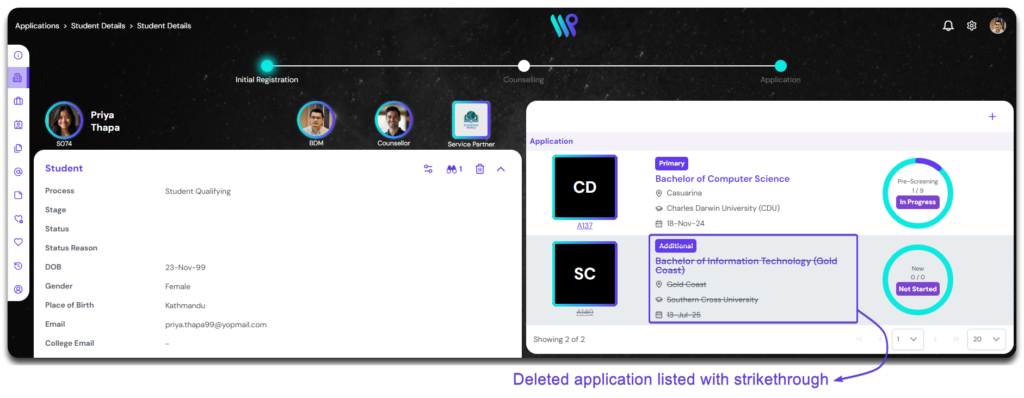
Also, it will be appearing with the strikethrough on the application pane on the student record as well.
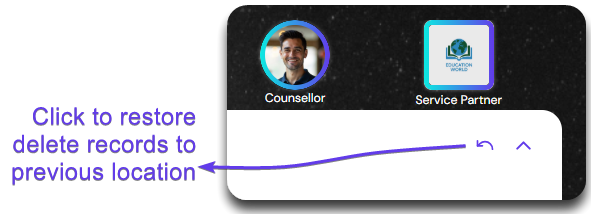
Open the deleted record by clicking on the ID. Click on the Restore button to undo deletion. The record will be moved to previous respective location.