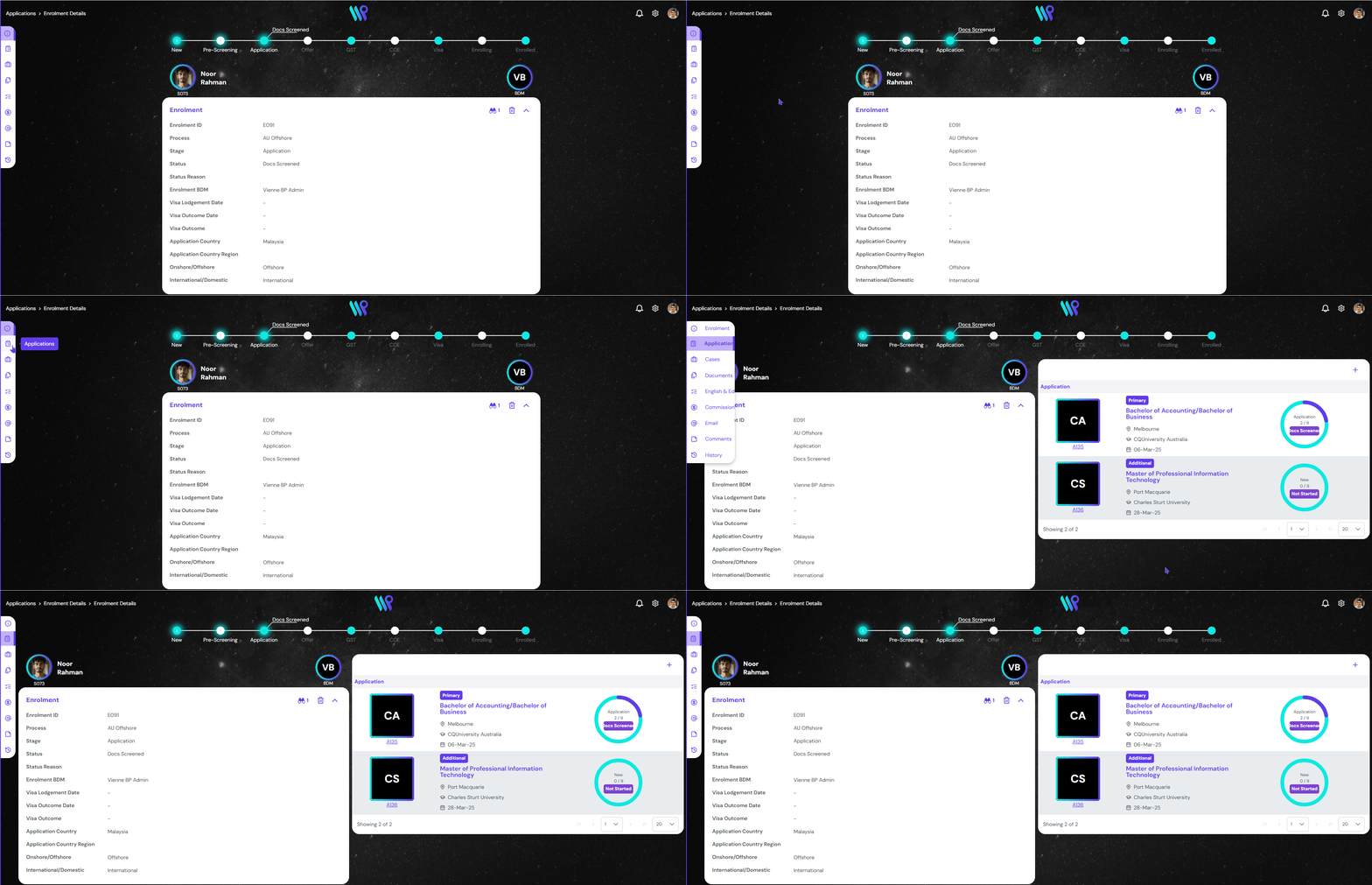
The ongoing application of the student can be viewed from the enrolment record page as it will be inside an enrolment.
Application Preview
The application inside the enrolment will be appearing in the pane on the right under application menu on the sidebar. This is the default view that you will fall into when you open up the enrolment record page.
To open application from elsewhere, click on the ‘Application’ icon on the side bar that appears on the student record page. The Application pane appears.
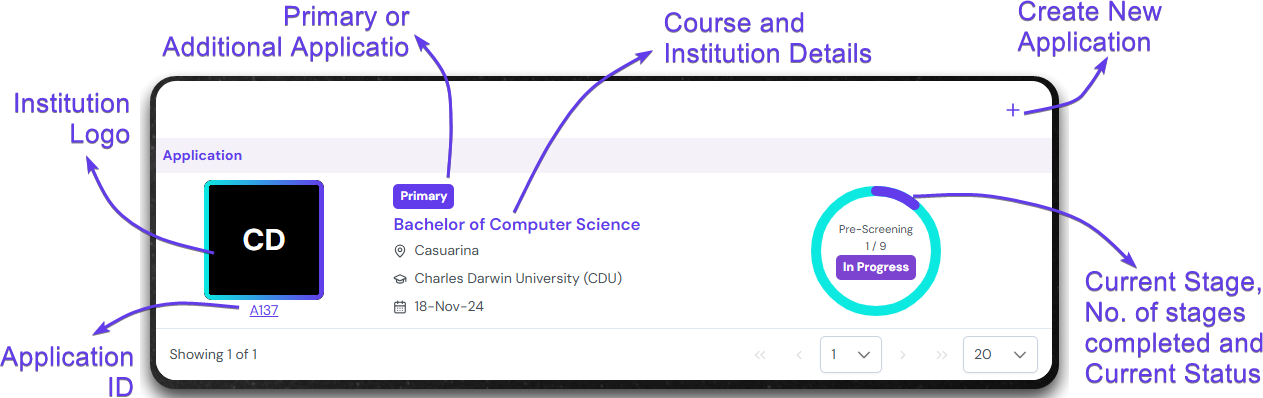
The snippet of the application can be viewed here on the application card. You can see the course, institution and campus details the student has applied to in this enrolment. Also, the current stage and status of the application can be seen on the circle.
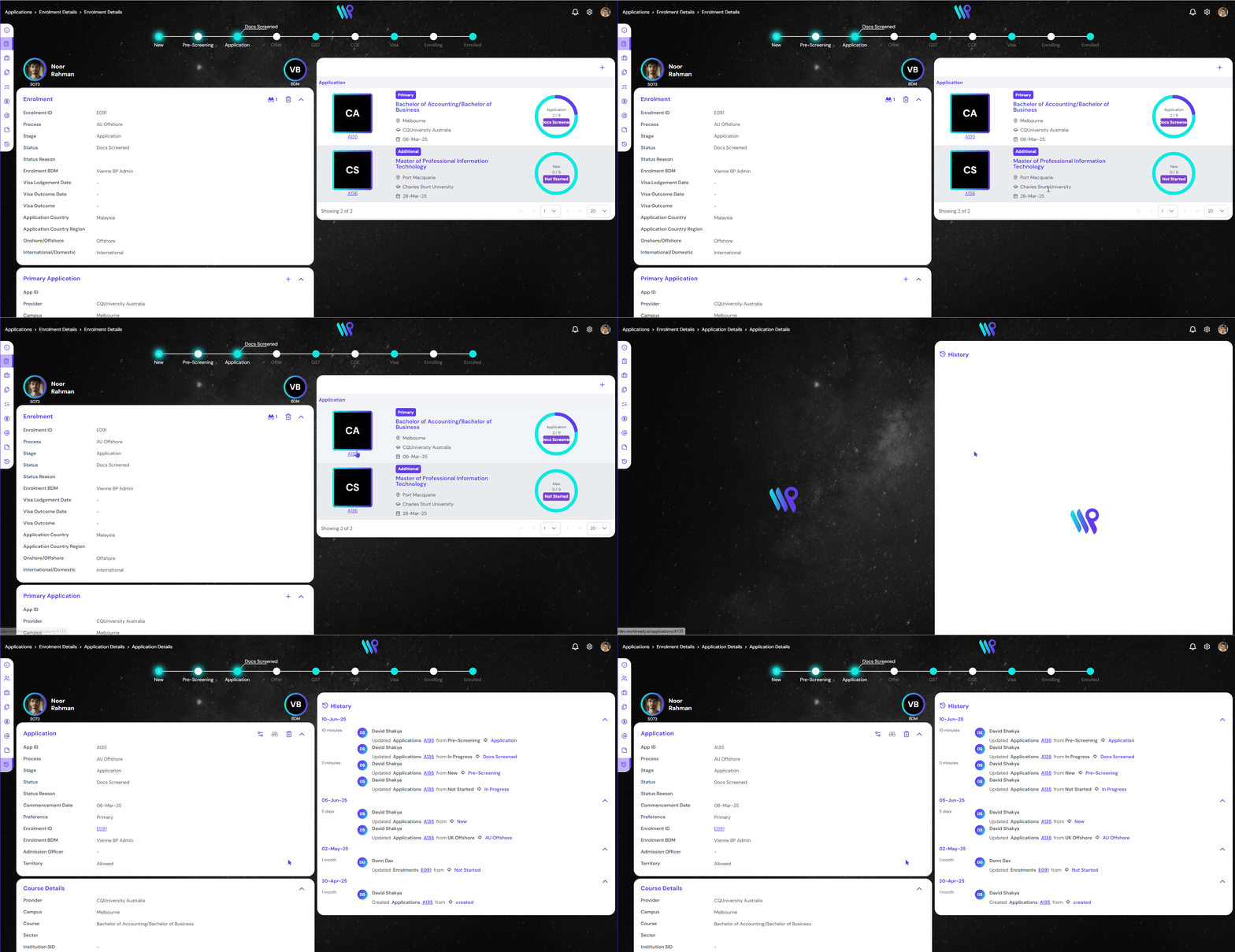
If you want to manage the application or see everything about that application, click on the Application ID. You will be directed towards application page.
Create a new application
A new application can be created from multiple places. One of them is from within the enrolment record page. Follow the steps below to create an application.
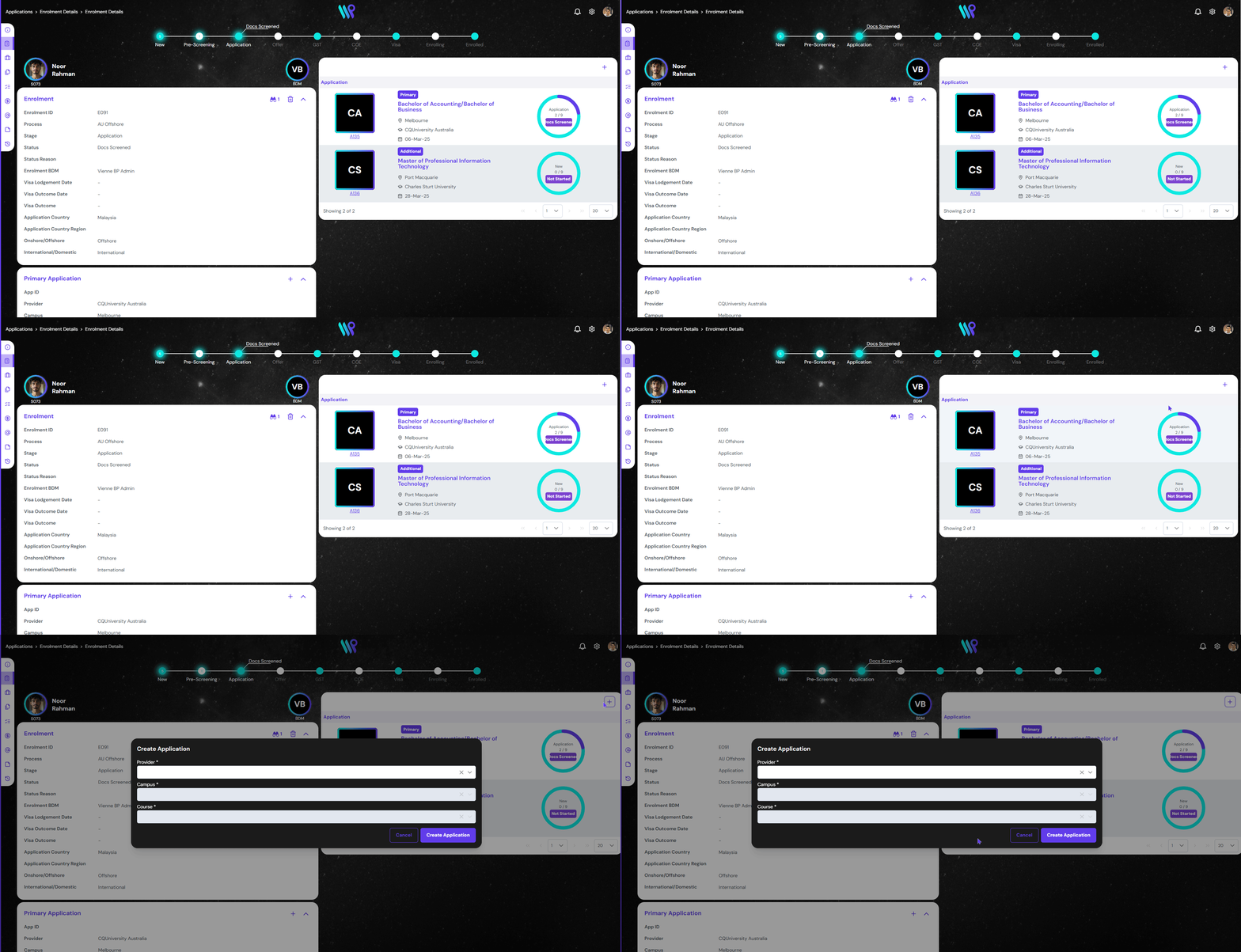
On the application page, click the ‘+’ Create Application icon.
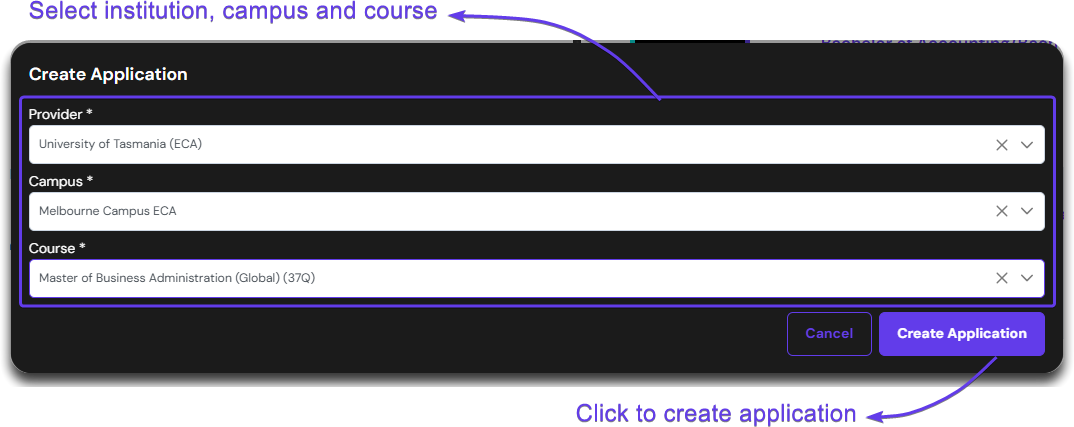
As we are in the Enrolment of a student, the student and enrolment are already defined. We do not need to create it. Thus, select institution, campus and course from the drop-down menu. To know more about the creating application, check out Application Wizard page.
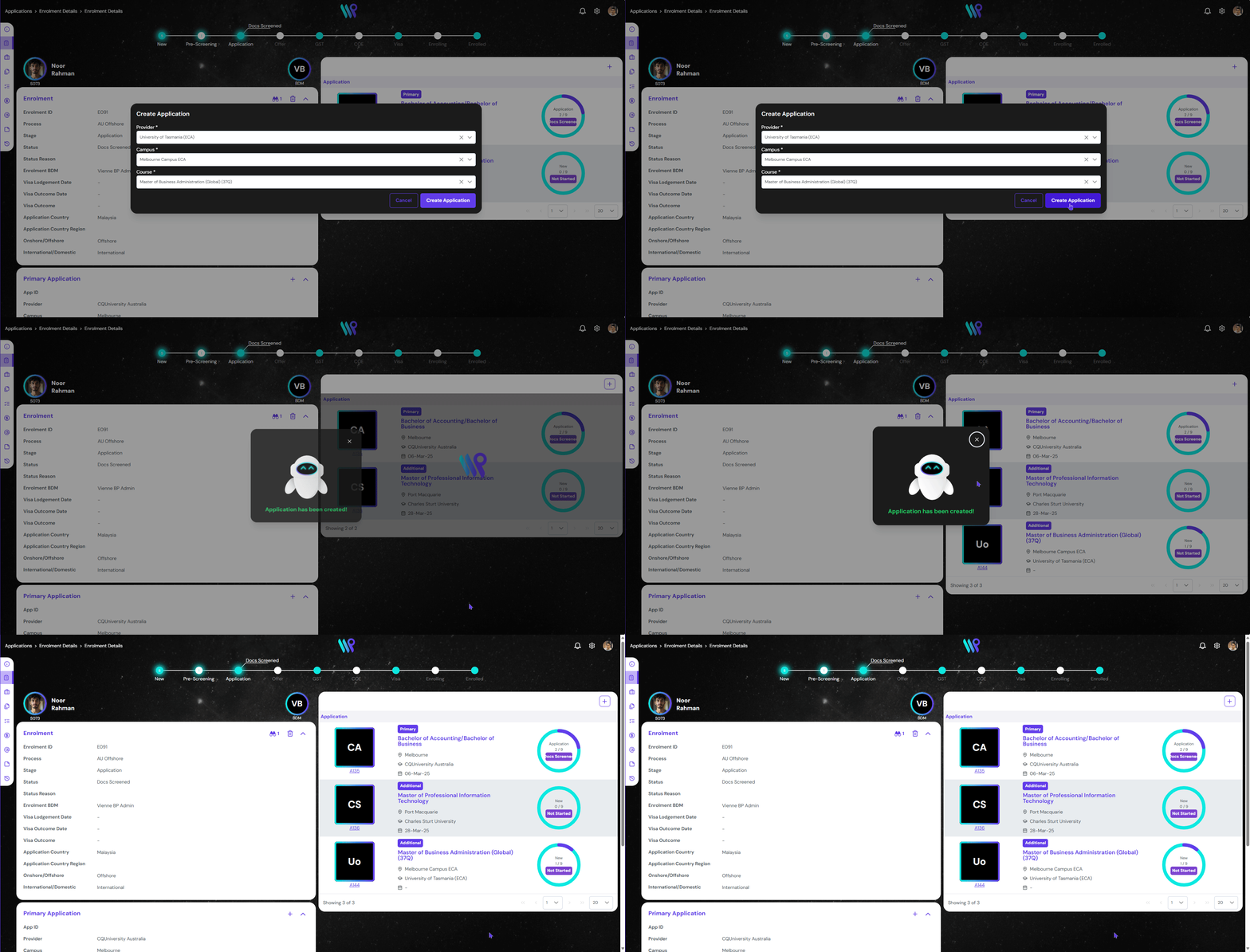
Once done, click on the ‘Create Application’ button. A notification pops up. The new application will be created and will appear on the pane as additional application.