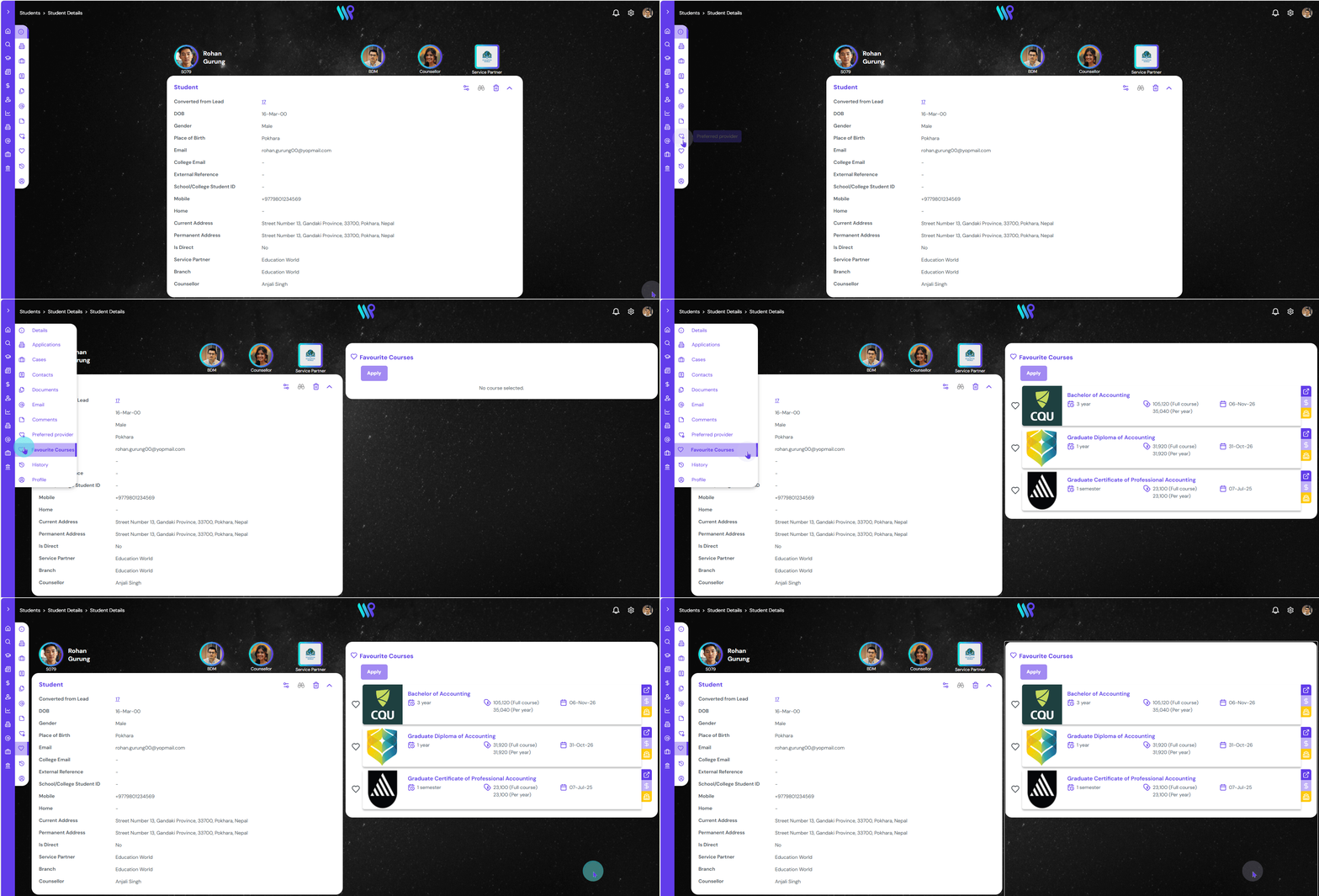
The courses that the student is interested on can be saved as favourites which will be appearing on the student profile under ‘Favourite Courses’.
View Favourite Courses
The courses ‘Saved to Student’ as favourite courses can be seen by following the steps mentioned below. See ‘Save to Student‘ section on how to save student’s favourite course(s) to their profile.
Click on the ‘Favourite Courses’ icon on the side bar that appears on the student record page. The Favourite Courses pane appears.
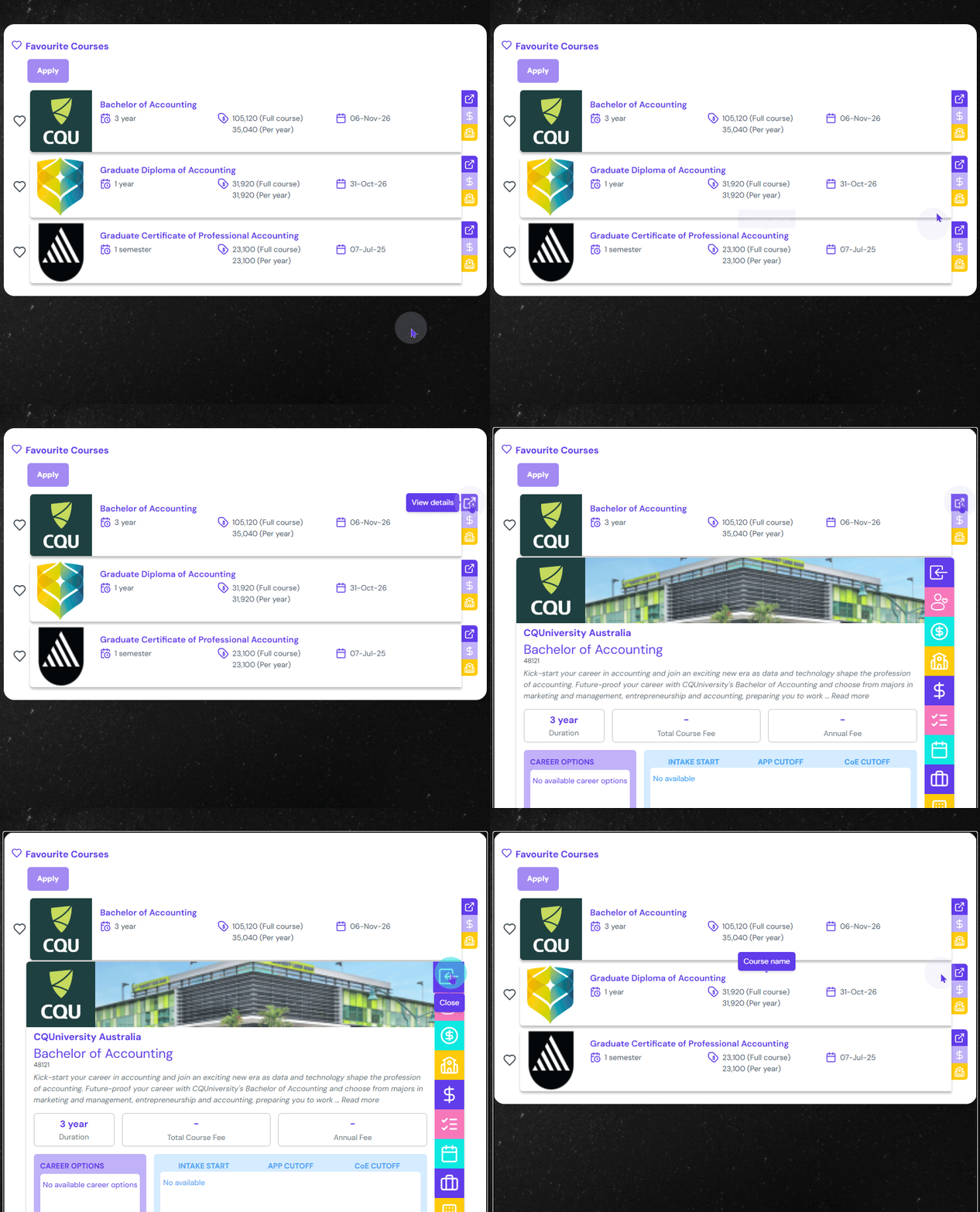
In case you want to see the details of each course, press on the ‘View Details’ icon to expand the card. To collapse, click on the ‘Close’ button on the top right corner of the expanded section.
Apply to Favourite Courses
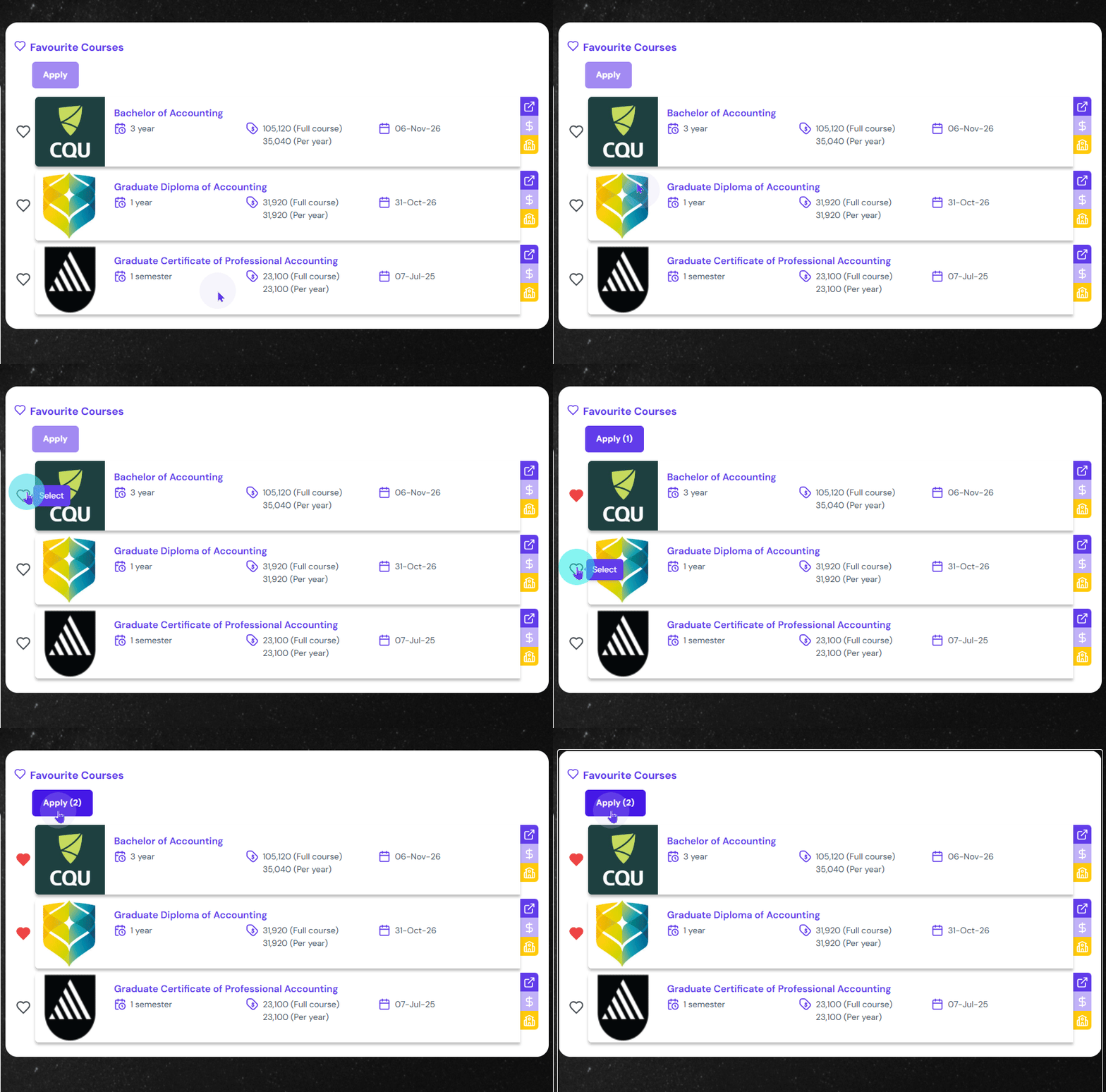
The application can be applied directly from the list.
You can start the application directly from there. To do so, click on the ‘Heart’ icon on the left side of the card. The apply button becomes active and show the number of courses selected. You can click the ‘Apply’ button to start the application. Multiple courses can be applied in one go.
Once you click on the Apply button, you will be directed to the Wizard to start the application.
Remove Favourite Courses
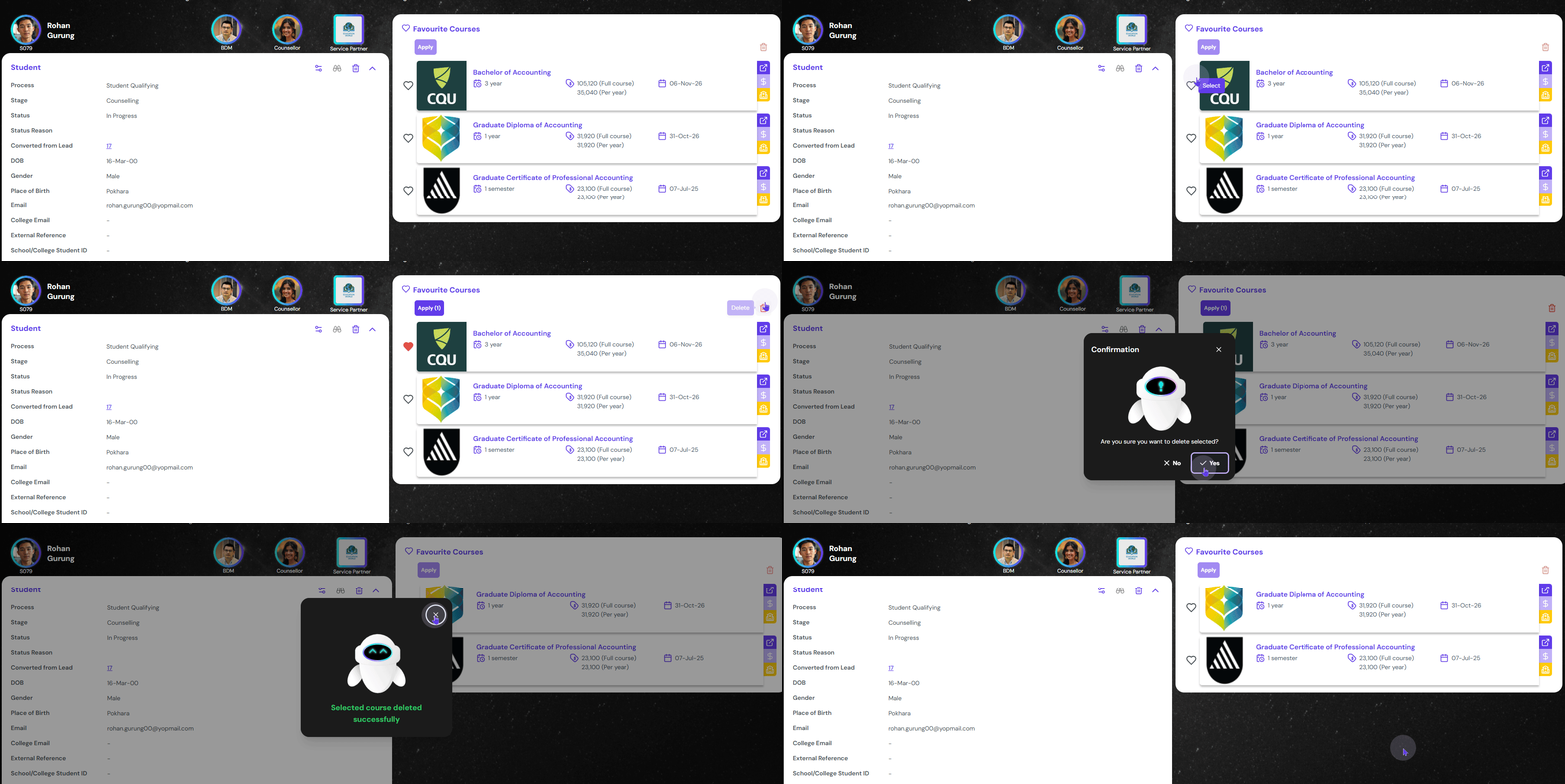
A course the student no longer wishes to continue can be removed from the list
Select the course you want to remove by clicking on the heart icon in the front. Then click on Delete button at the top right corner. Confirm deletion. That course will be deleted from the list.