Learn about different types of side bar that appears on each page and sub pages.
Main menu
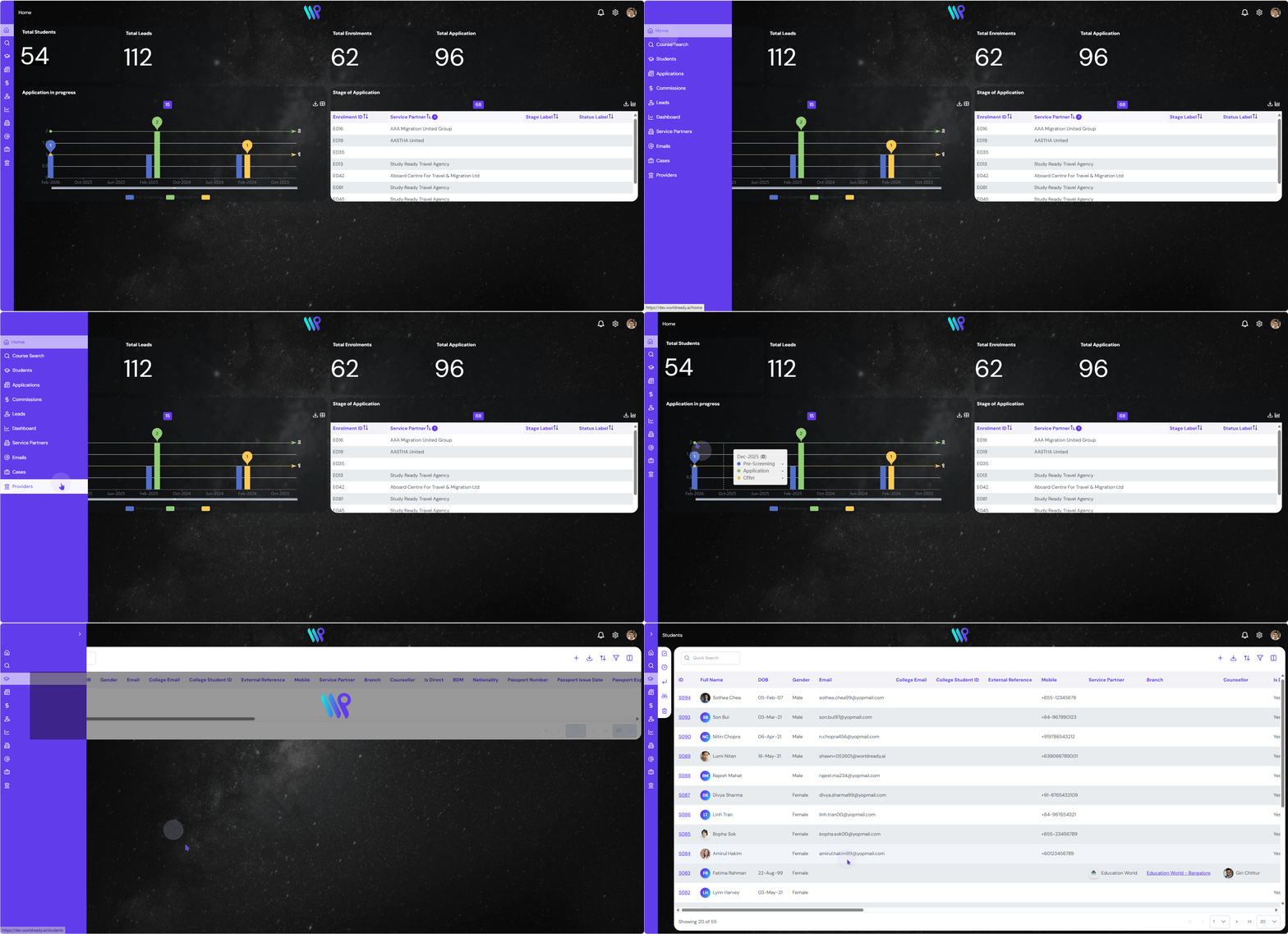
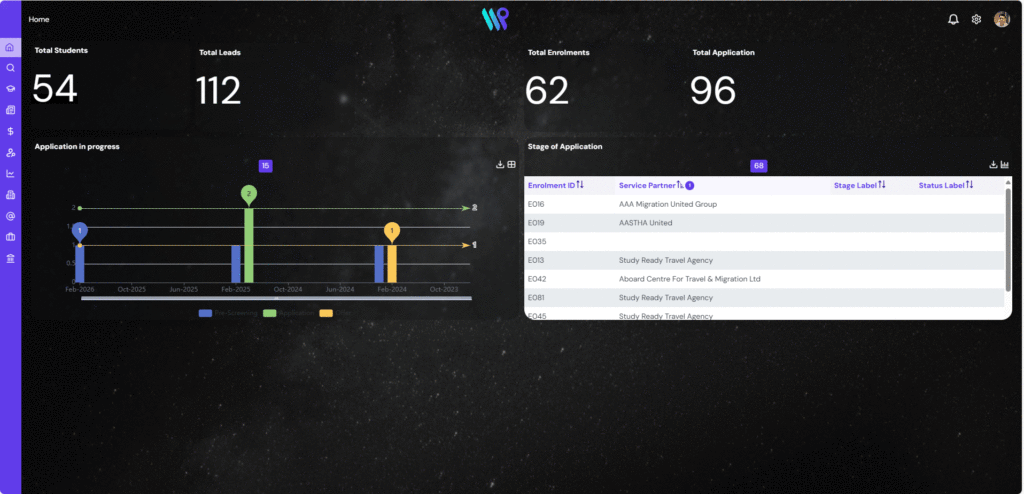
The main menu is the bar that appears on the left-hand side of the screen. It is visible on all pages. When hovered, it will expand to show the label of the menu. When collapsed, you can see the icons only on the menu bar. Click on any menu item to open respective page.
Side Bar
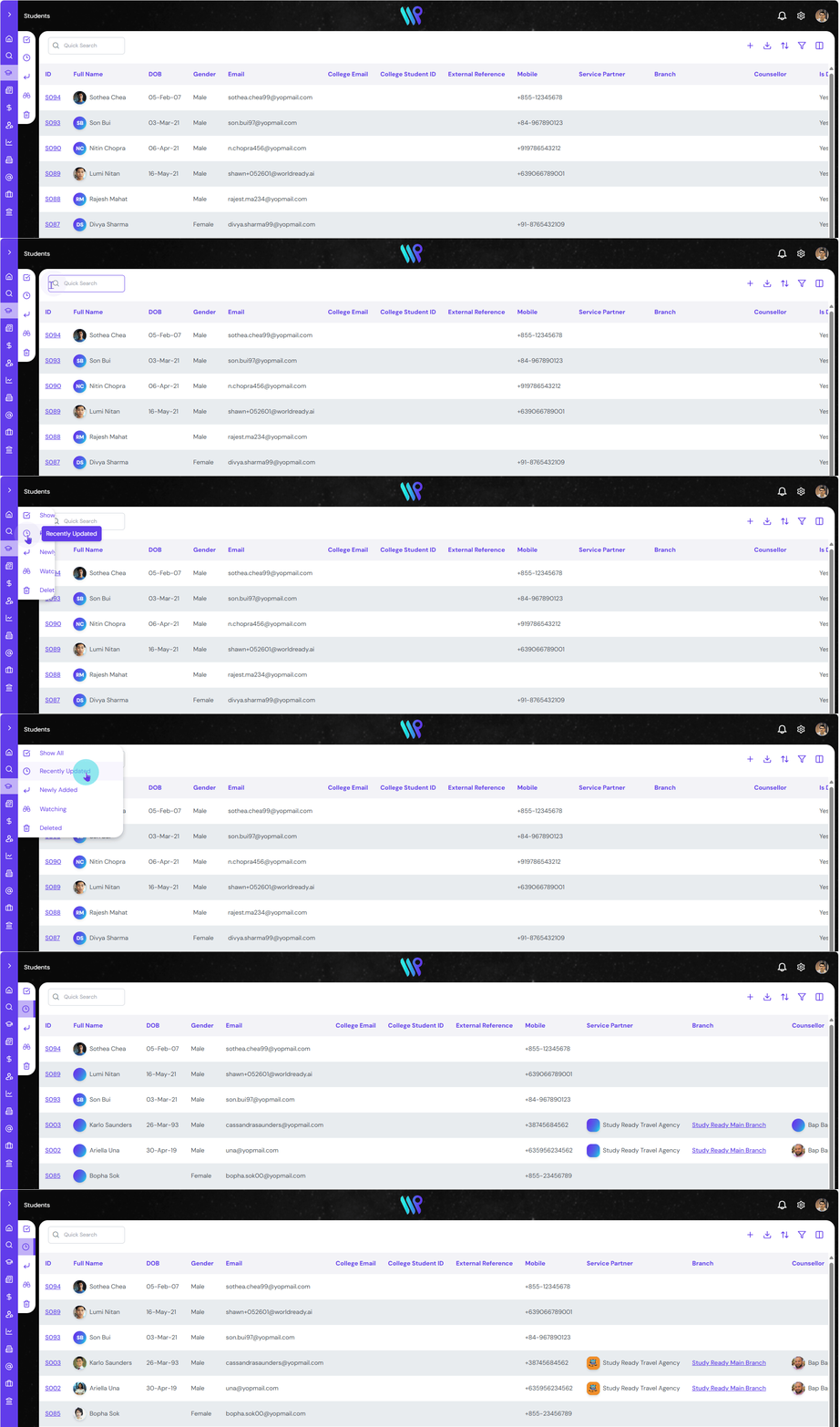
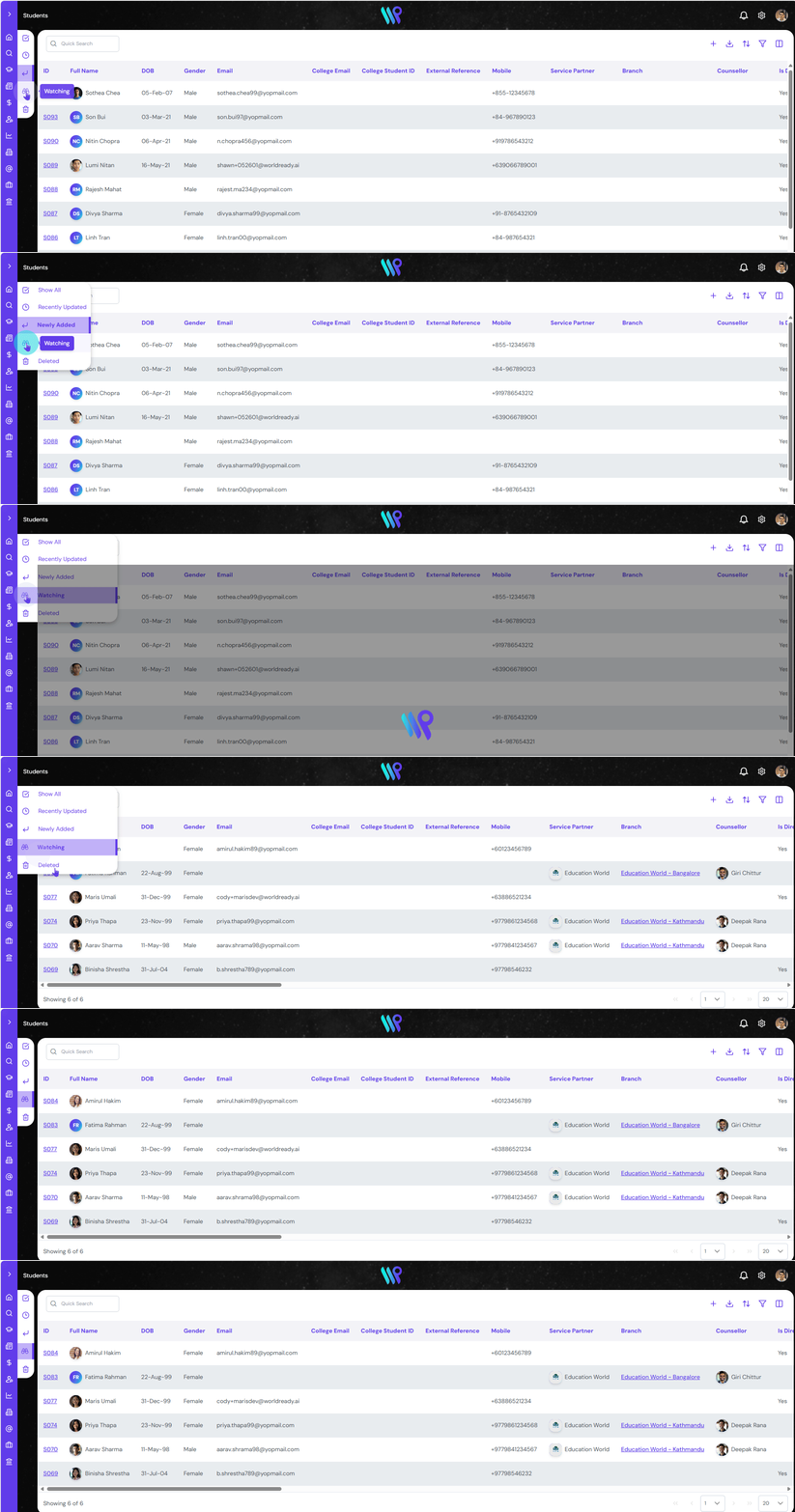
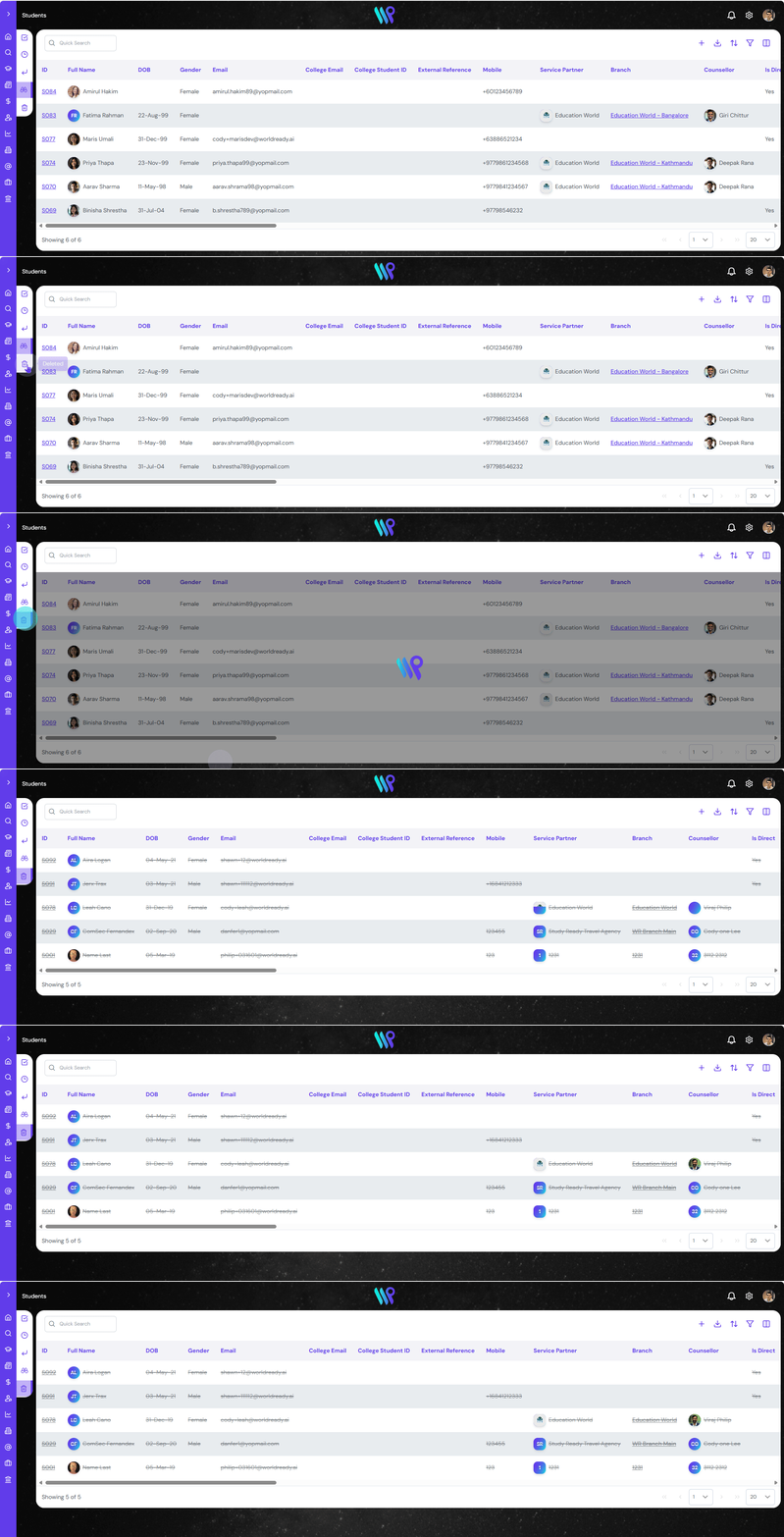
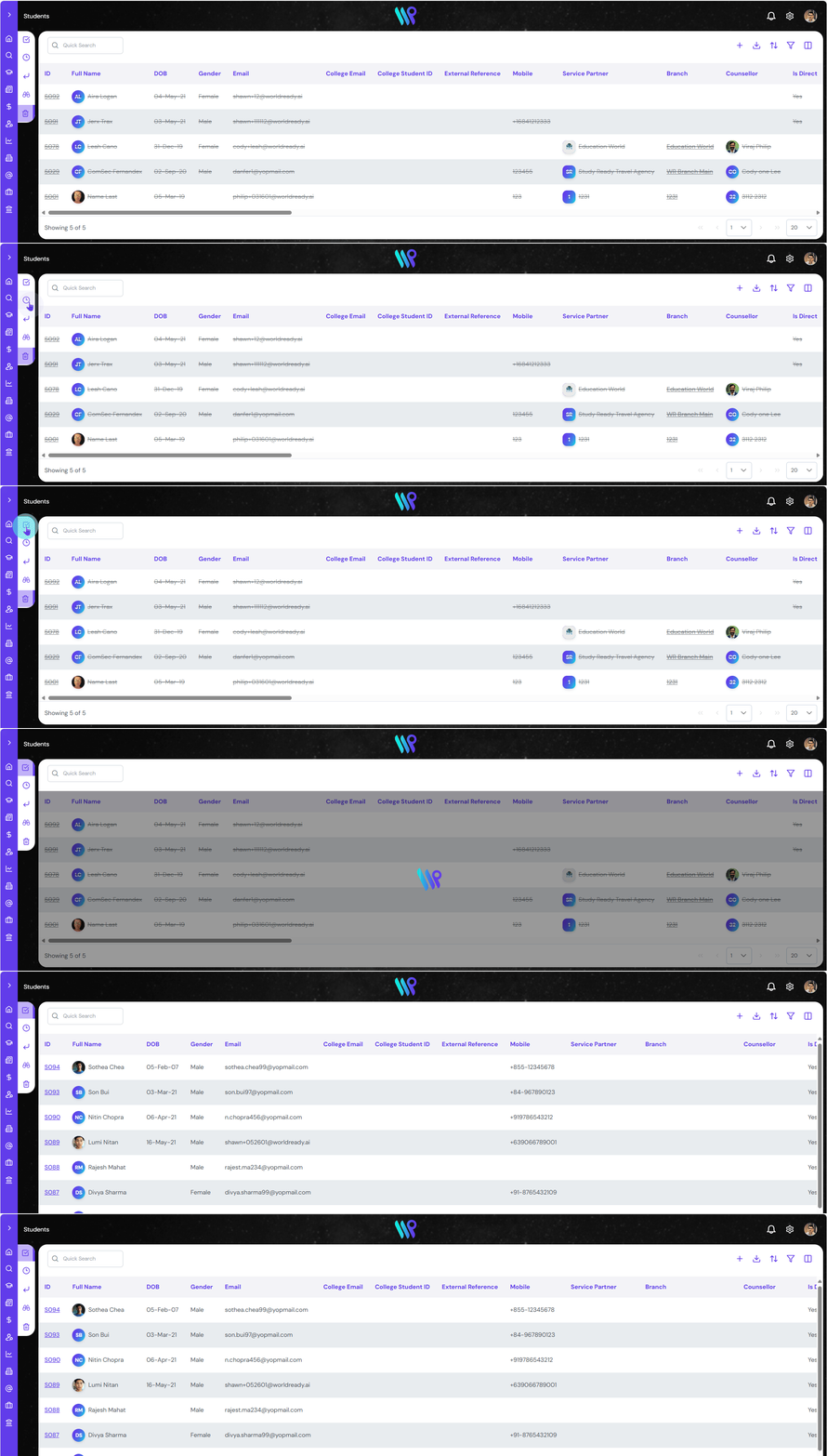
When you enter most of the pages with list view, the side bar appears next to the main menu. The side bar menu expands when you hover your mouse over it. initially you will be able to see the icon only but after expansion you will be able to see the labels for those icons too.
The side bar will usually have the most common menu items. And in some of the pages, it could have other objects being listed at the top. This normally happens in Application Page, Service Partner Page, Provider Page.
Common Side Bar Menu Items
We will be exploring the functionality of 5 most common menu item below.
When you click on any page that will lead you to a list of records, like Student page, Application page, Service Provider page, Provider page, you will be able to see all the record in the form of a list. This is the first list view. As this is a list view, you will be able to see the column headers at the top. In the following examples we will be seeing the functionality based on the Student Page.
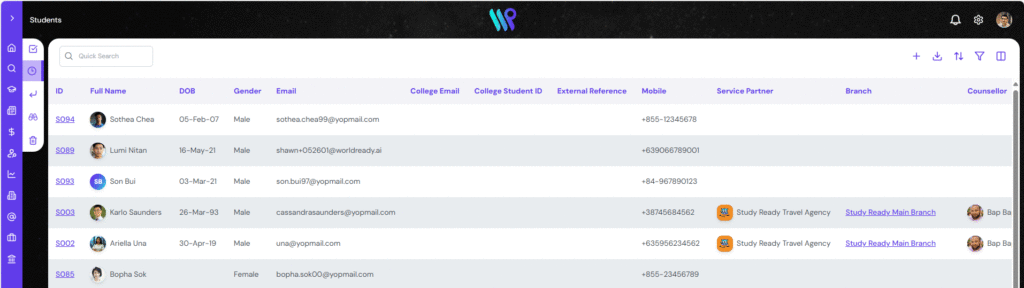
Recently Updated
The ‘Recently Updated’ menu on the side bar allows users to view recently updated records, with the most recently updated student record at the top. This view shows the listing order and includes details like name, date of birth, phone number, profile photo, and address.
Newly Added
‘Newly Added’ is the third menu item on the sidebar. In this view, the newest student created will be at the top.
Watching:
The fourth menu on the side bar is ‘Watching’. In this view, the student you wanted to get an update on will only be displayed. Watching is like subscribing to the notification of this student for the updates. This might be the student on top priority or your referral. So, you want to be on top of this student’s update.
Deleted:
The last one on the side bar is ‘Deleted’. In case you have deleted the student, all those records will appear here. It is only marked as deleted and is inactive, thus kept separately. The deleted record will appear with the strikethrough, visually denoting the record has been deleted.
Show All:
This is the first one on the list and the default view when you come to student page. If you need to see the list of all the students, you can click here. This list lists the record on the basis of descending order of creation date. Most recently record will be appearing at the top. You can click ‘Show All’ from anywhere to reach to this view.