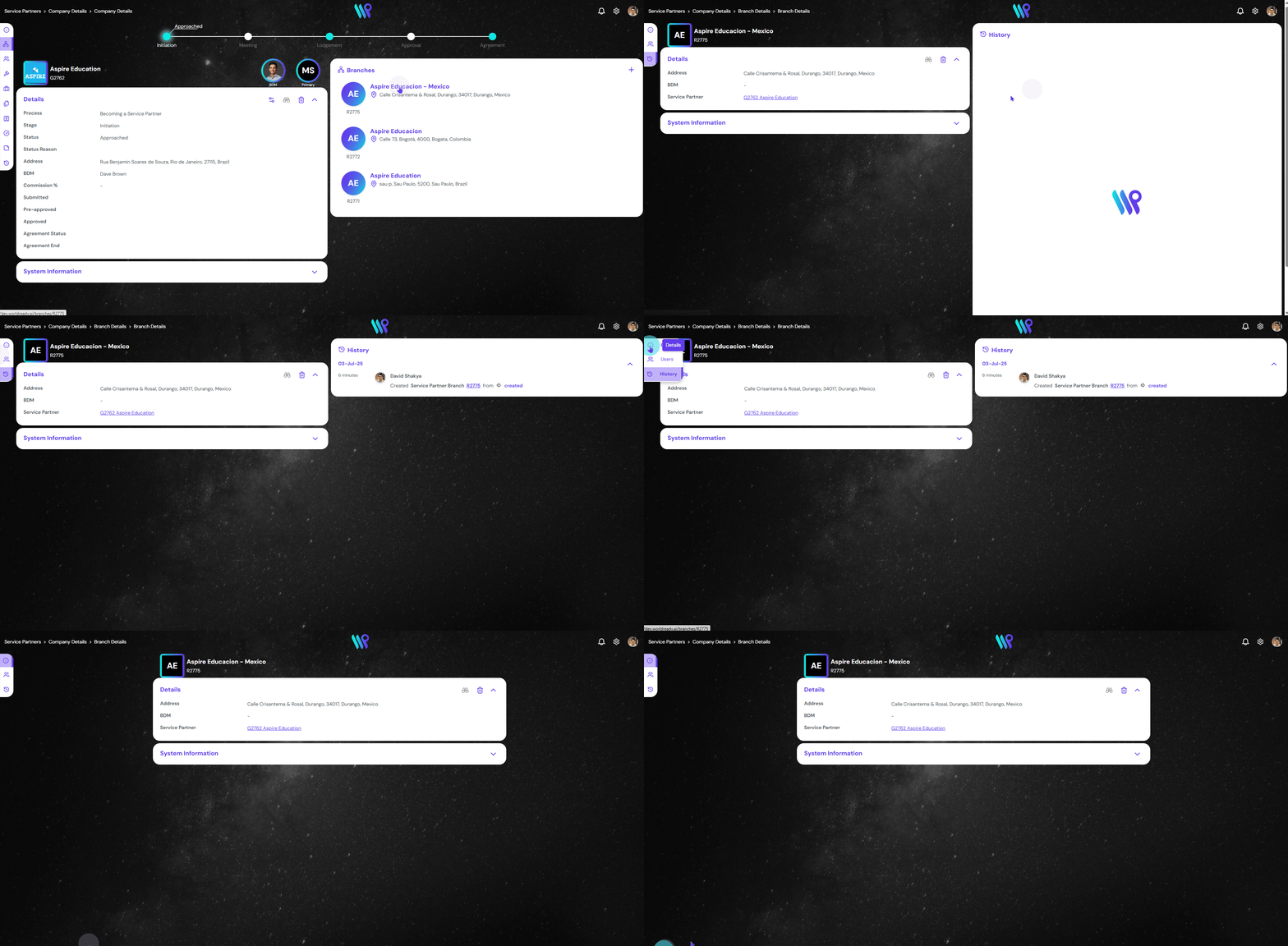
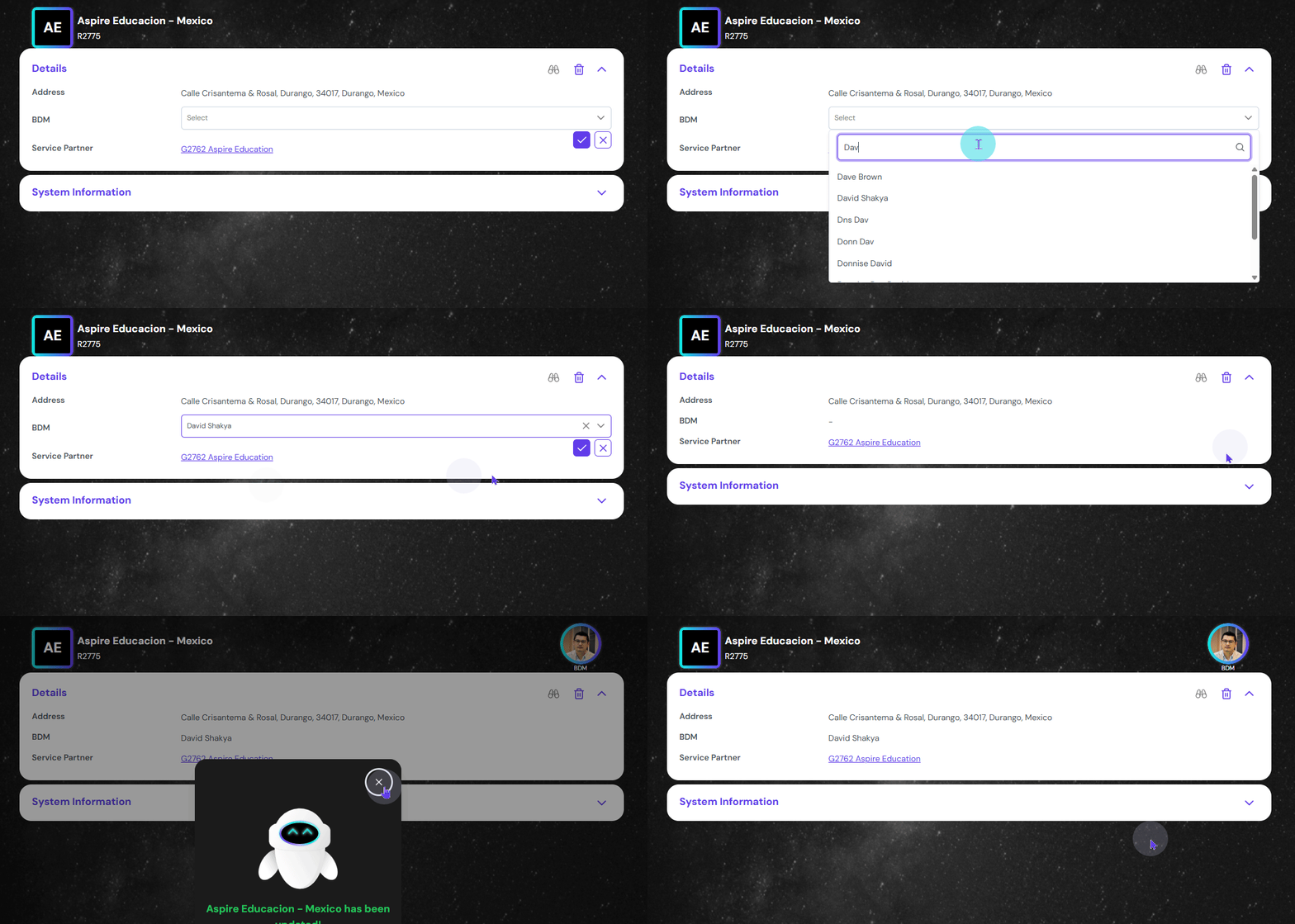
Add branches, delete branches, assign BDM to the Service Partner Agency’s Branches.
Create Service Partner Branch
Create Service Partner Branch and give access to the branch, its team to search and submit the student application.
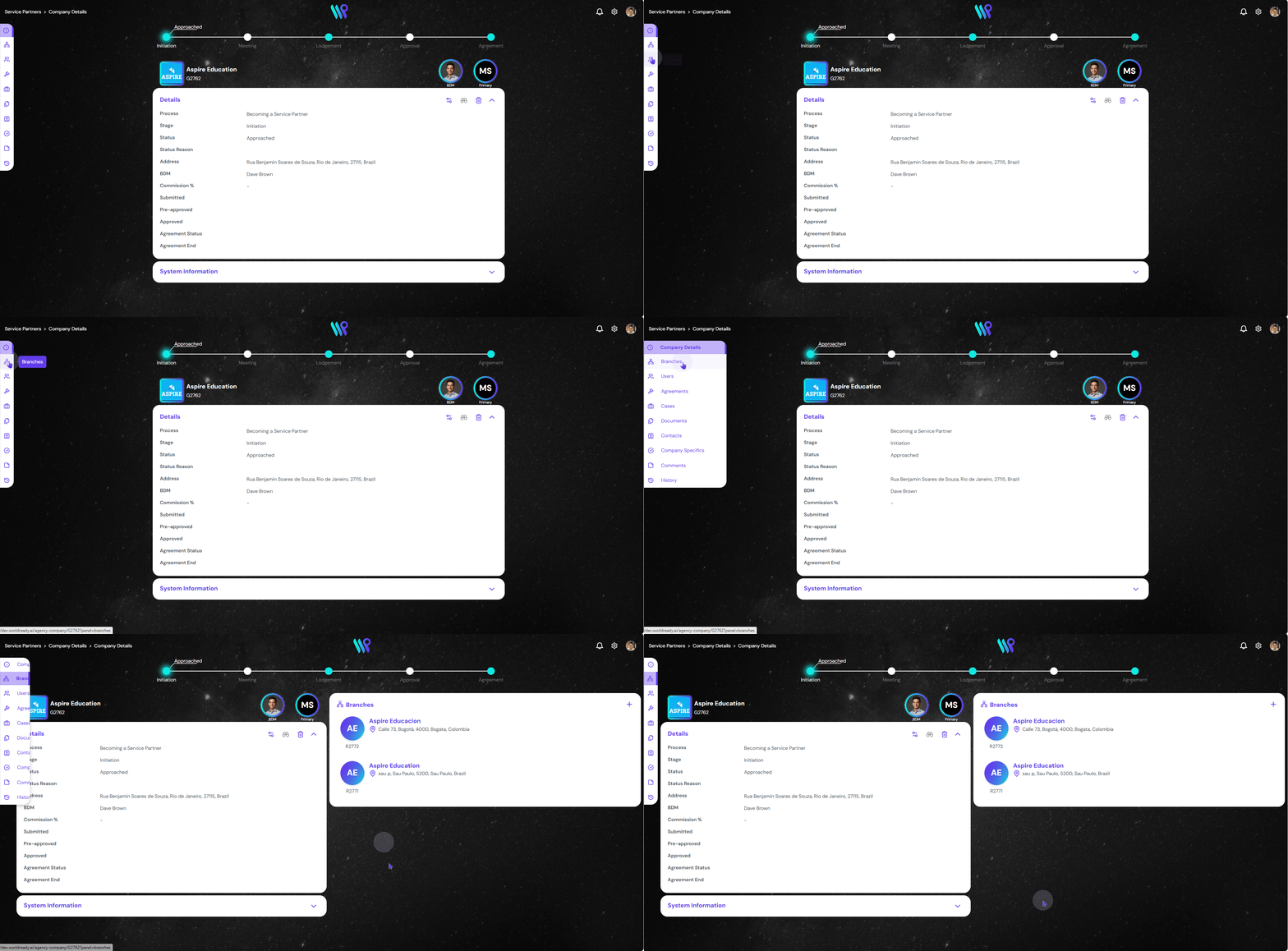
While on the company record page, click on the Branches menu on the Side Bar. The Branches pane will appear.
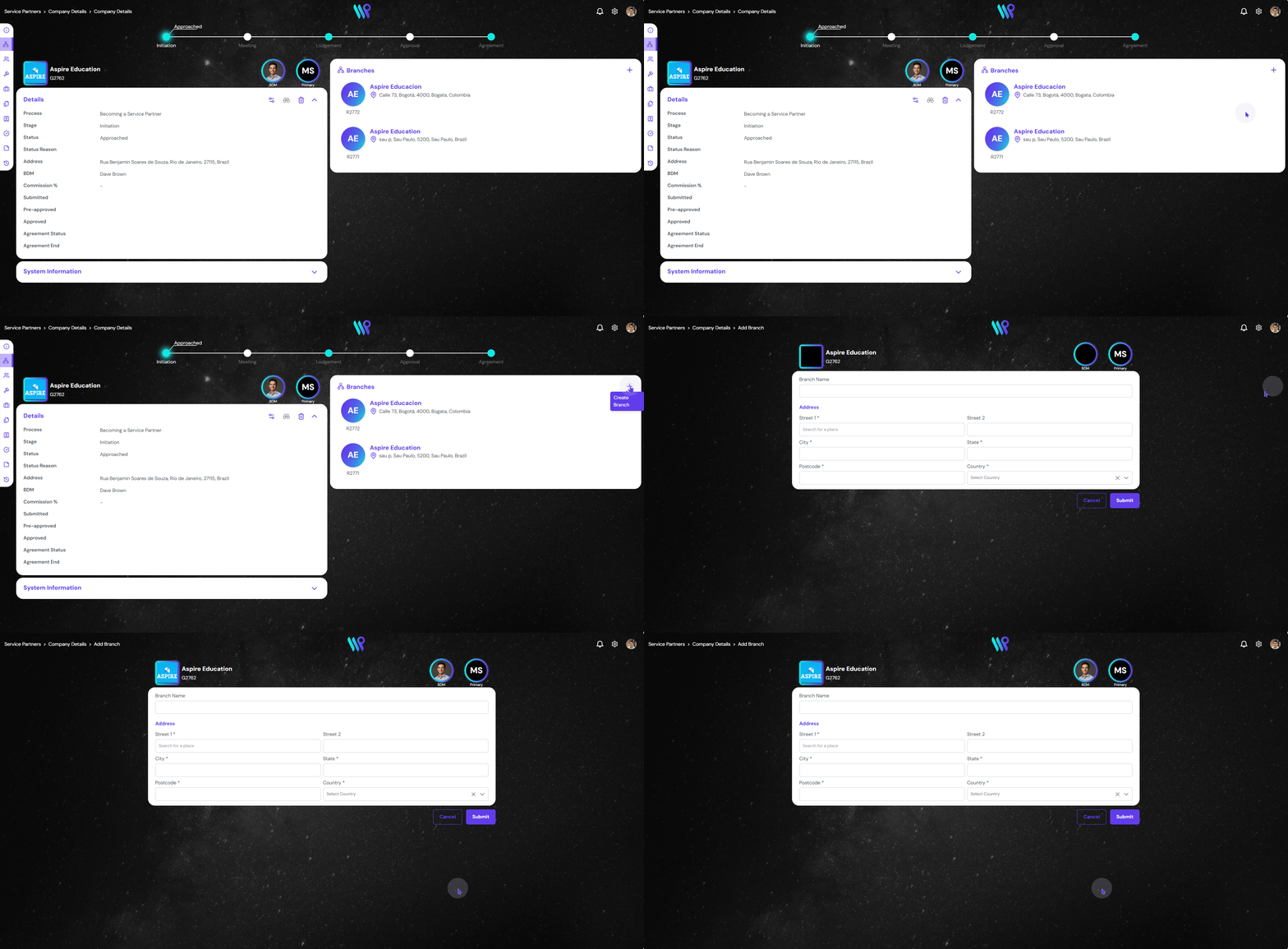
The pane will list all the branches if already created. In this example you will see 2 branches already created. Click on the ‘+ Create Branch icon at the top right corner of the pane.
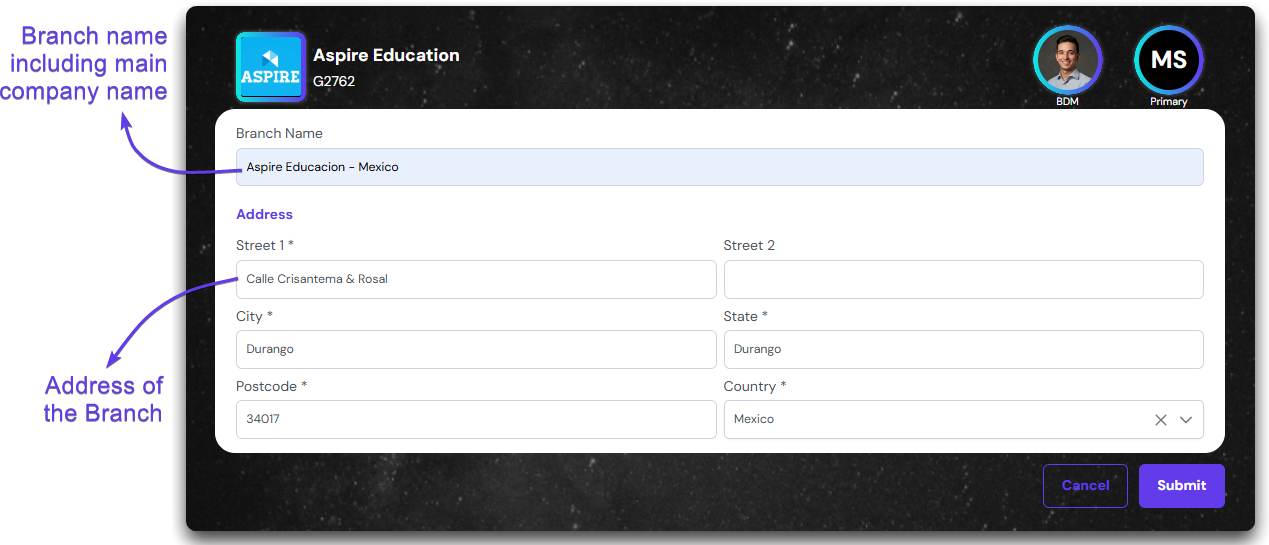
Write the details of the branches like name and address of the branch. Including the name of the Main company will help identity the branch when seen individually as well.
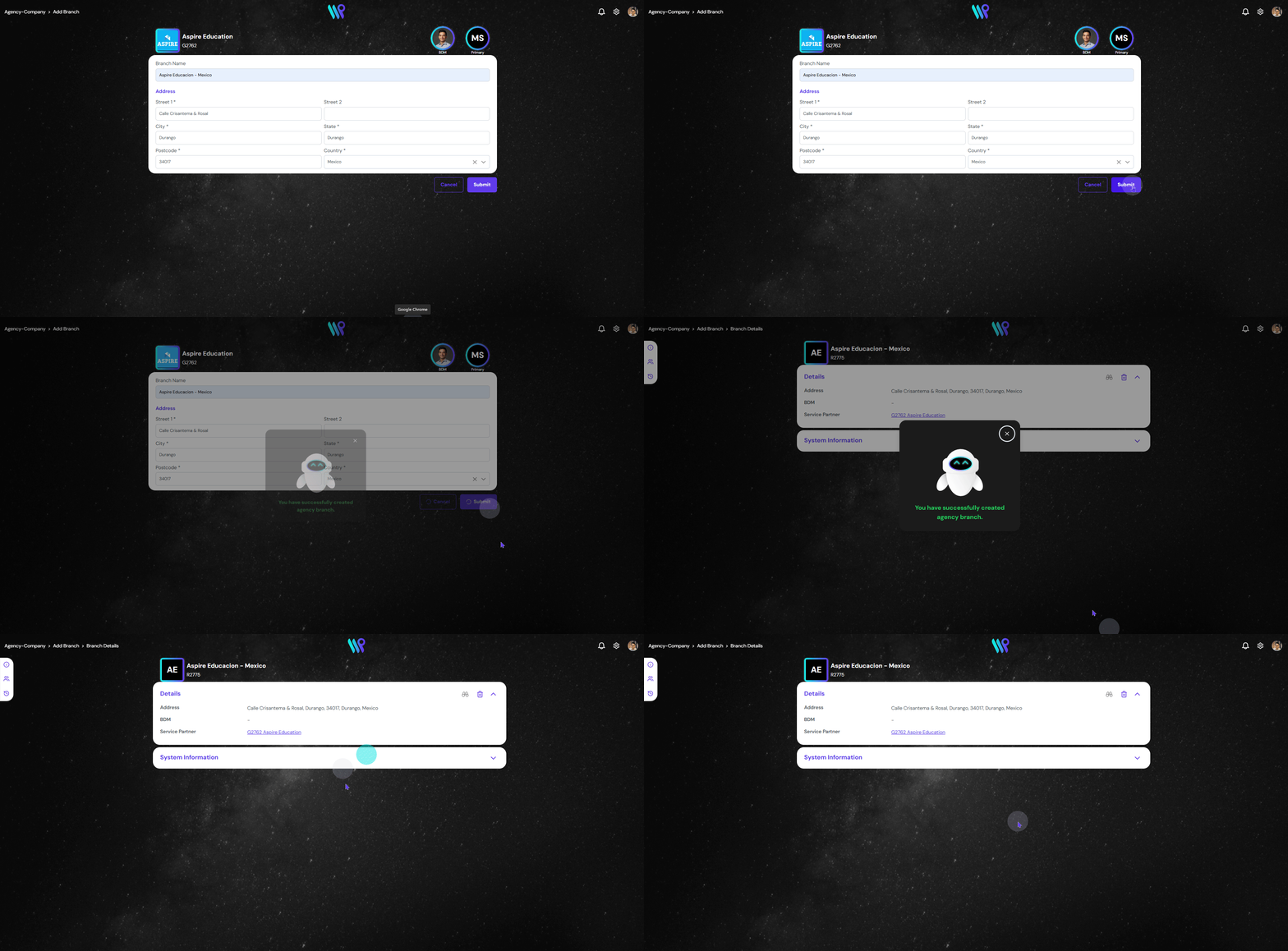
Once the details are fed, click on submit to create a branch. A confirmation appears and you will land on the Branch Details page.
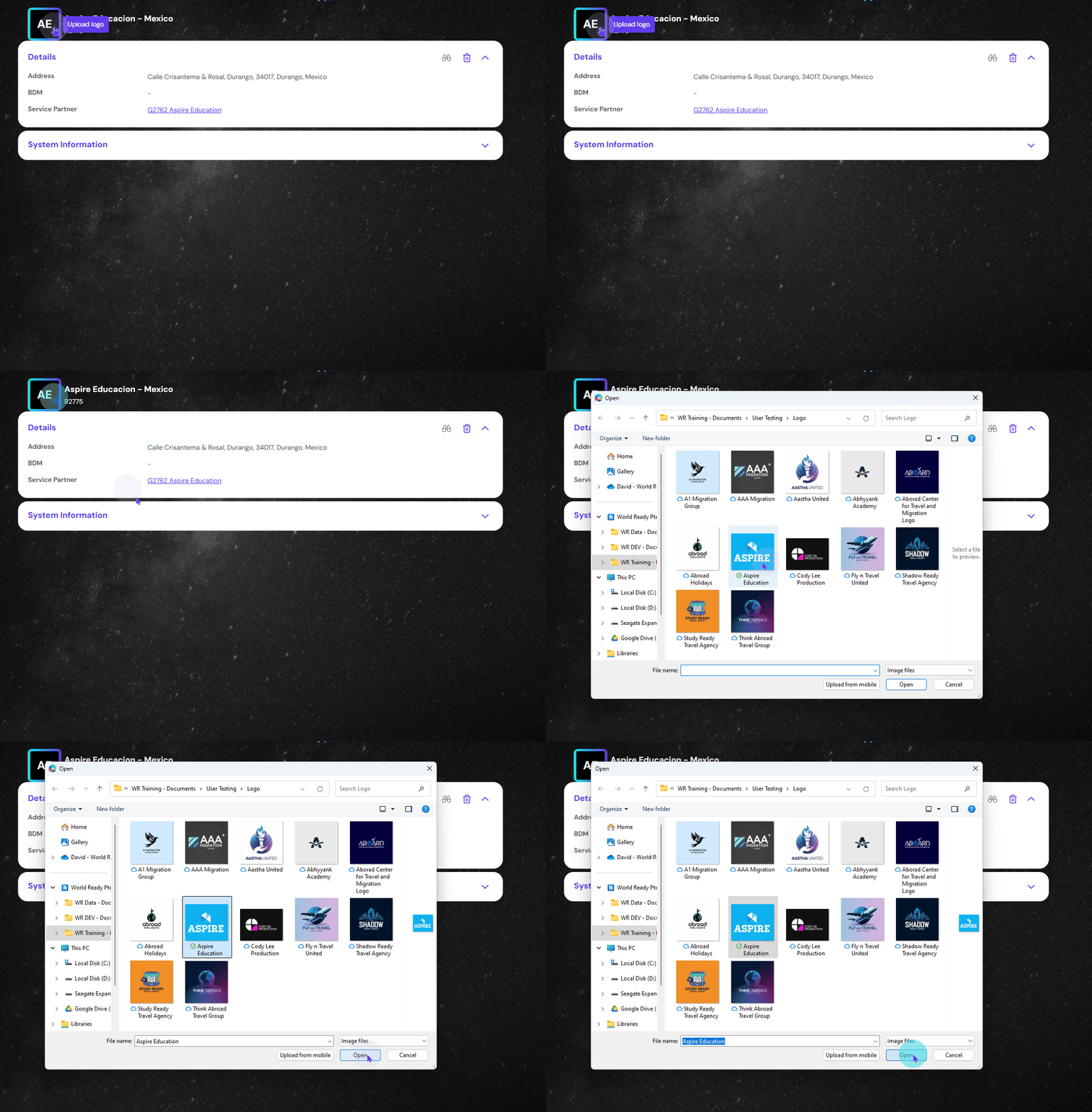
Upload a Branch Logo
Open one of the branches from the Branch Pane.
Click on the ‘Logo placeholder’, you will see a camera icon when you hover. Click on it to browser the logo from your computer. Select the logo and submit it.
The logo will be uploaded and will be reflected on the placeholder.
Add a Business Development Manager to Branch
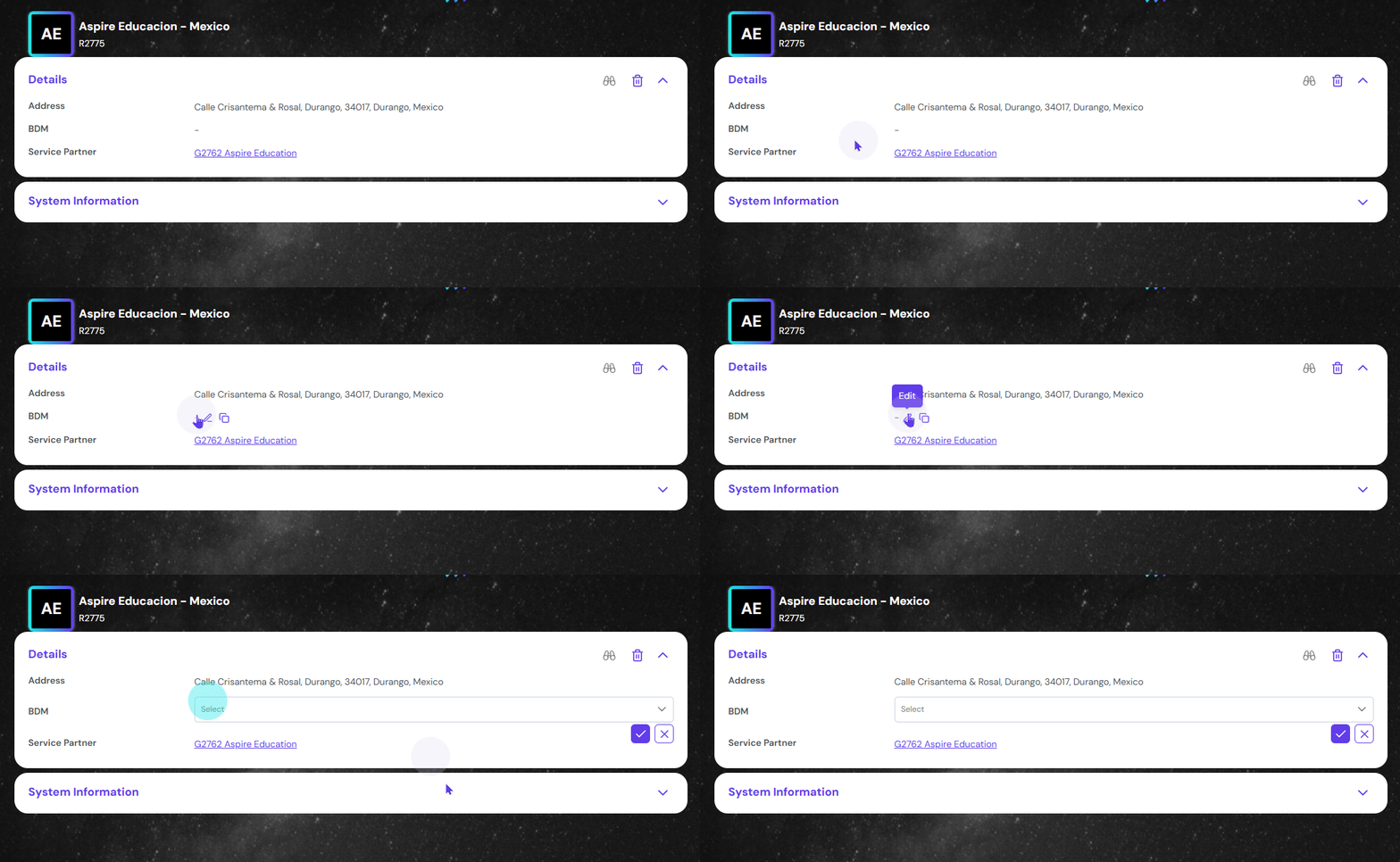
On the branch details page, you will see the BDM field empty. Hover the mouse over and click on the pen icon to edit it.
On the branch details page, you will see the BDM field empty. Hover the mouse over and click on the pen icon to edit it.