Create logins for various roles of the Service Partner Agency Company.
Create Service Partner User
A user of the Service Partner can be from different branches and may perform different roles. This is all managed while creating a user.
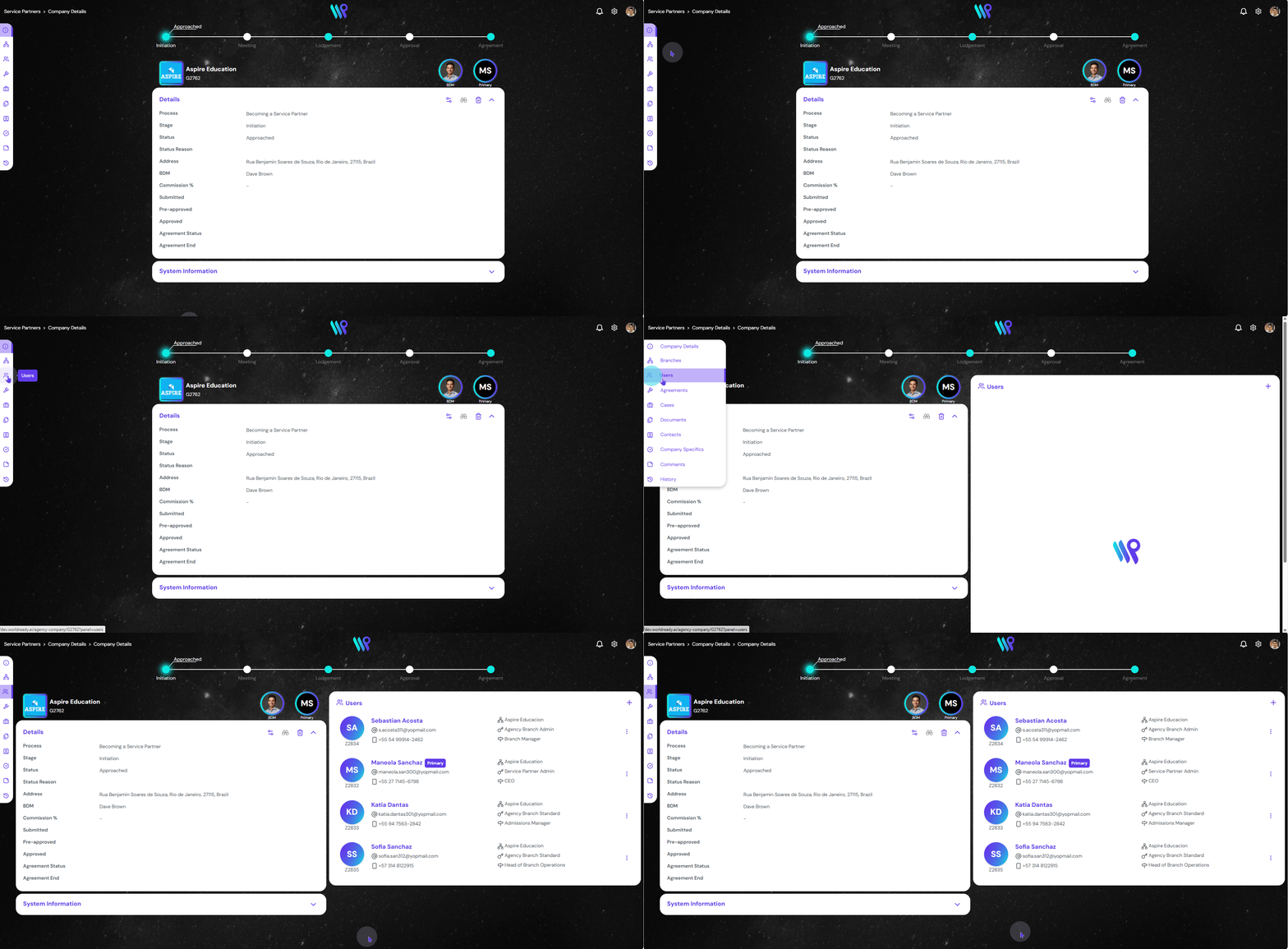
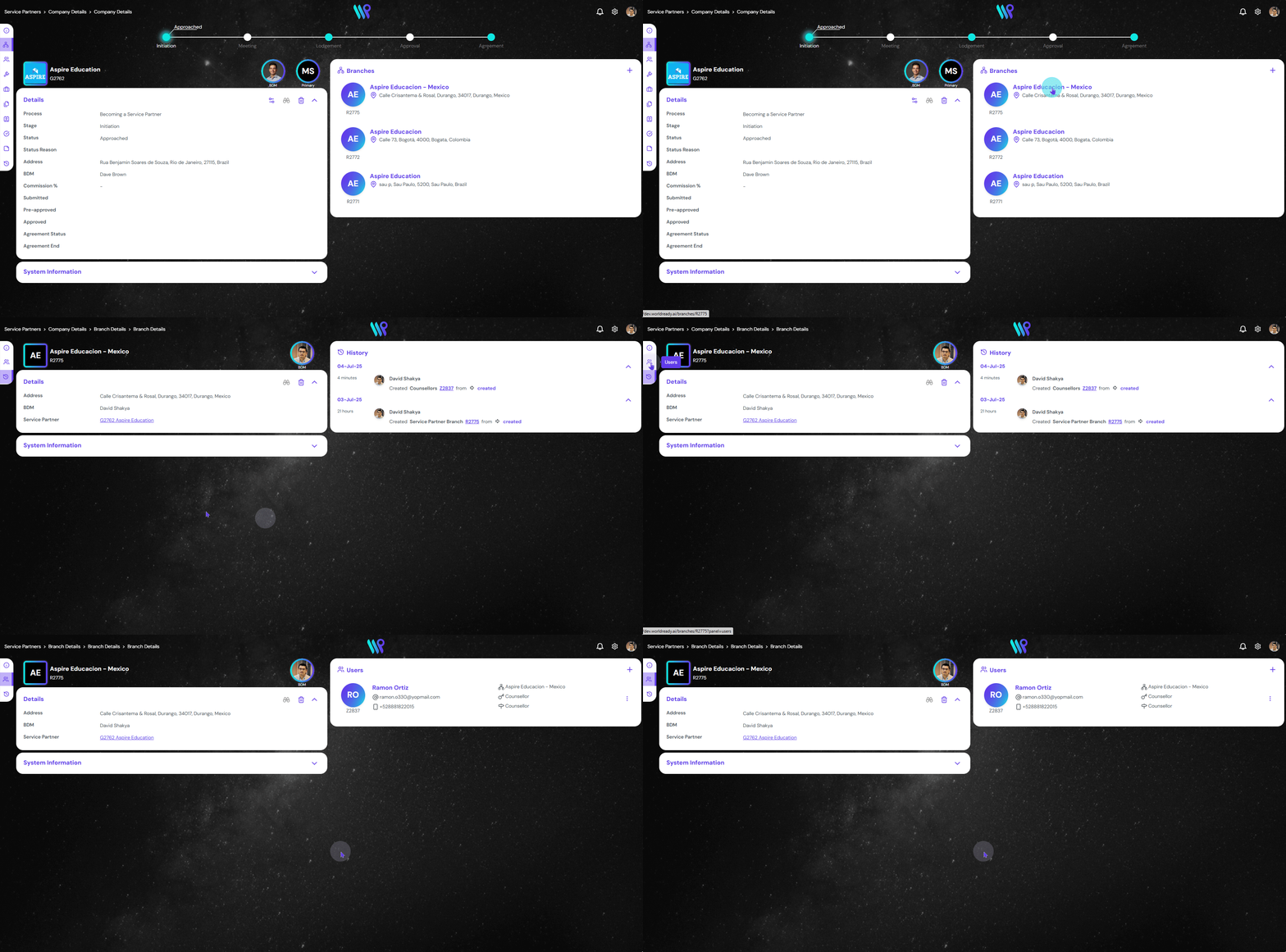
From the Service Partner record page, click on the Users from the side bar to open the User pane on the right side of the screen.
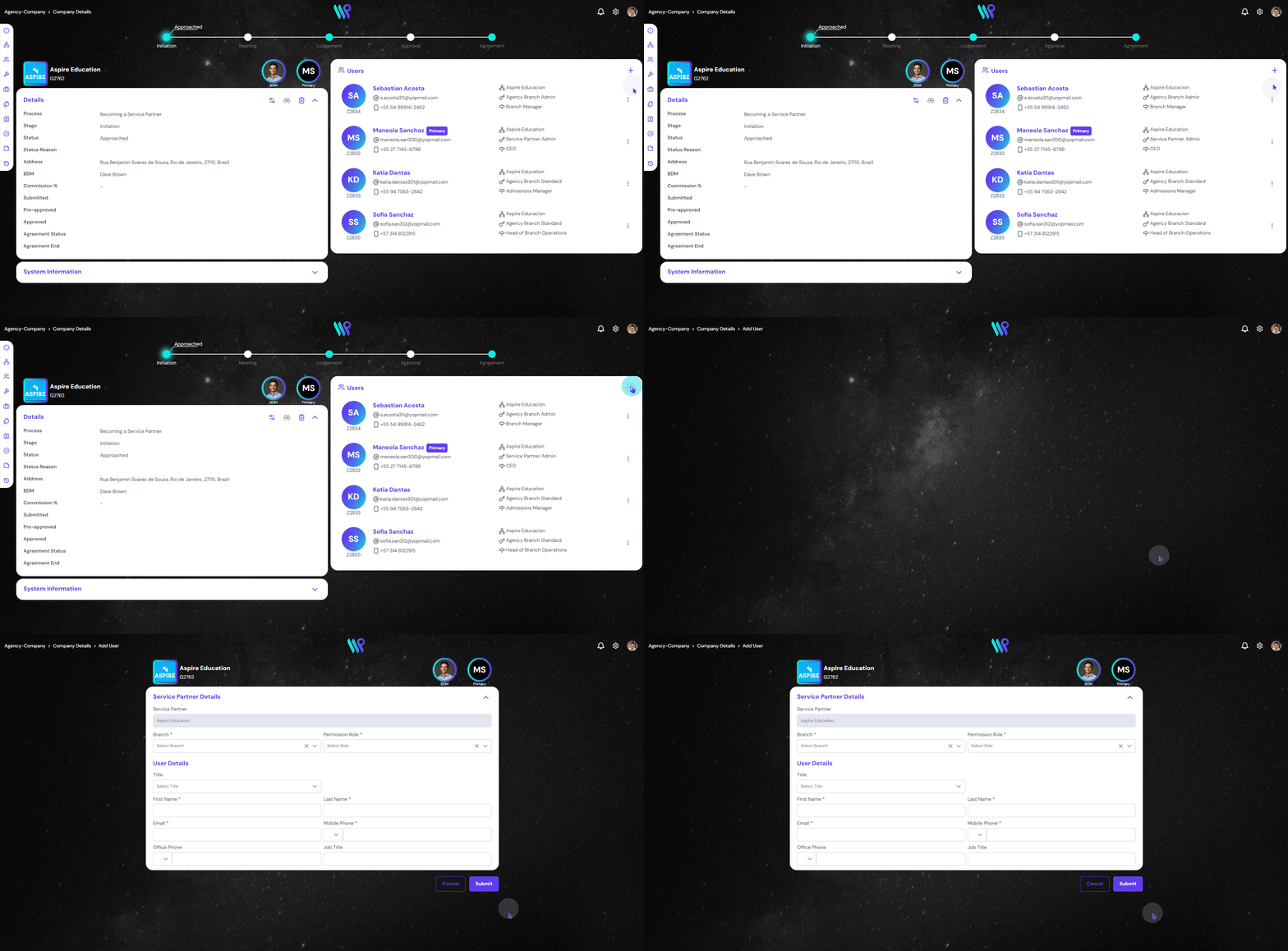
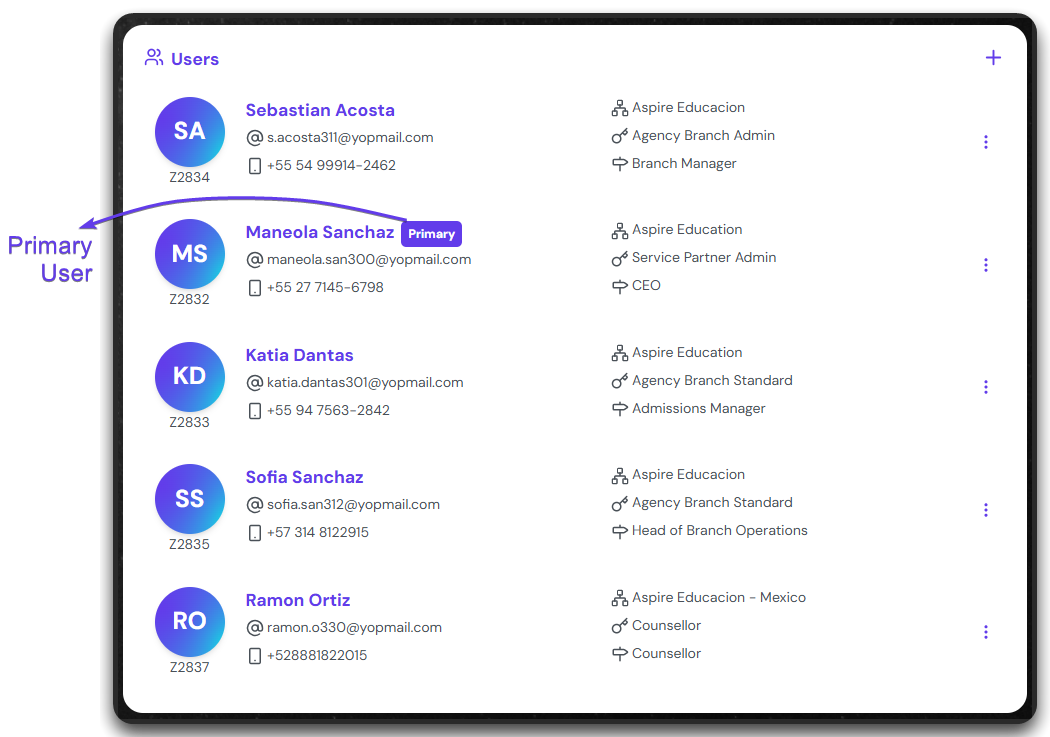
You will be able to see all the users created here. Click on the ‘+” Create user icon at the top right corner.
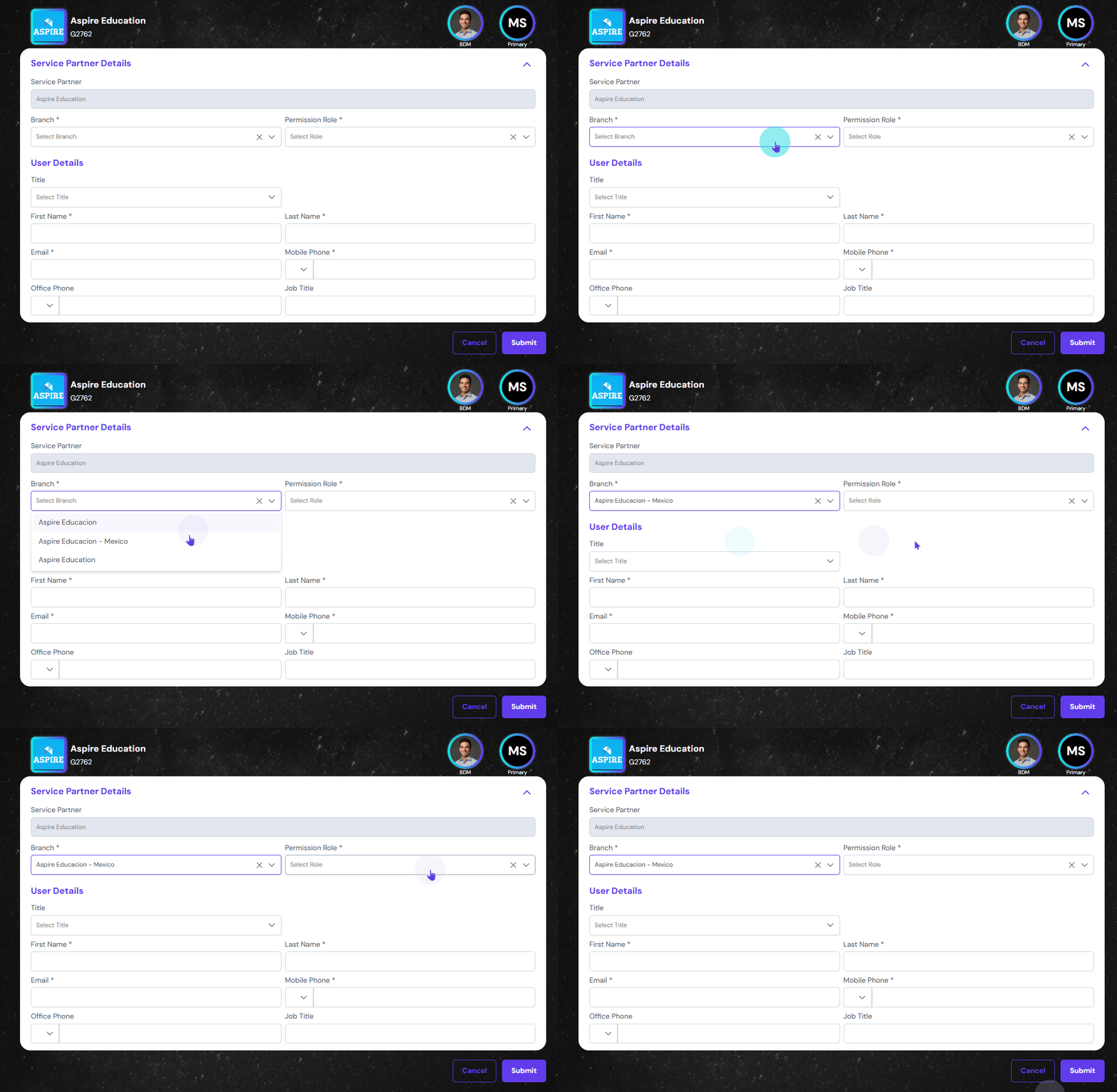
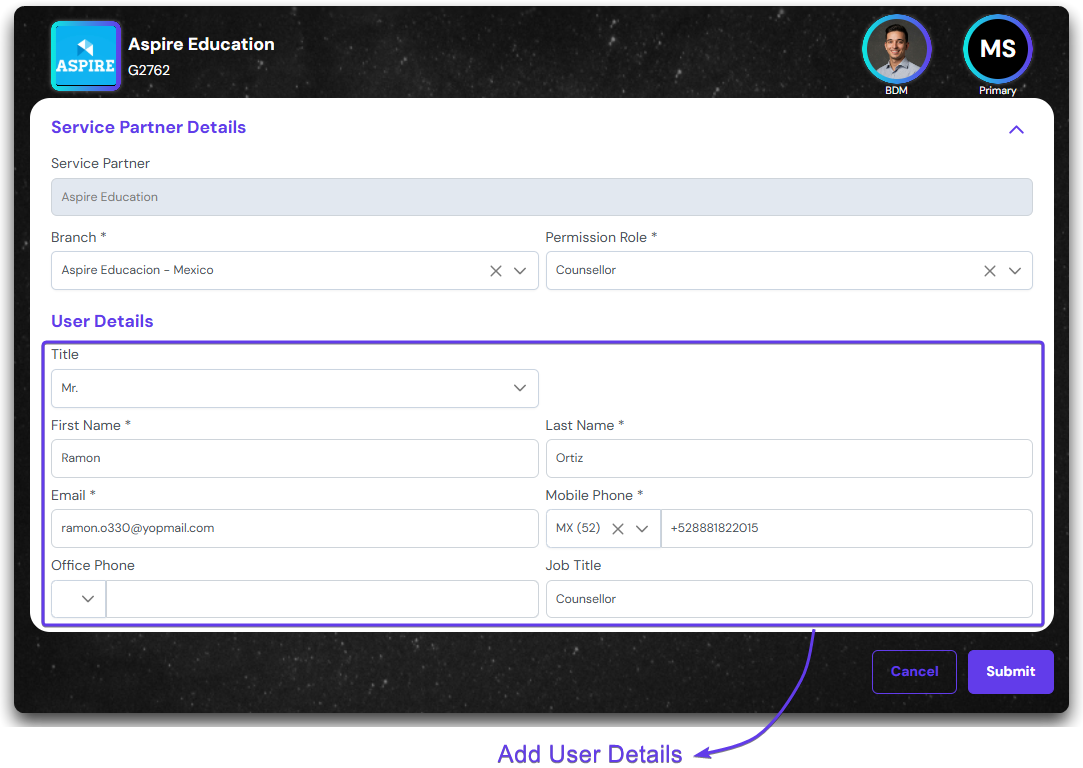
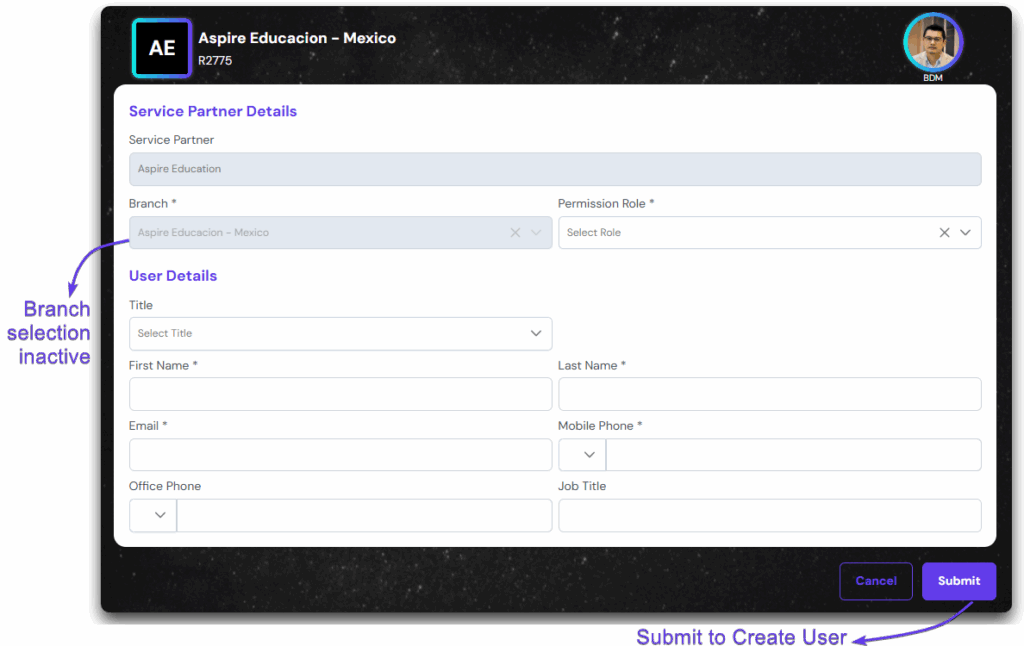
Select the branch of the Service Partner where this user will be based. You need to have a branch before you do this. Learn how to Create a Branch.
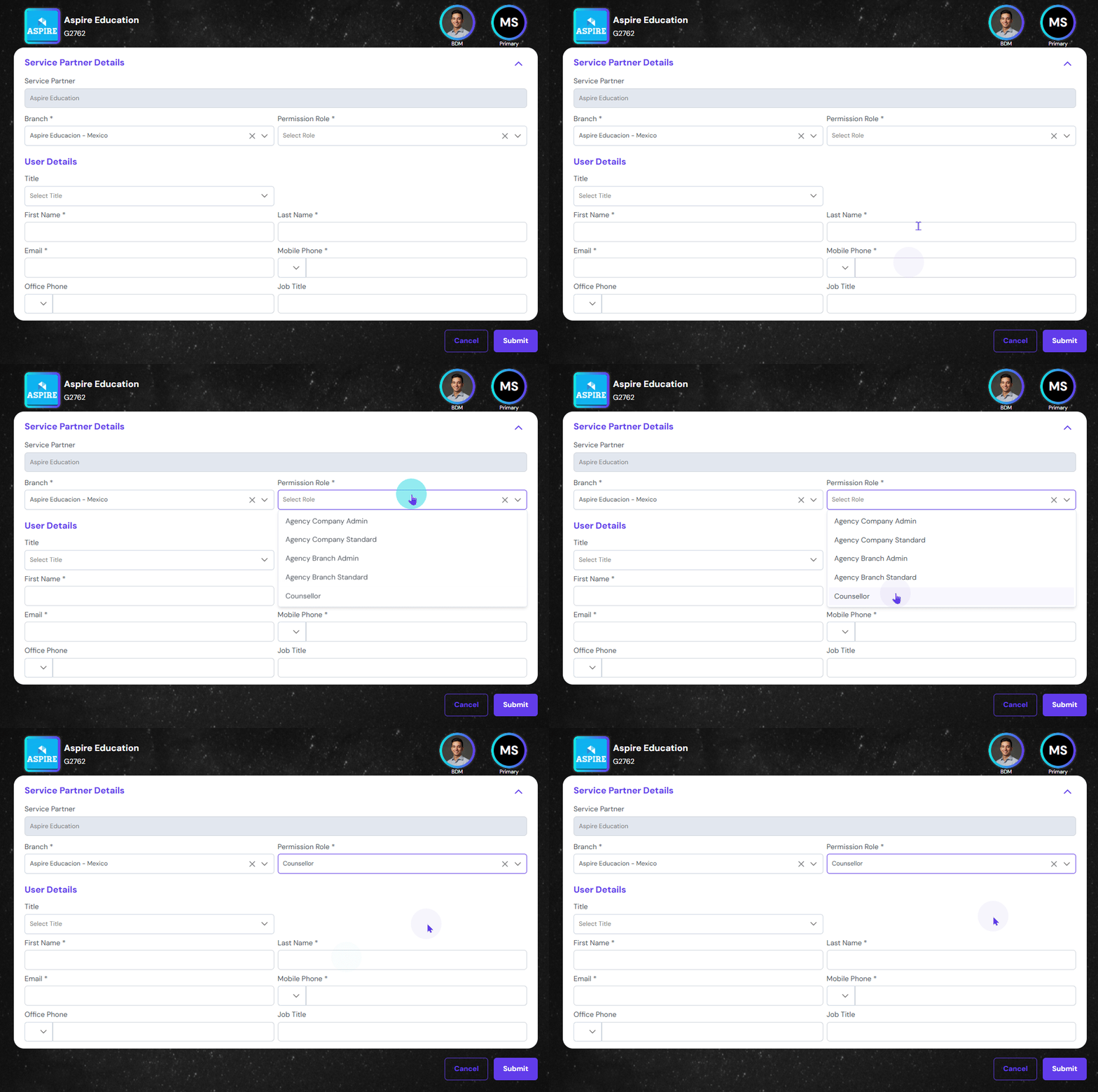
Select the Permission Role. There are 5 types:
Agency Company Admin
Agency Company Standard
Agency Branch Admin
Agency Branch Standard
Counsellor
As we are creating a Counsellor or the branch here, we will only select Counsellor.
Insert the User Details including his name, email, mobile number and job title. This person will receive an email with sign in information.
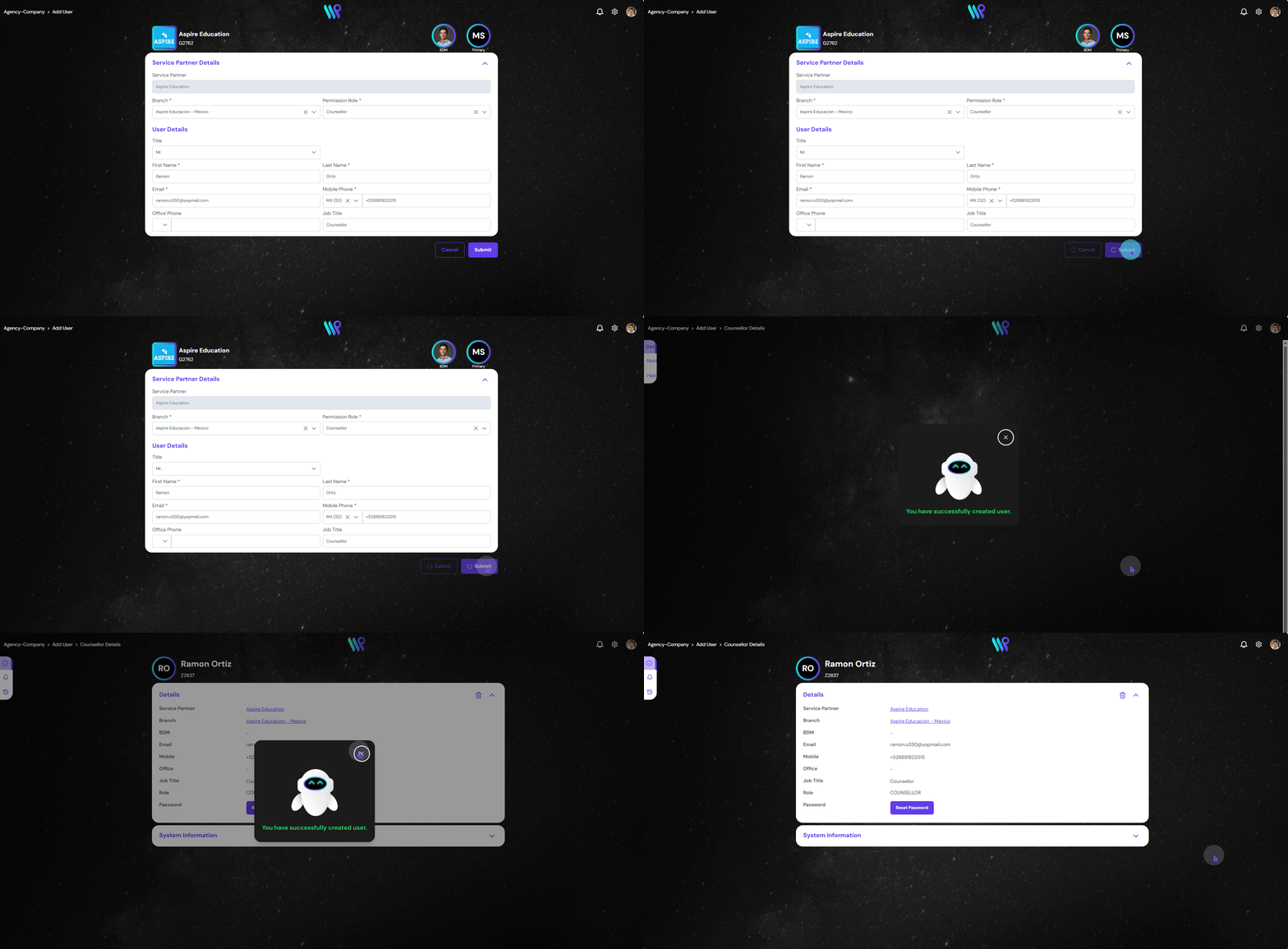
Click on Submit button to create a Service Partner User. Once completed, you will land on the Counsellor Details page.
Create SP User from Branch
Go to the branch details page, and click on the User menu on the Side Bar.
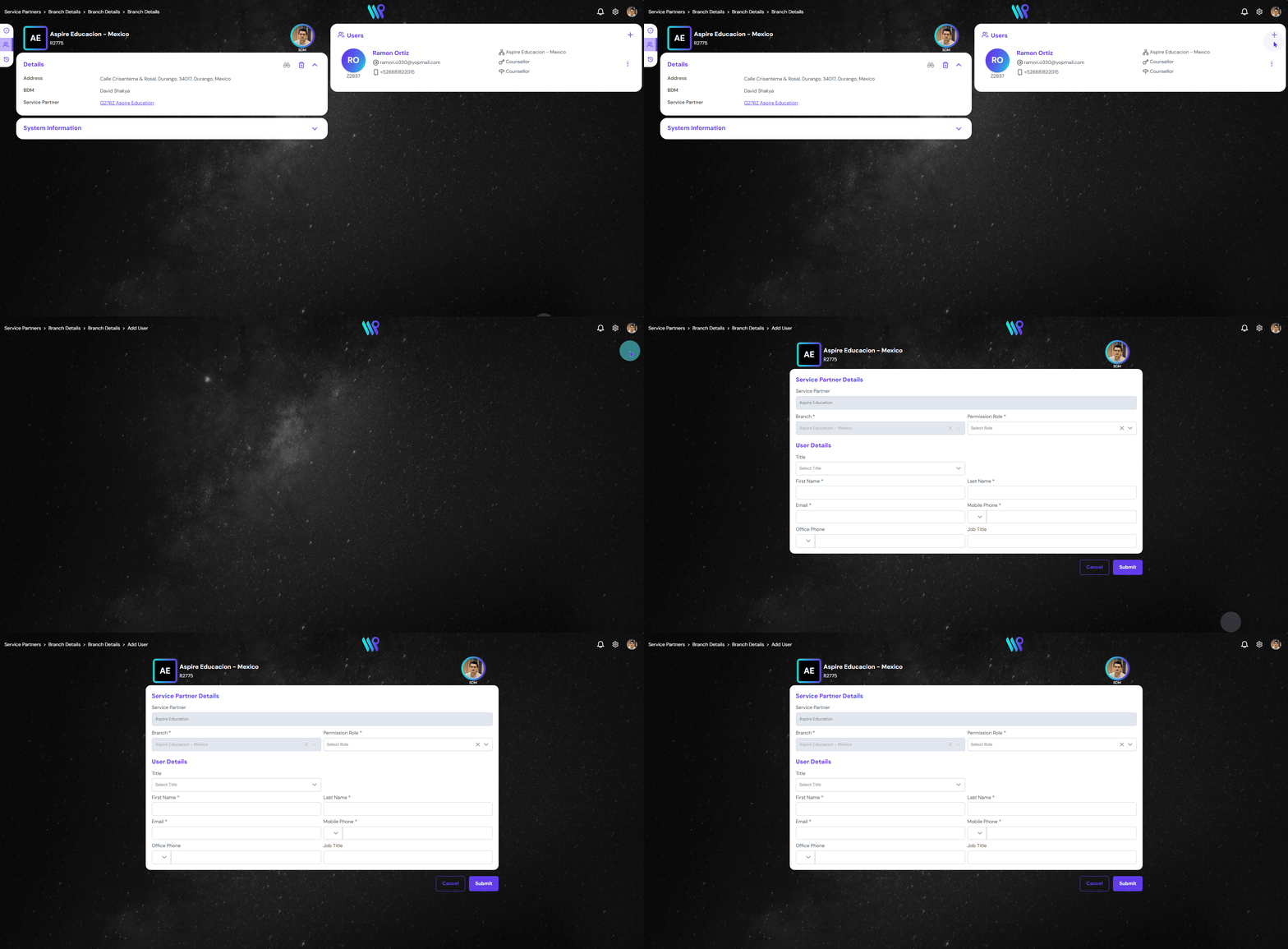
Repeat the save process as above. Click on the “+” Create User icon. Create User window open. Here as we are already inside the branch, the branch selection is inactive.
Click submit to create a user.
Make user Primary
While creating a company, the email address used is the default primary contact. However, you can change it with the steps mentioned below.
On the User pane the one with the ‘Primary’ tab is the current primary use.
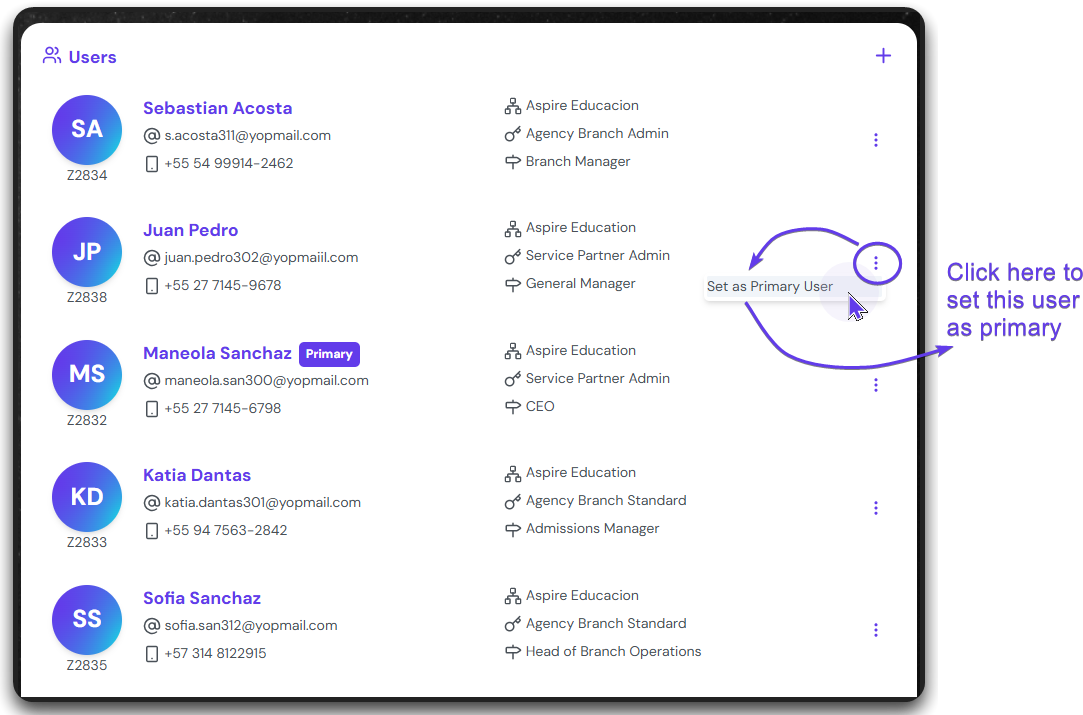
Click on the three dots next to the user you want to Set as Primary.
Edit User Details
Edit the details of the user to have the most updated information of the user.
From the User Pane, open the user that you want to edit by clicking on the Photo Icon.